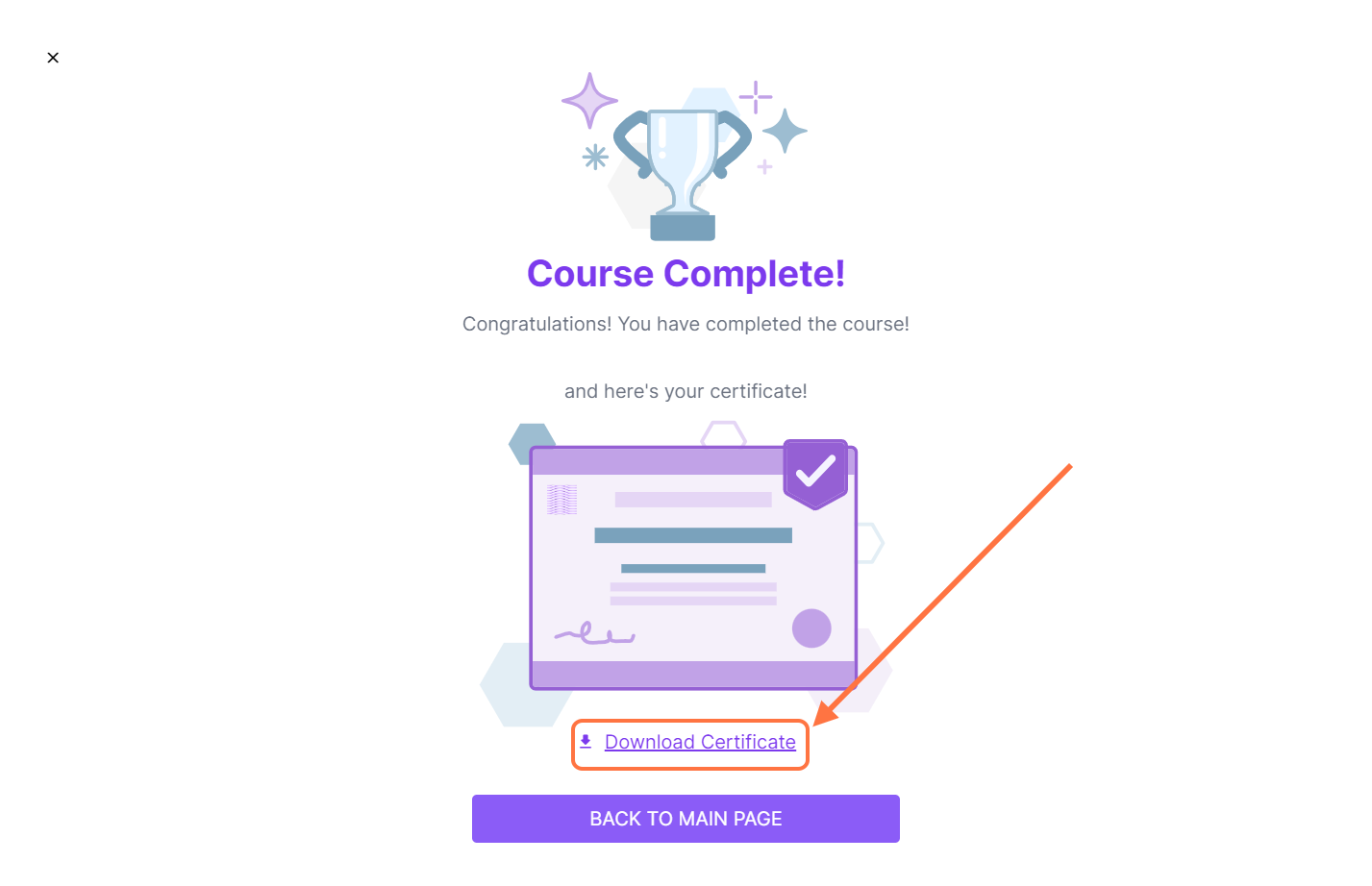
If your administrator has informed you that your certificate is automatically generated by the system, you can view and download it directly from your Learner’s Portal.
Option 1: From the Courses and Certification Page
1. Log in to your Cast LMS portal.
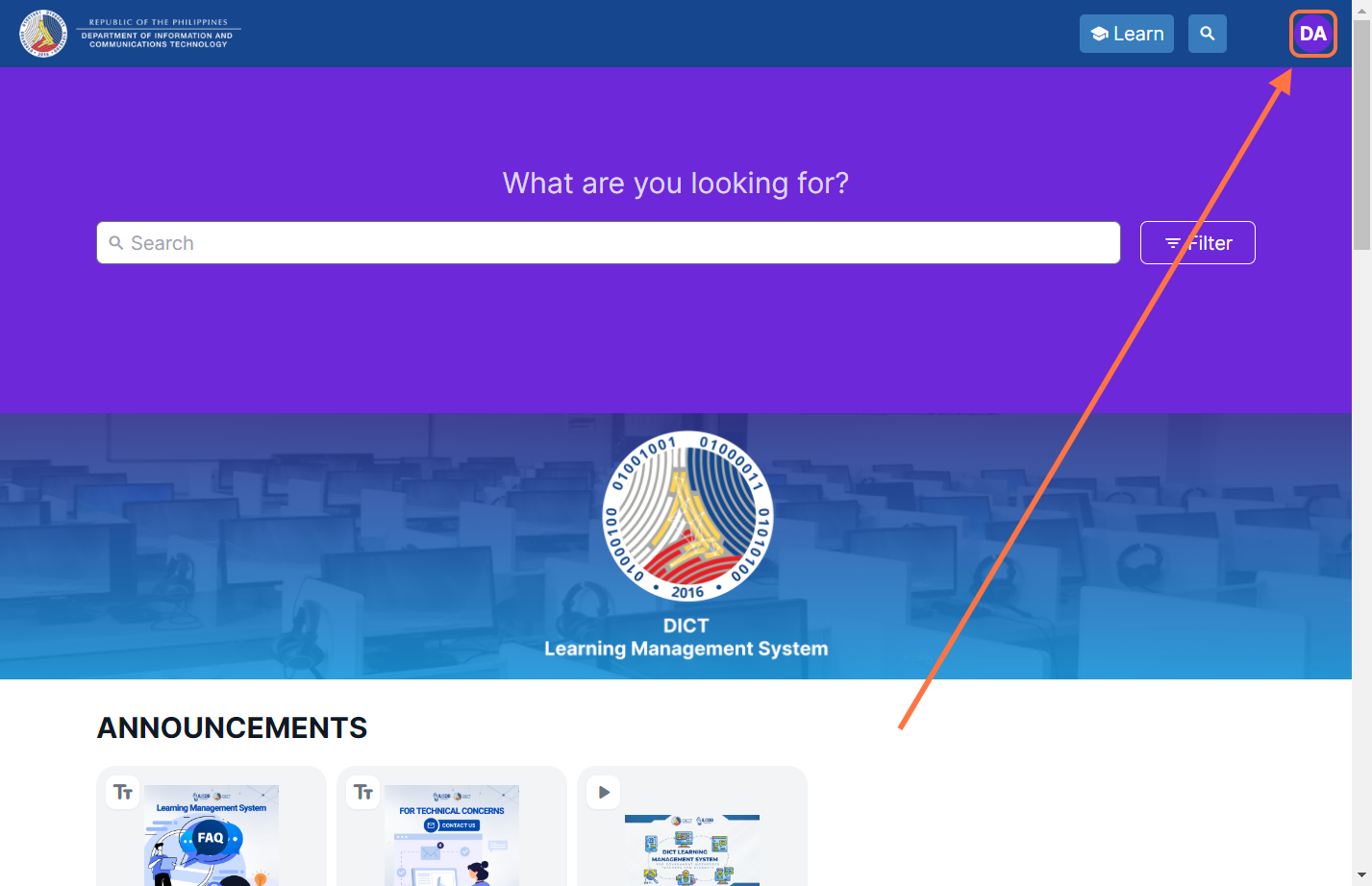
2. Click the profile icon at the upper-right corner of your page.
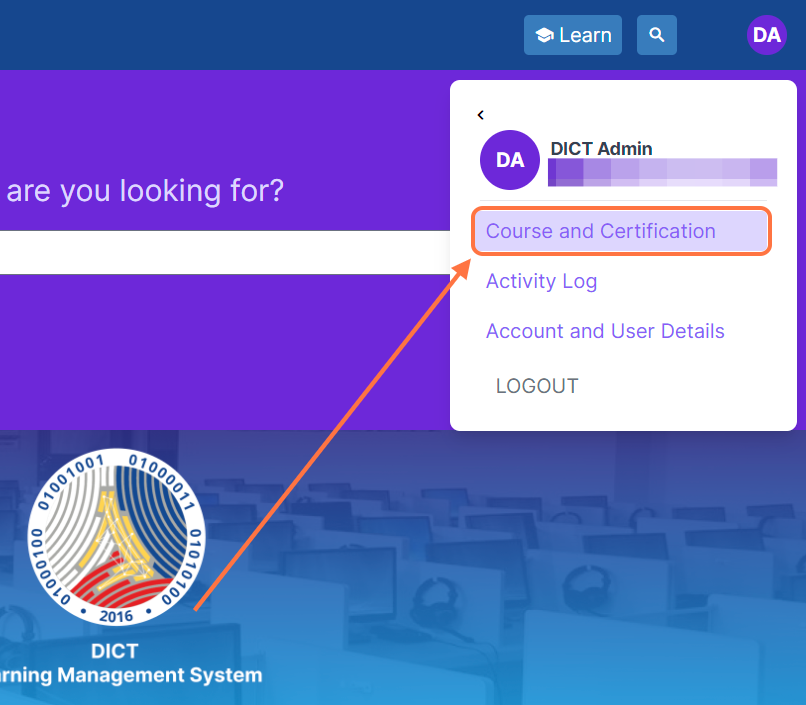
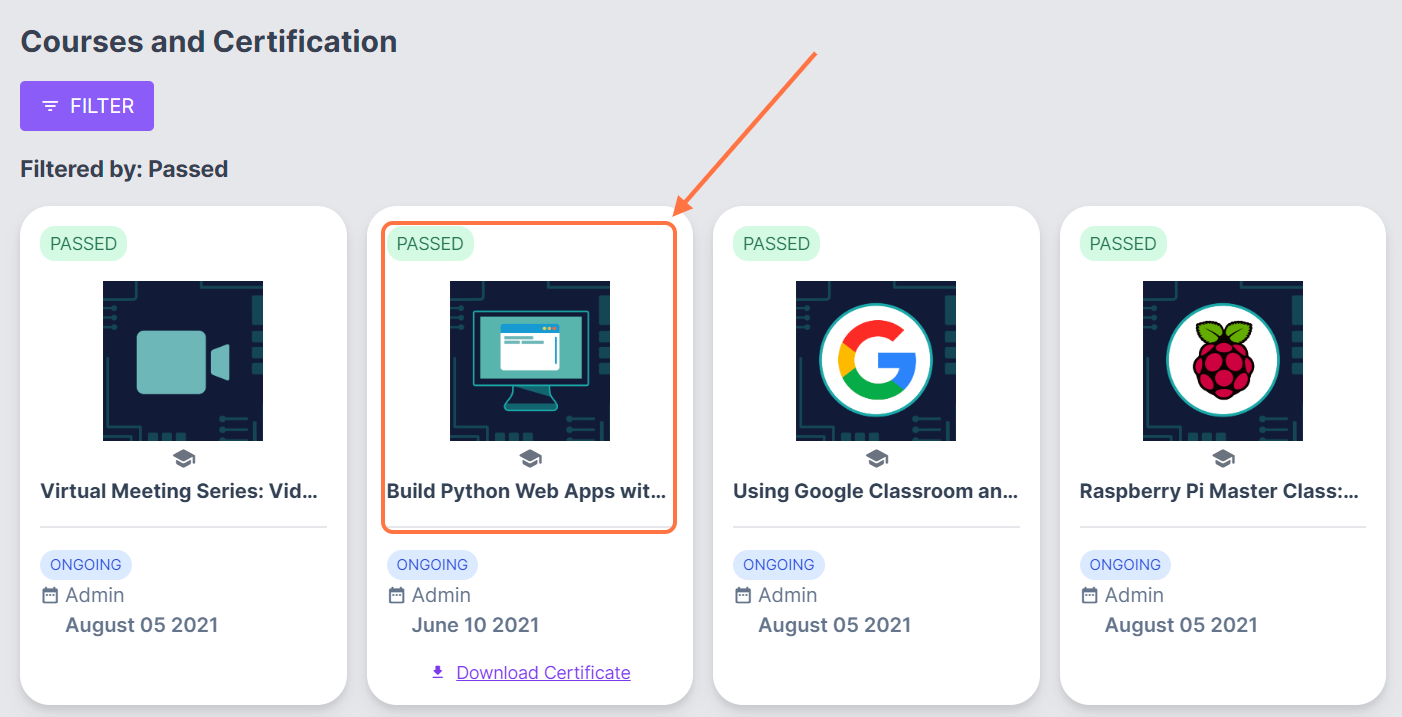
3. Select Course and Certification.
4. Find the course you’ve completed and click Download Certificate on the course card.
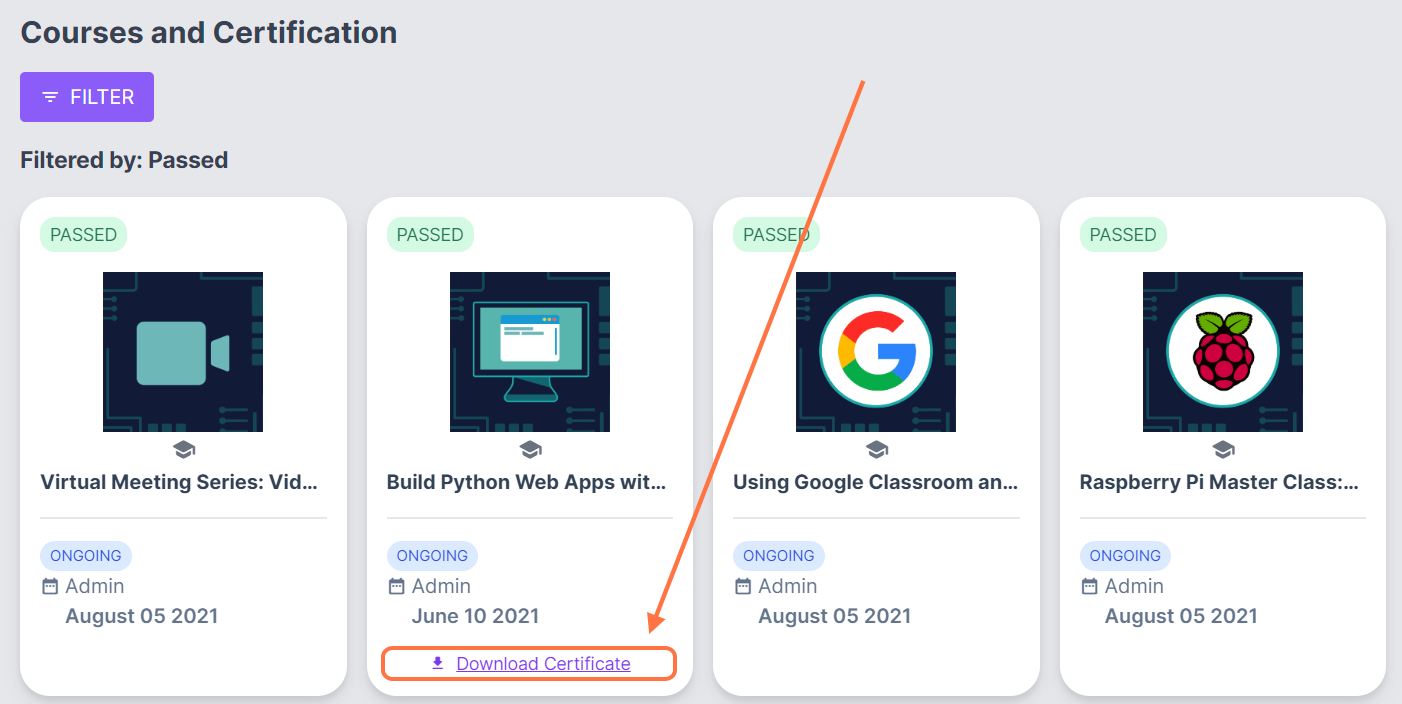
5. A new tab will open with a downloadable PDF copy of your certificate.
💡 Note: Each batch you’re enrolled in has a separate course card. Make sure you’re viewing the Ongoing batch to ensure that the certificate you download is the most recent version.
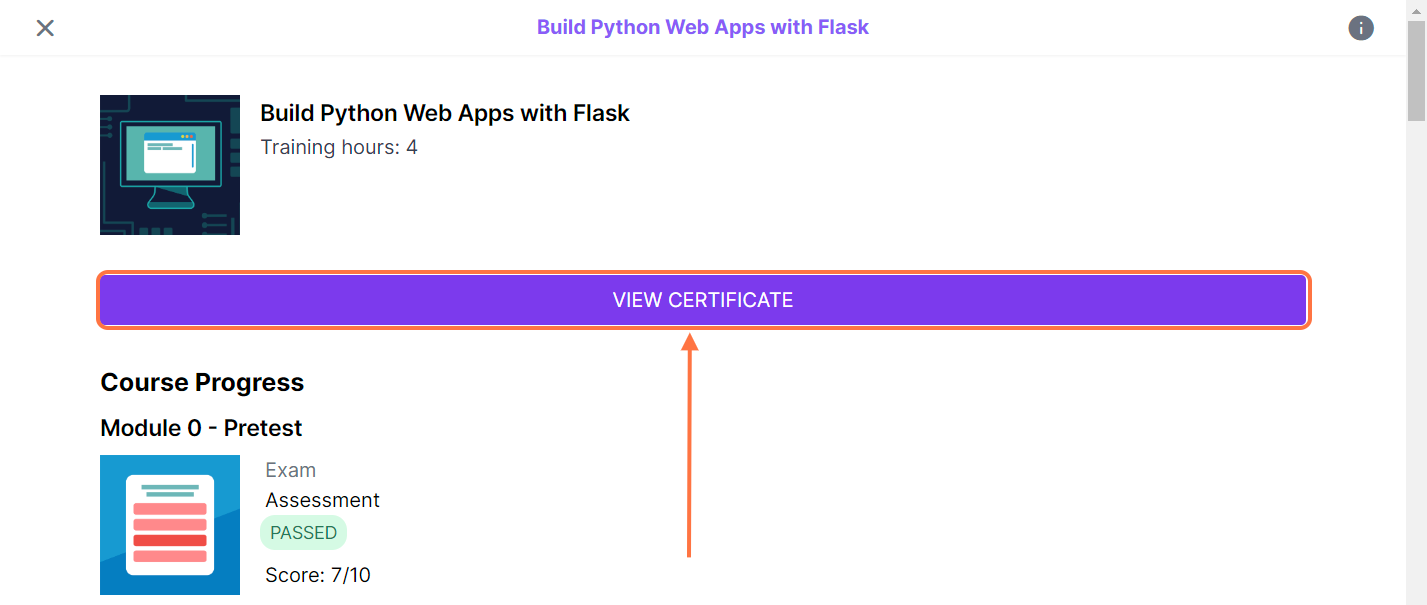
Alternatively, you can click on a completed course under Courses and Certification, then select View Certificate.
Option 2: From the Course Page
1. Log in to your Cast LMS portal.
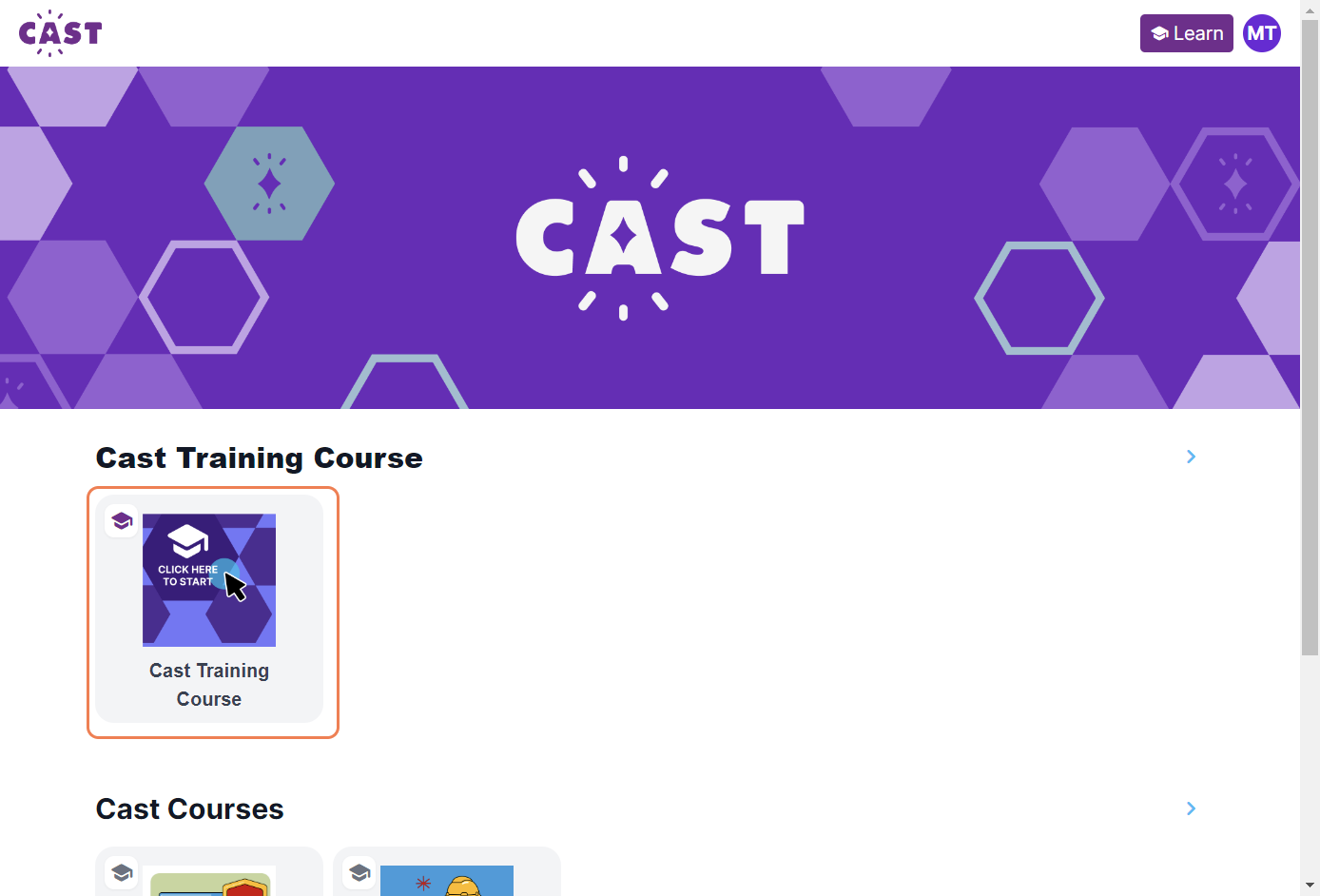
2. Click on the course card for a course you’ve completed.
3. On the Course Completed banner, click View Details.

4. Select Download Certificate. A new tab will open with your certificate in PDF format.