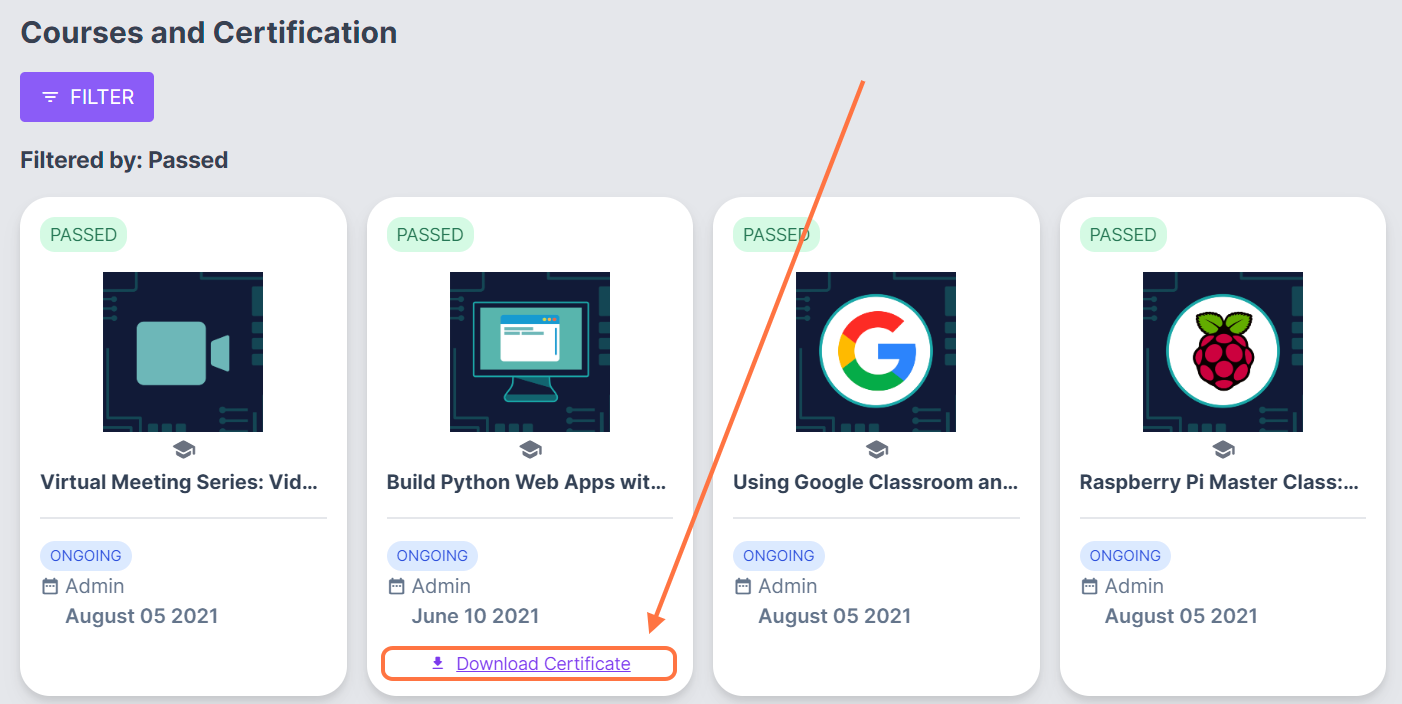
All of your enrolled courses should appear in the Courses and Certification page in your profile.
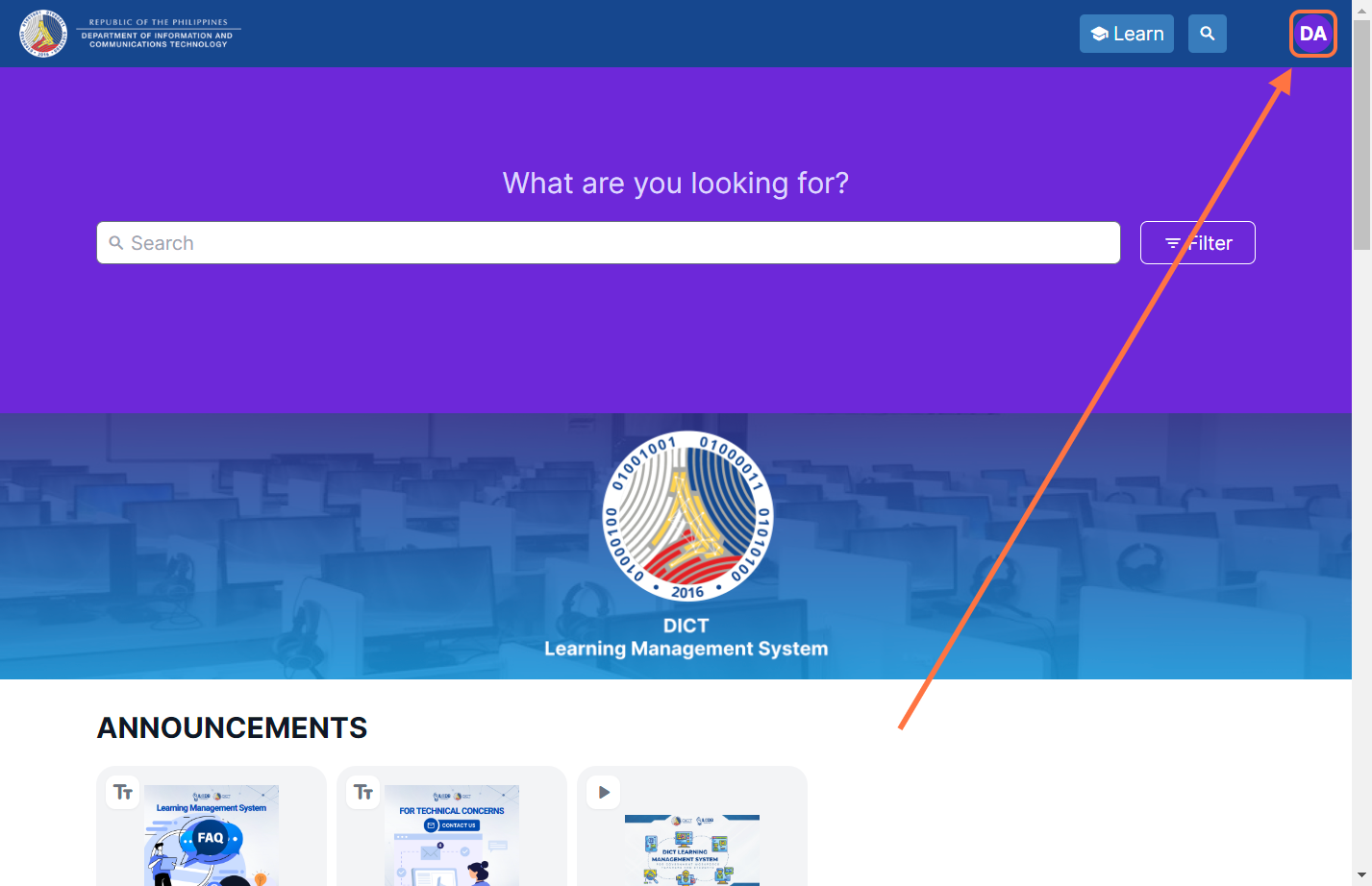
1. Click on the profile icon in the top right corner of the page.
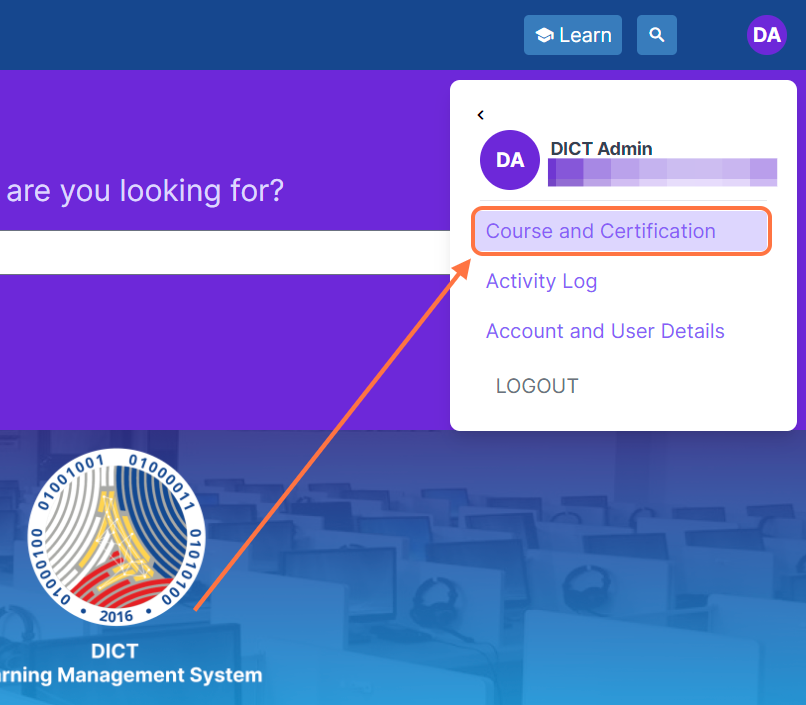
2. Select Courses and Certification.
3. View the list of all your enrolled courses. On top of each course card is the status of your progress in the course.
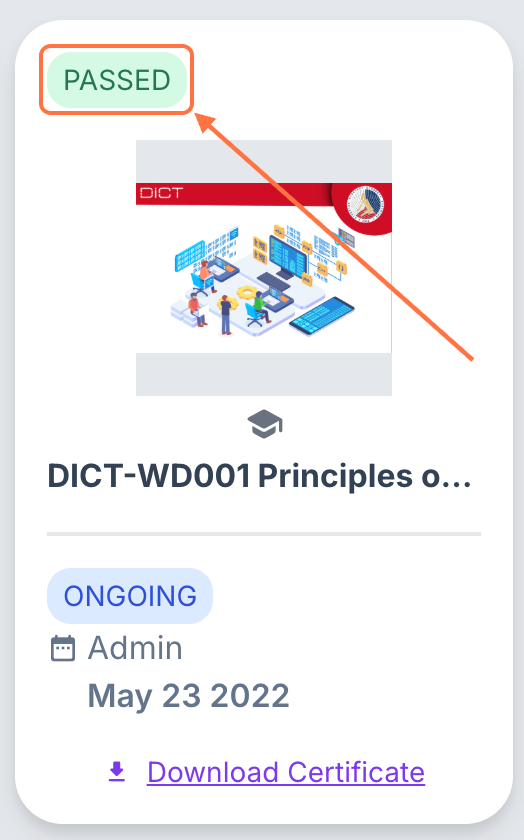
Under the course title is the name of the batch you are enrolled in, the access period of the batch, and the status of your batch (Ongoing, Queued, Done).
If the status indicated is ONGOING, it means that you currently have access to the course. If the status is QUEUED, your access to the course has not yet started. If the status is DONE, your access to the course has finished, and you will not be able to find the course on the home page.
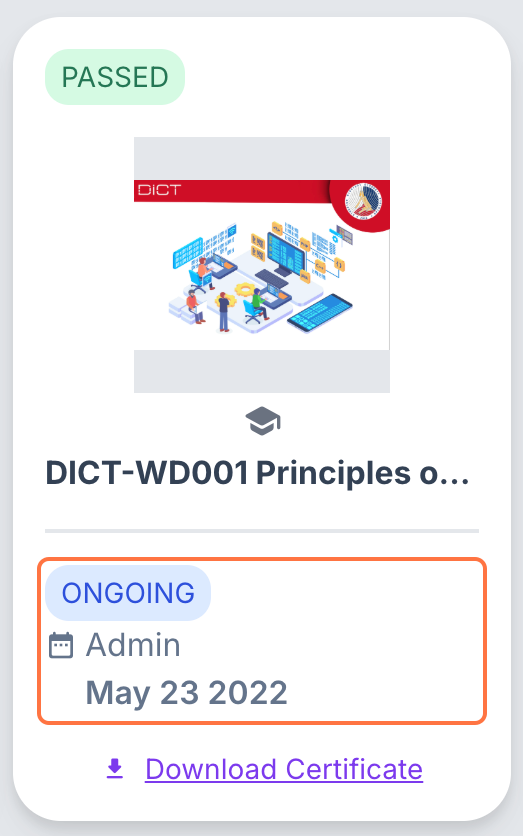
Click on any of the course cards on this page to view your detailed progress.
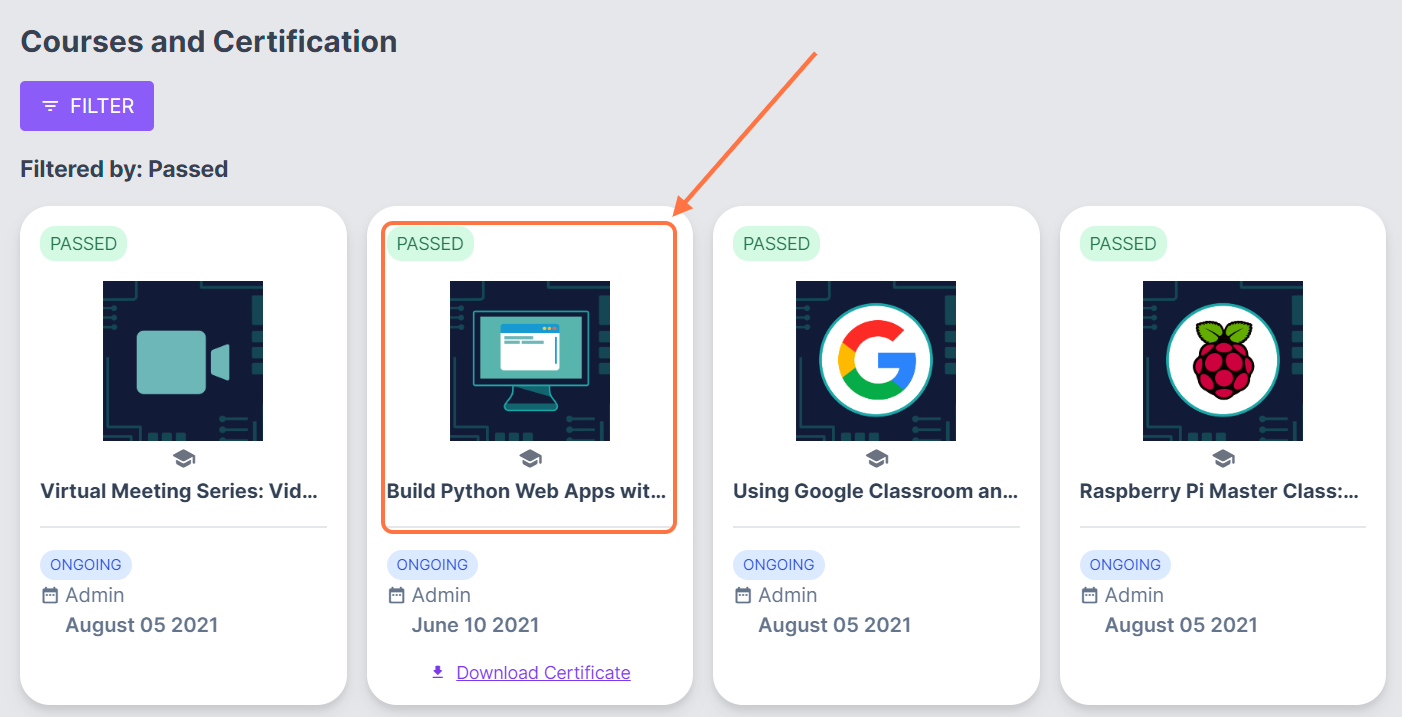
NOTE: Each course card corresponds to one batch enrollment in the course. A course card may appear twice, but may display different batches. Please ensure that you click on the most recent course card or one with a batch marked as 'Ongoing' to obtain the most up-to-date progress and/or certificate for the course.
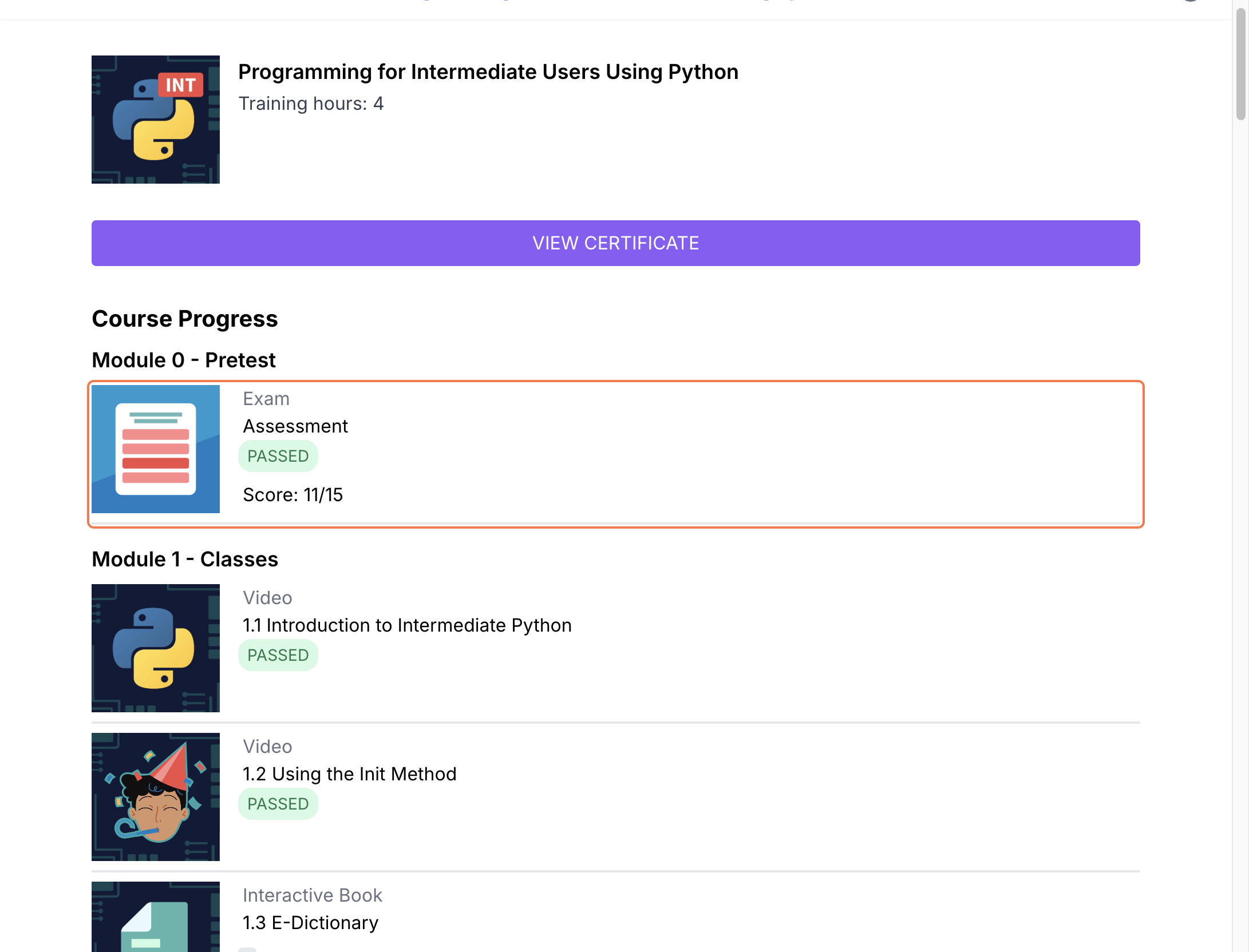
You can view your status in each resource by scrolling down the course progress page. Resources that you have already accessed are marked as Passed.
You can also filter your enrolled courses by clicking on the FILTER button.
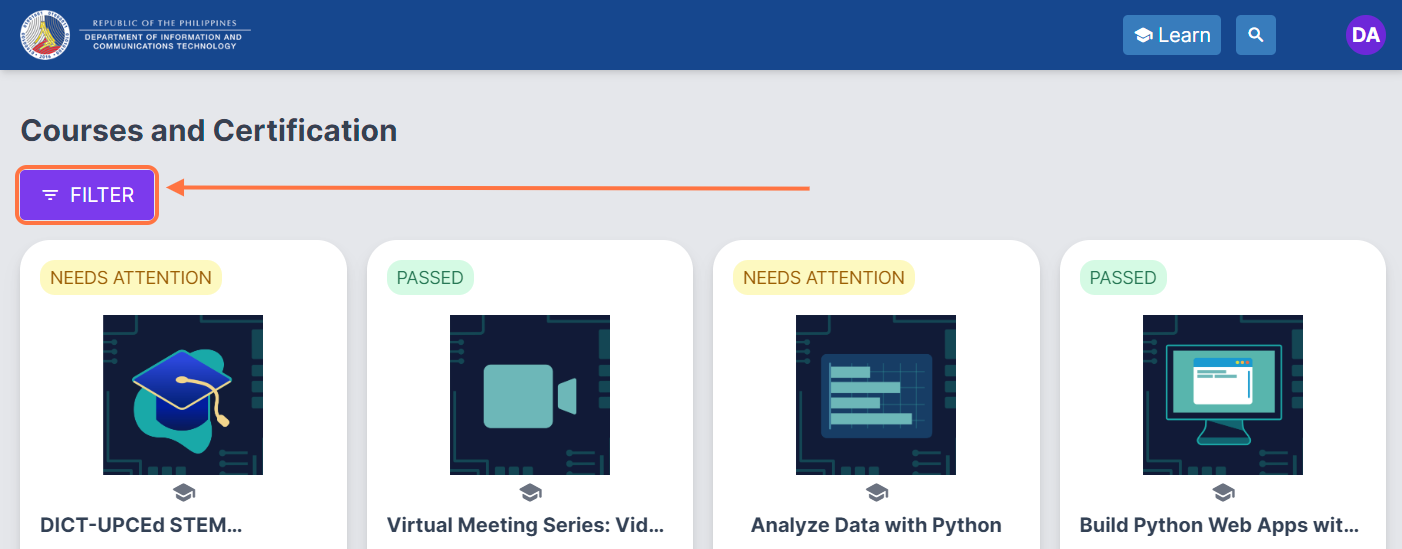
Select your preferred course progress: All, Passed, Failed, In Progress, Not Started, and Needs Attention.
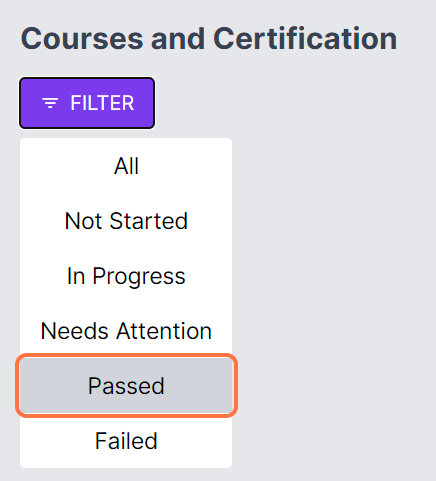
This will display courses you are enrolled in that have the selected course progress.
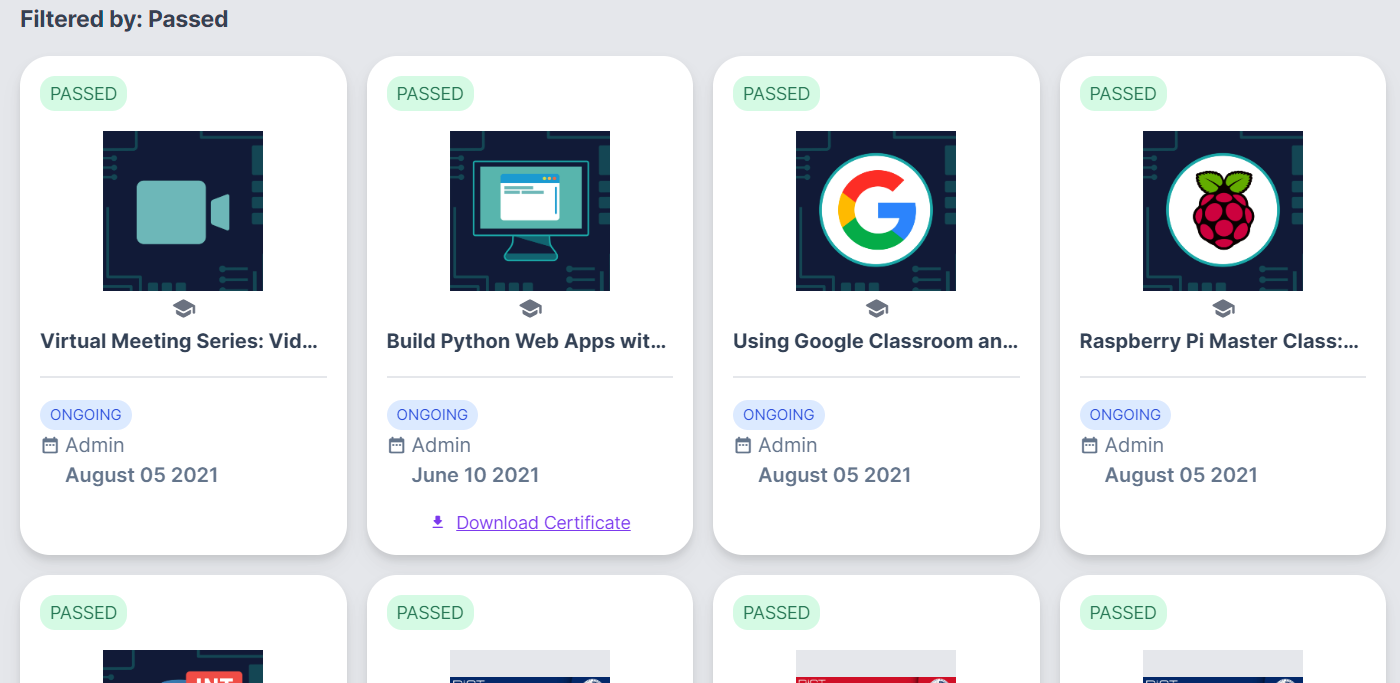
You can also view the certificate for your completed courses from the Courses and Certification page, if available. Your administrator should let you know if certificates are available for your course. Click on "Download Certificate " to view and download your certificate to your device.