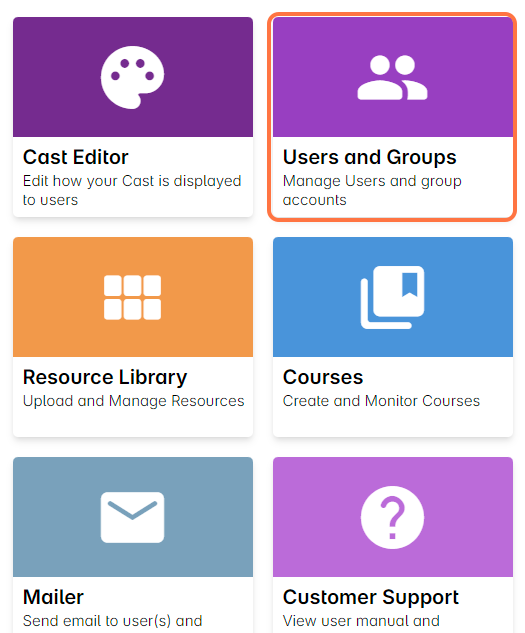
1. From the dashboard, click Users and Groups.
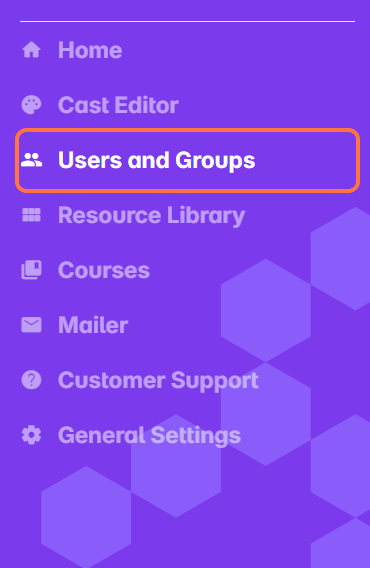
You can also access this by selecting Users and Groups from the sidebar.
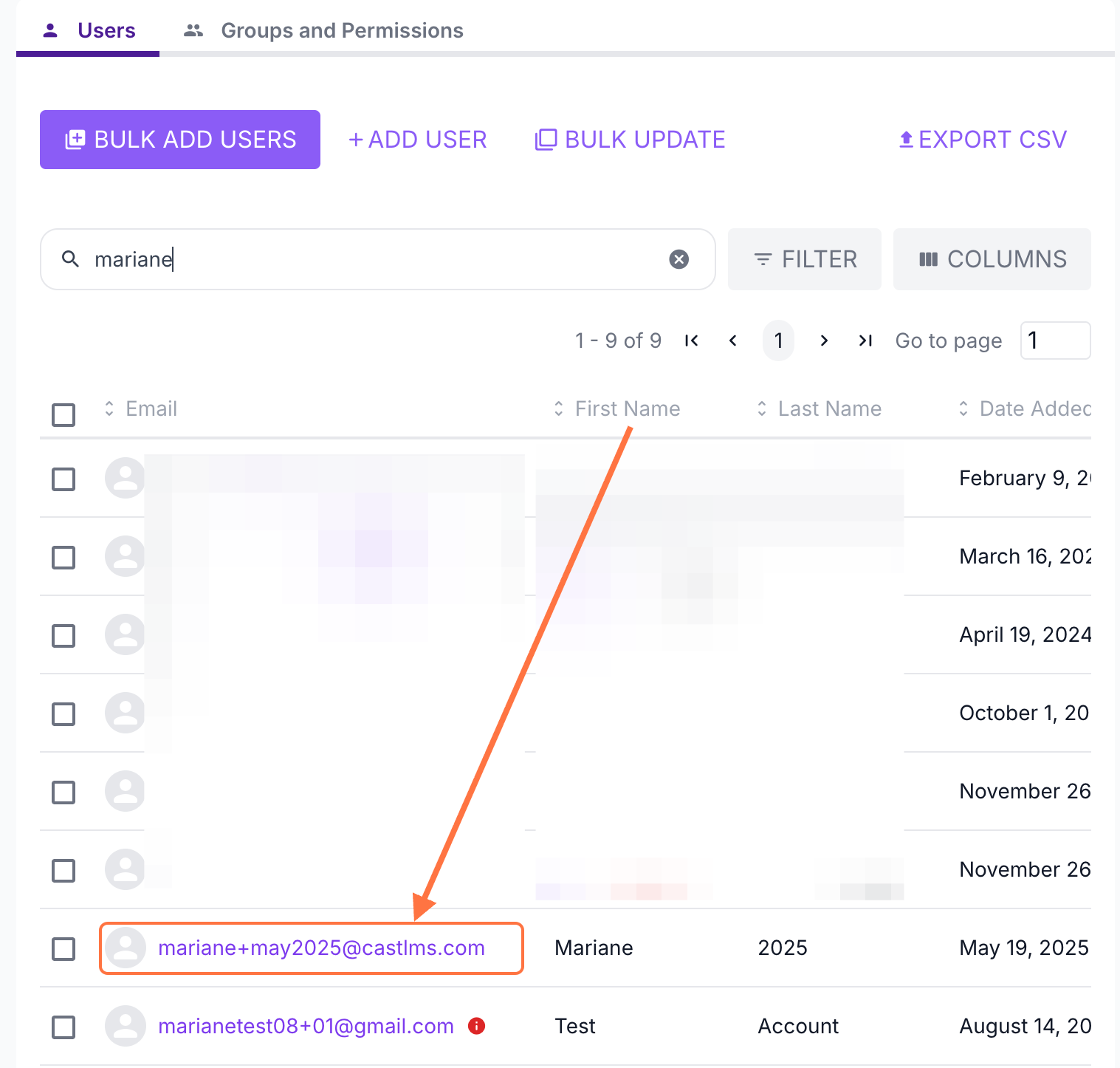
2. On the Users and Groups page, click on a user’s name from the user list, or use the search bar to find them. This will take you to their profile.
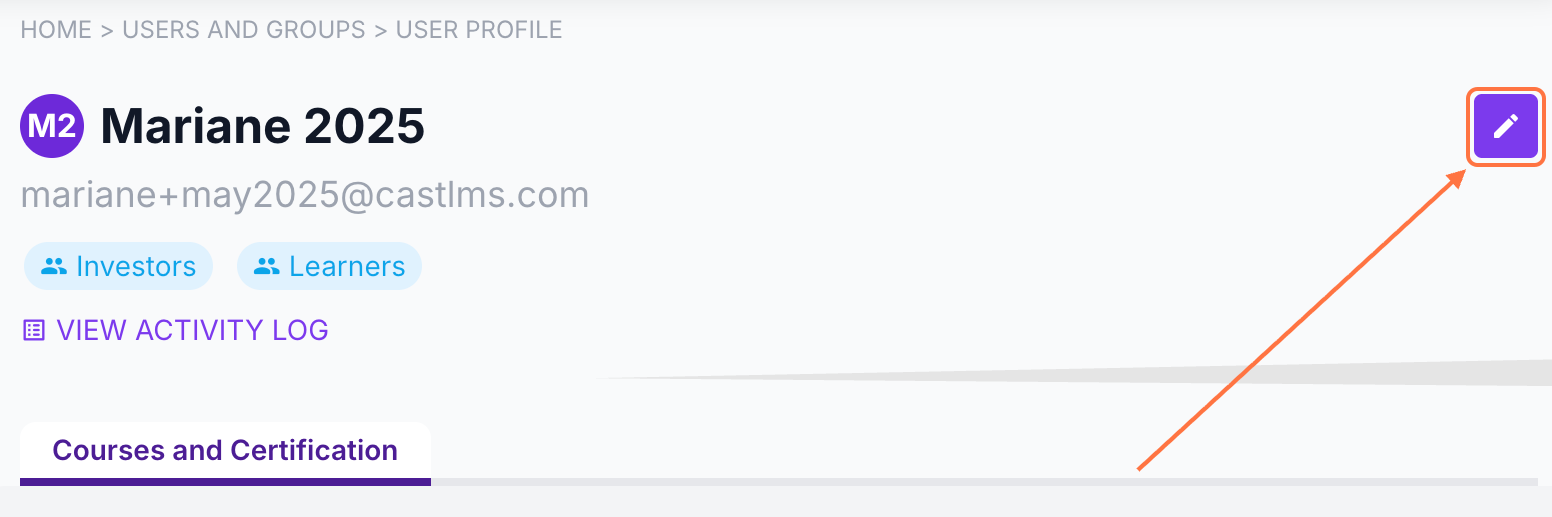
3. In the User Profile, click the Edit button in the top-right corner.
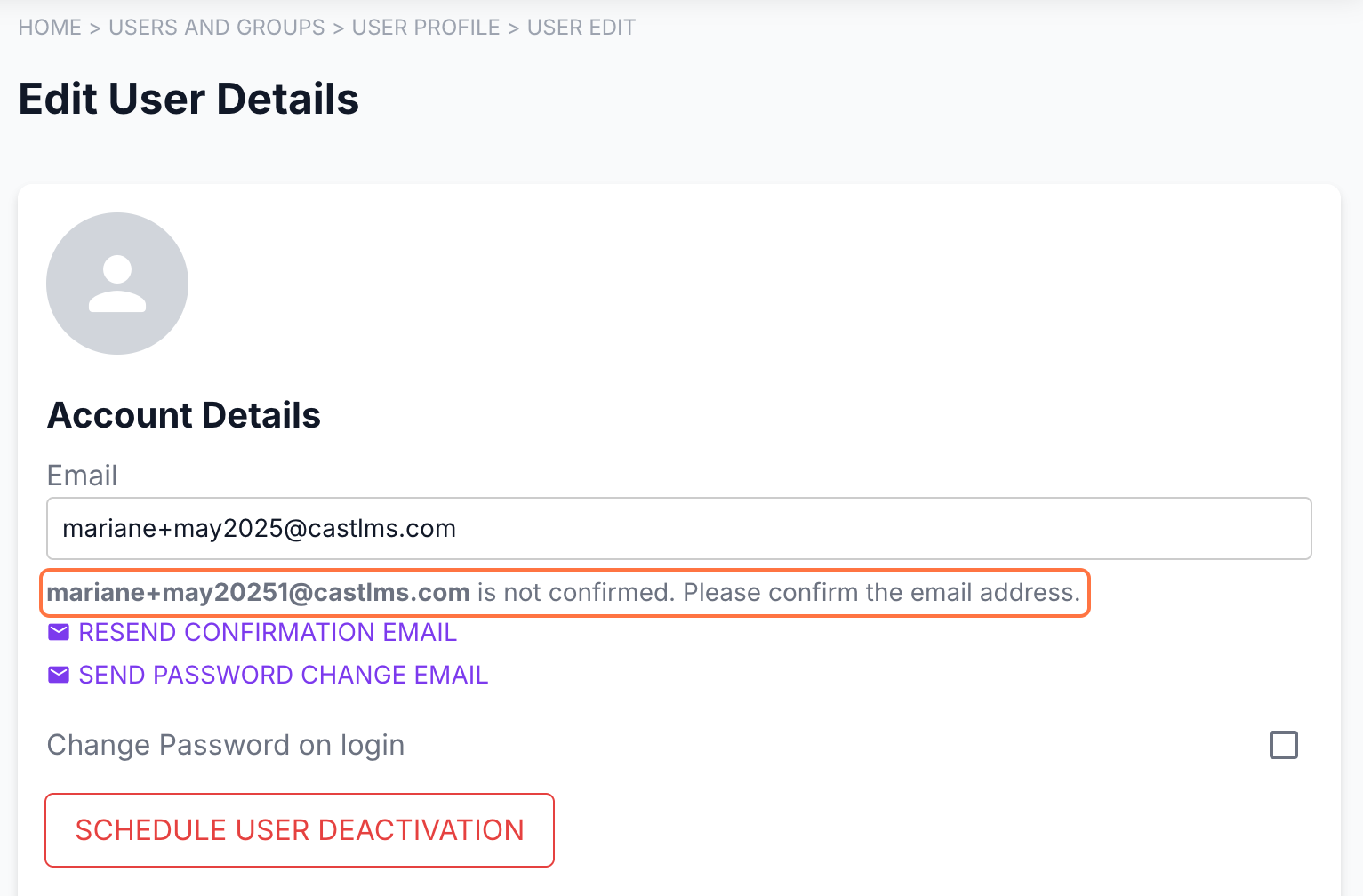
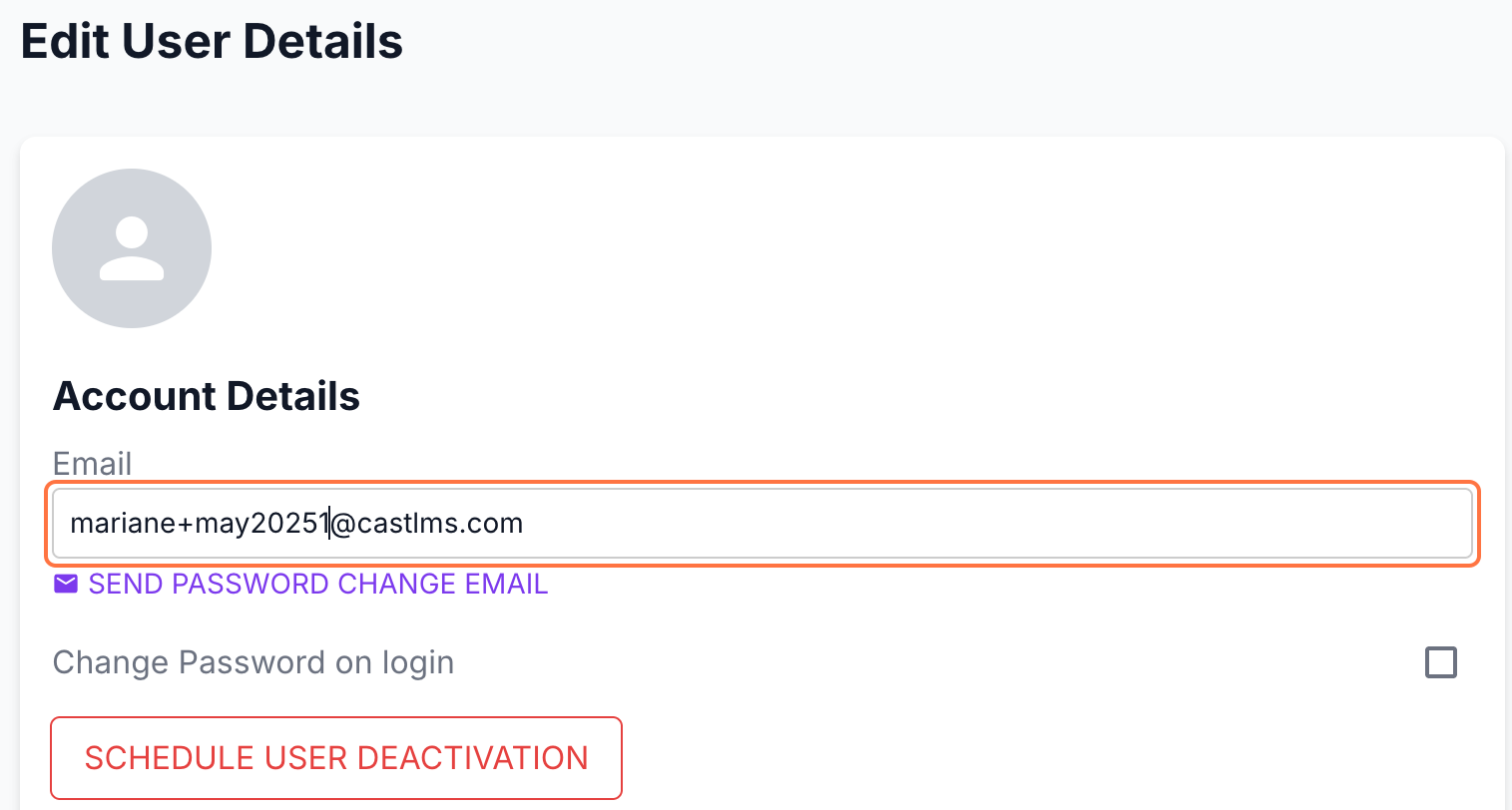
4. To change the user’s email address, edit the email address under Email and type the new email address.
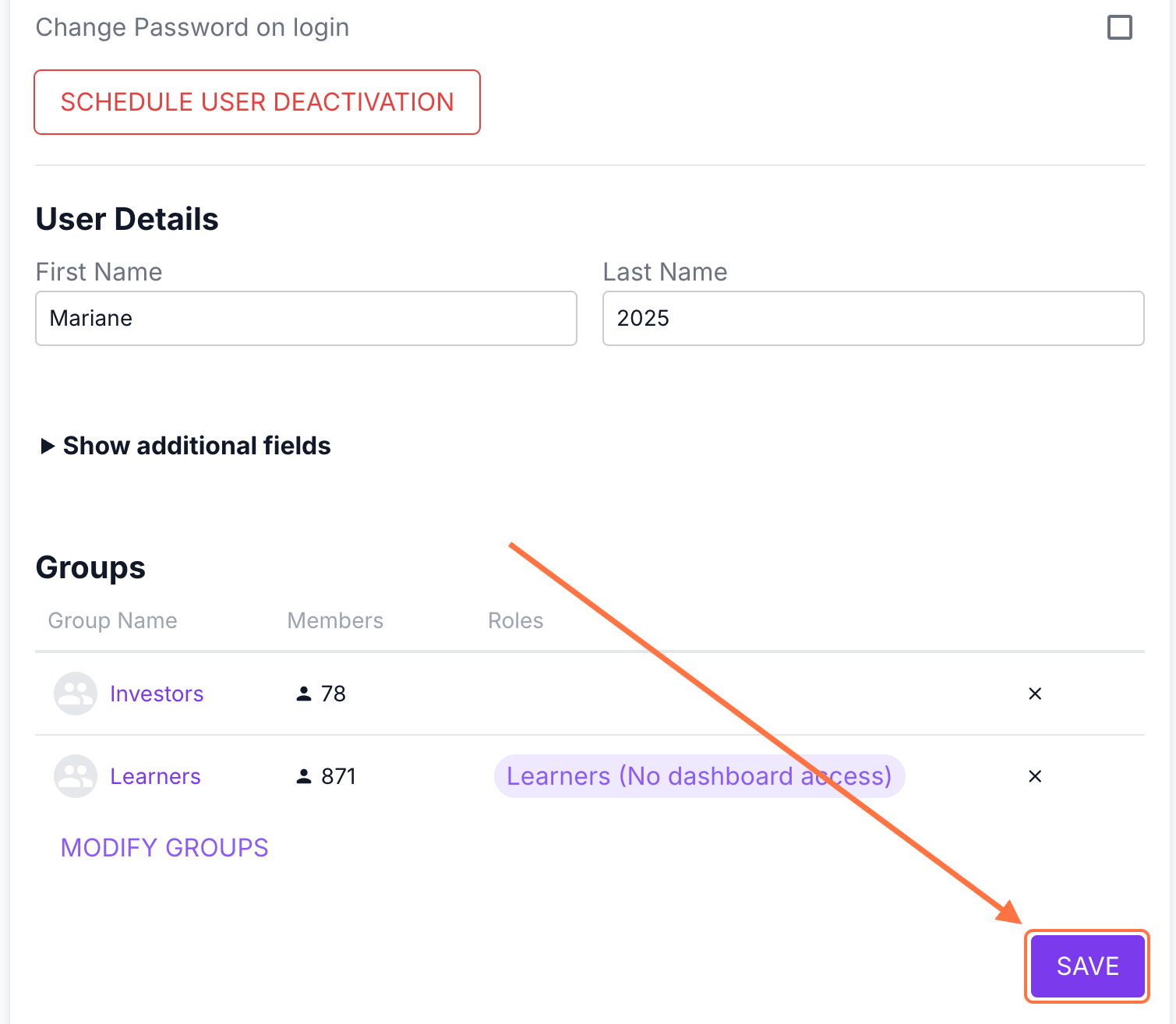
5. Then, click Save at the bottom of the page to apply your changes.
Note: The system will send Confirmation Instructions to the user’s new email address.
The user must confirm their account using the new email address. Once confirmed, the updated email address will automatically reflect in the dashboard.