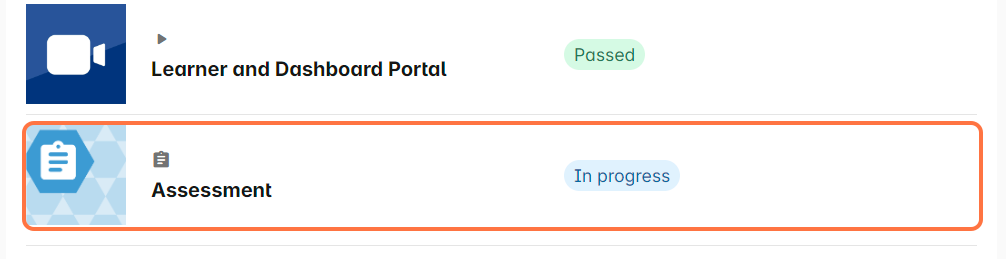
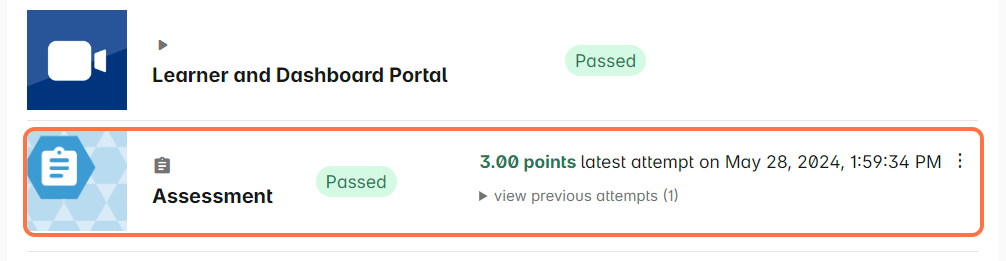
You can now delete the user’s most recent or all attempts in an assessment. Since the system records the user’s most recent score, you may do this if you want to move a score from a previous attempt as the most recent.
If your assessment has a set attempt limit, you can also clear all the attempts for the user by deleting all attempts recorded in the assessment.
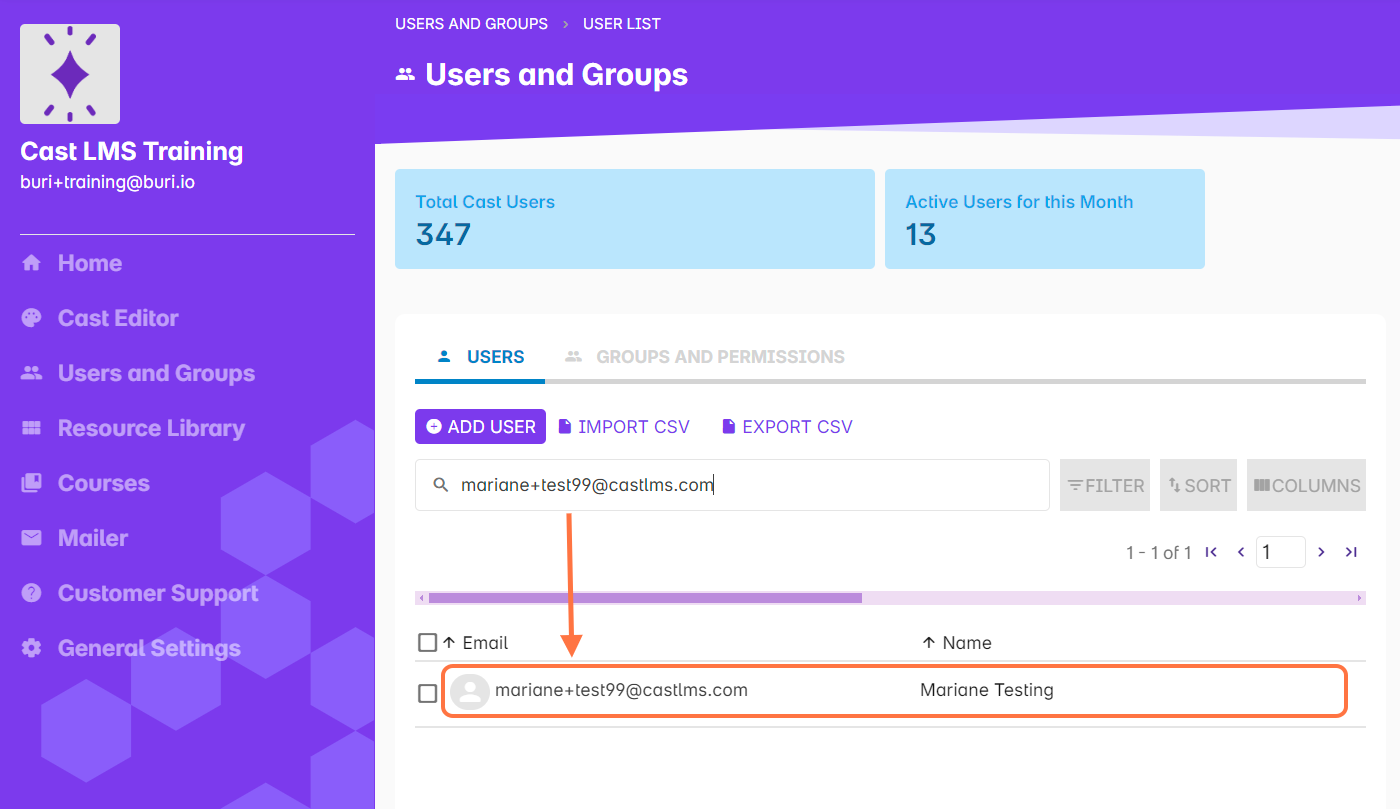
Look for the user’s account. You can either go to Users and Groups and search for the user’s name or email address in the Users list.
Once done, select a course where the user is enrolled in.
Another option is to search for the user in a batch. Go to Cast Editor or Courses. Then, select a course. After selecting a course, click on a batch. Search for any user in the enrolled users list.
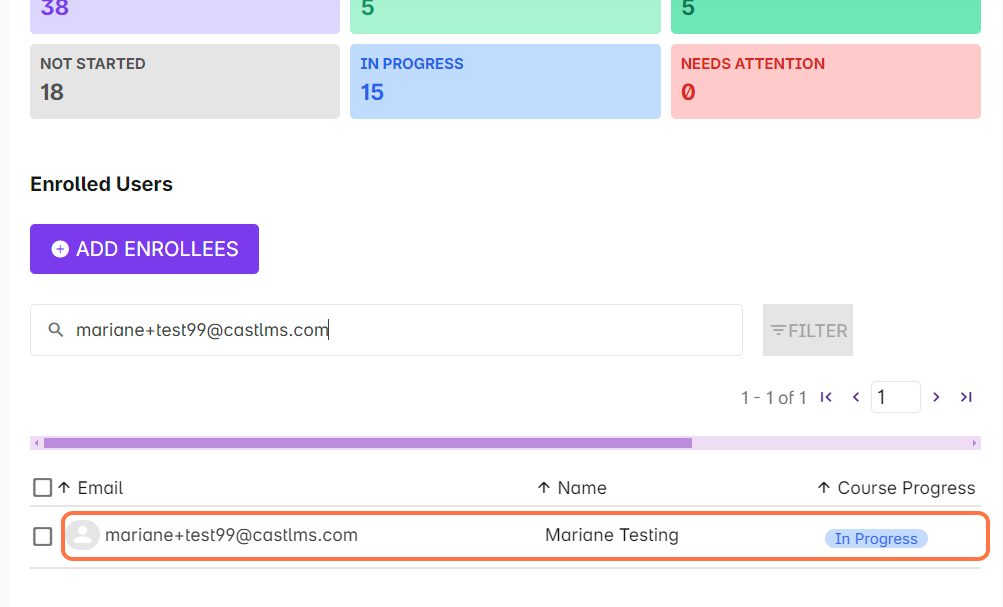
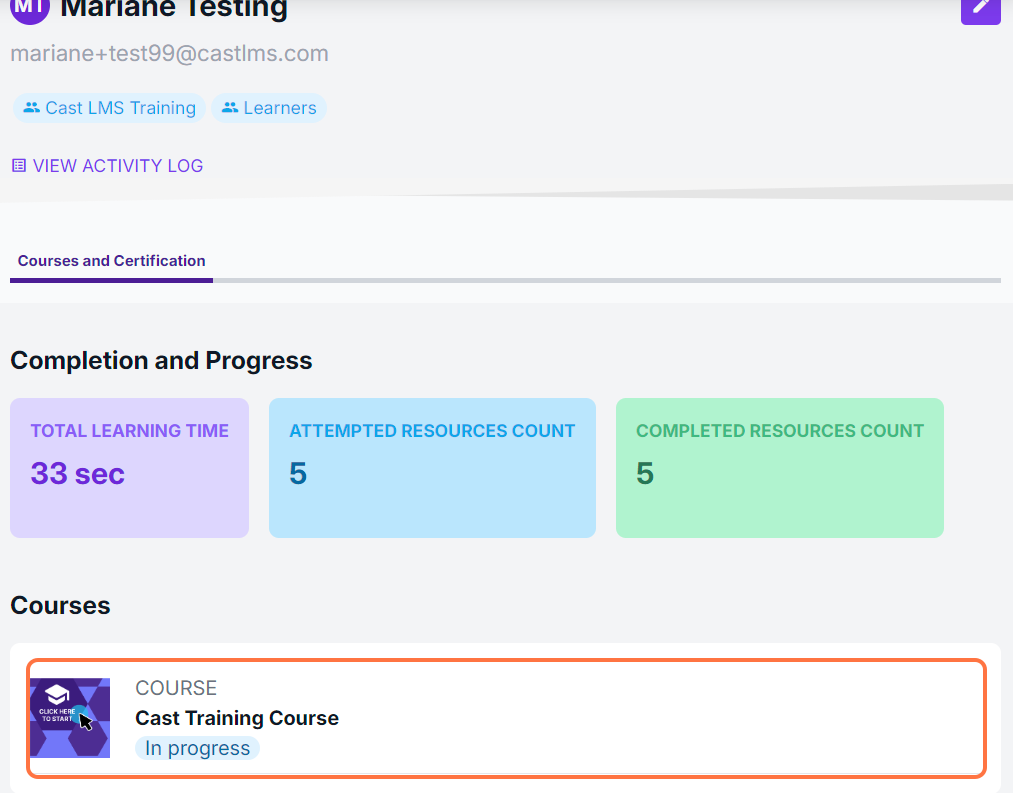
Then, scroll down to search for the assessment.
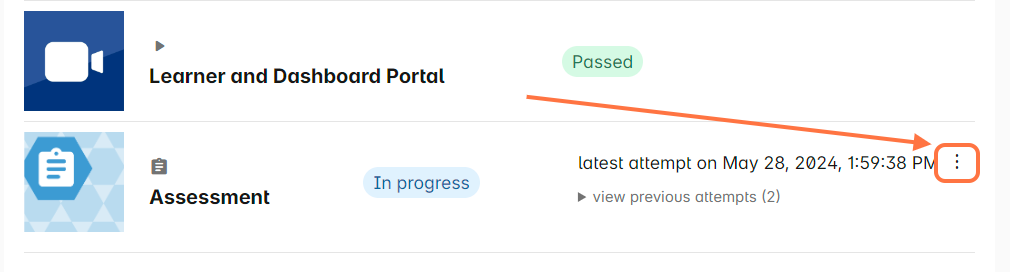
Click on the vertical ellipsis (⋮) across the most recent attempt’s date and timestamp.
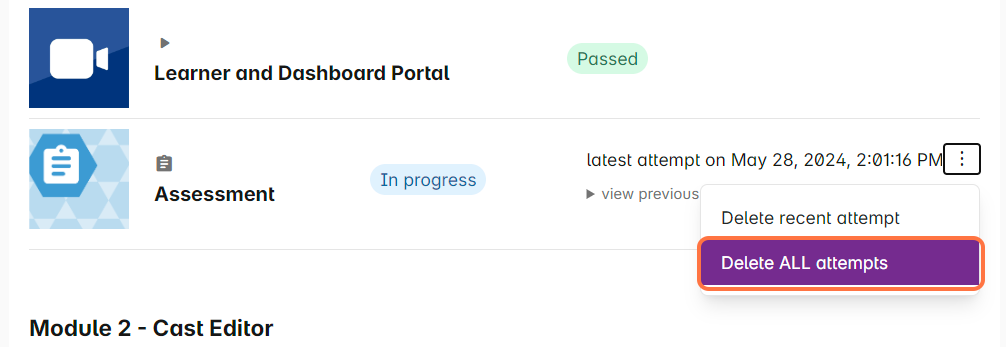
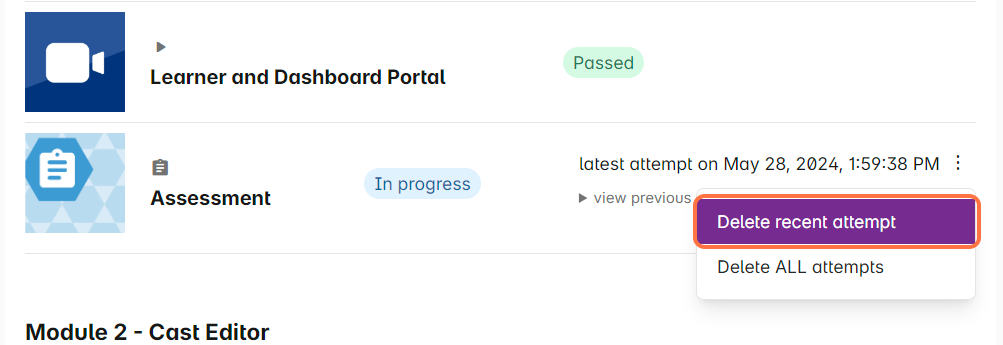
Select “Delete recent attempt” to delete the recorded score in the most recent attempt. If you want to delete all the attempts, select "Delete all attempts".
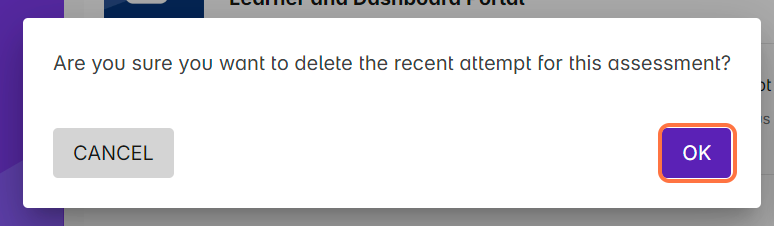
In the pop up confirming this action, click on OK.
Wait for a few seconds until the page reloads. Then, recheck if the most recent attempt OR all of the attempts in the assessment have been deleted.
If only the most recent attempt has been deleted and there have been previous attempts recorded, the score in the last attempt would now be the most recent. Note: If the user's score in the previous attempt is Passed, the next resource should be automatically unlocked on the side of the learner once the recent attempt has been deleted.
If all attempts have been deleted, the progress of the assessment would be reverted to In Progress.