Option 1: From the Group Profile
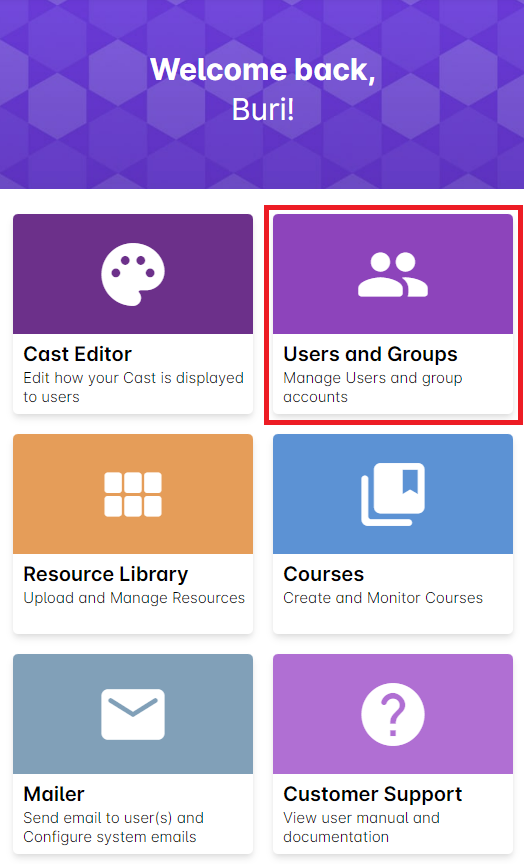
1. Select Users and Groups from your Admin Dashboard.
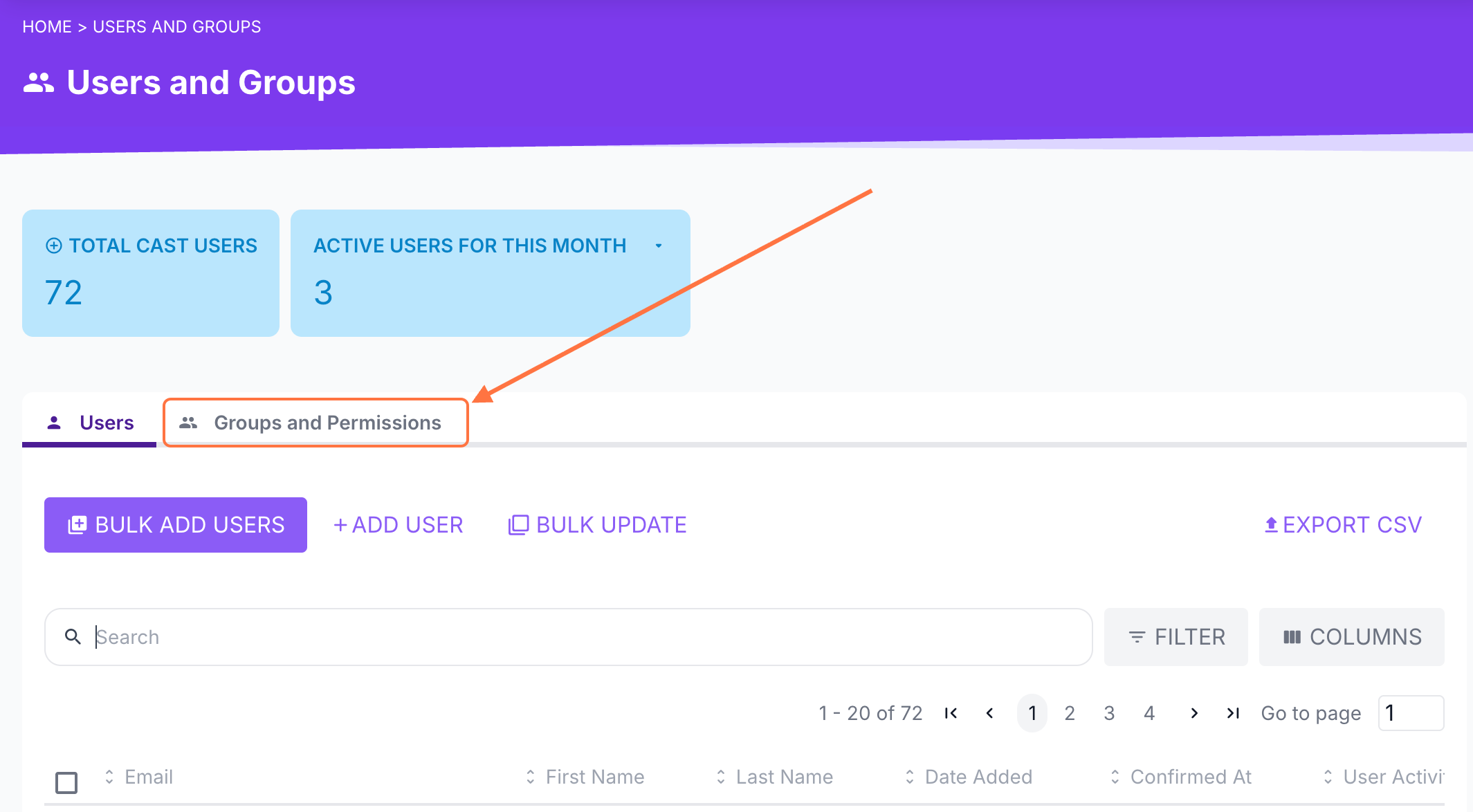
2. Click the Groups and Permissions tab.
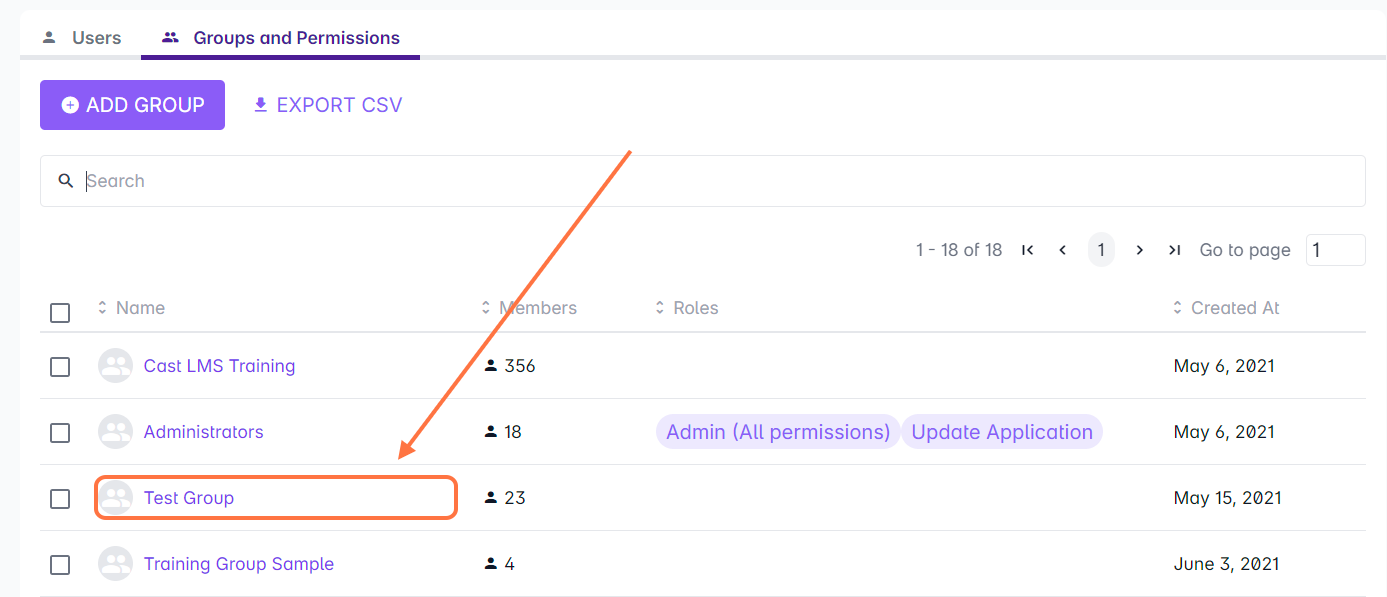
3. Choose a group from your list where you want to add or remove users.
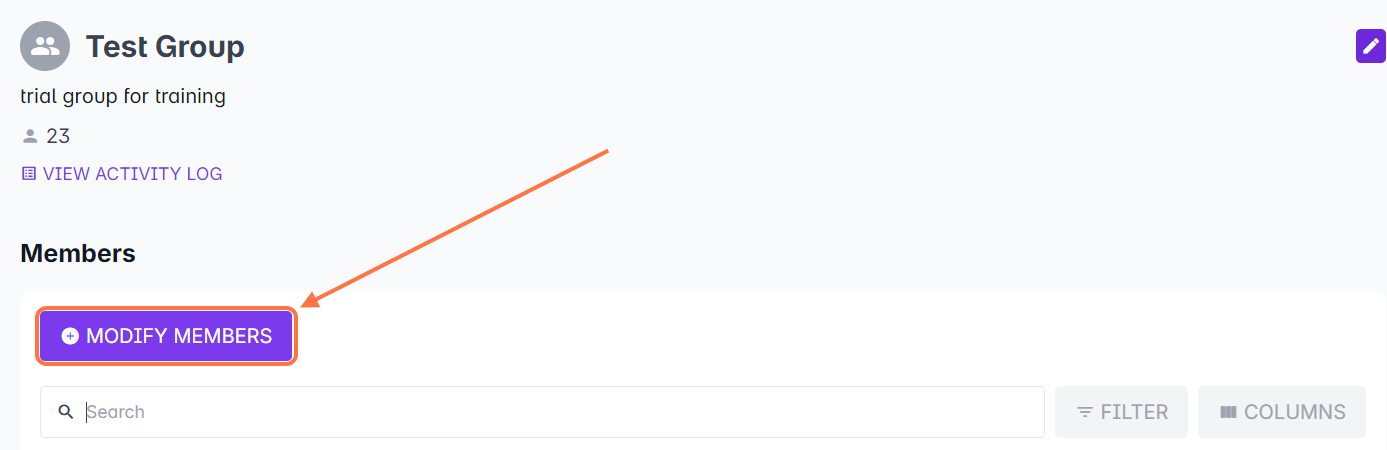
4. In the Group Profile, select Modify Members to add or remove users from the group.
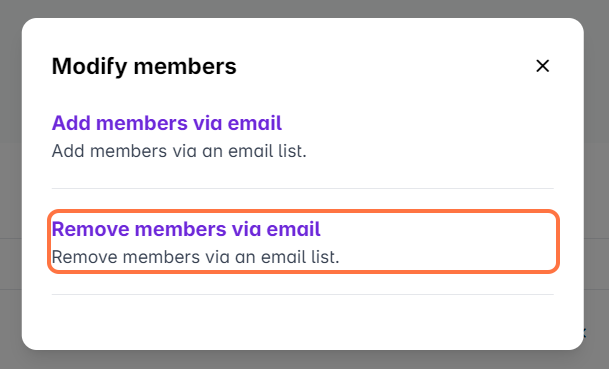
5. A pop-up box will appear. Select Remove members via email.
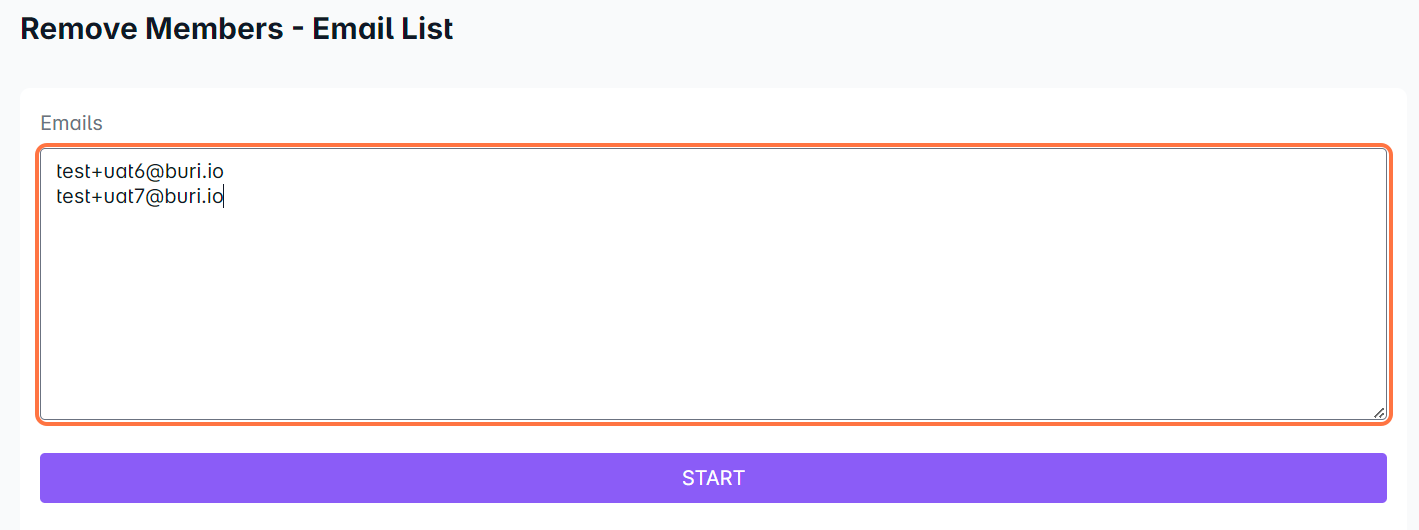
6. Enter the email addresses of the users you want to remove from the selected group, then click Start to proceed.
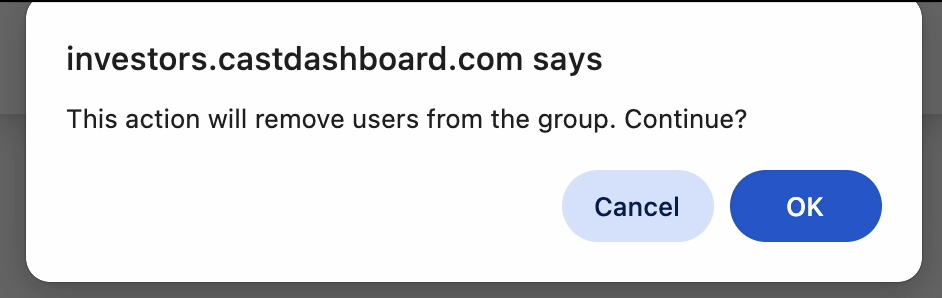
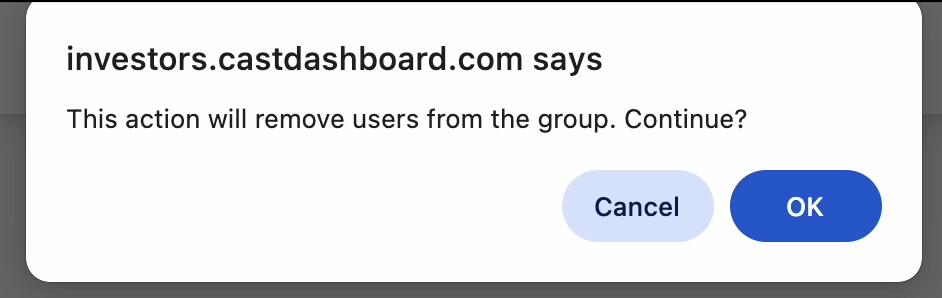
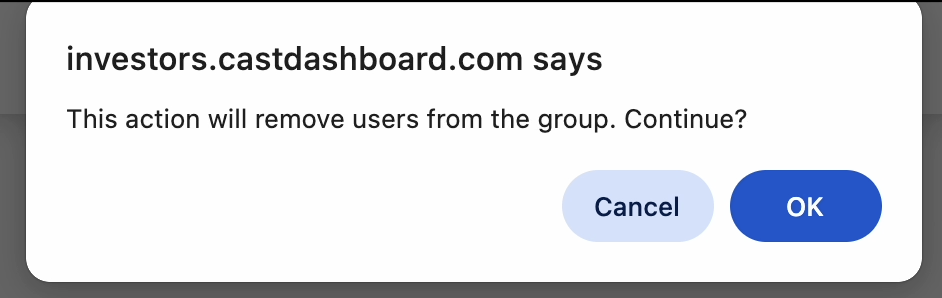
7. A confirmation dialog box will appear. Click OK to continue removing the listed users.
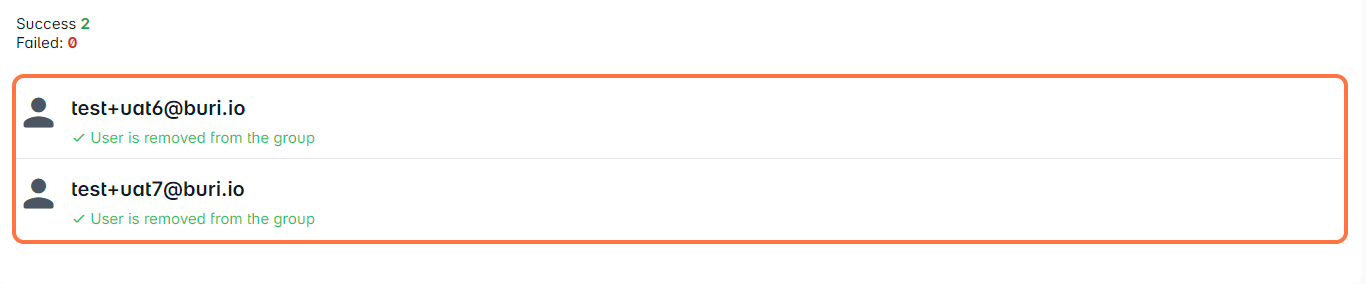
The status of each user’s removal will be displayed below the Start button.
Option 2: Removing Users from the Group Member List
1. In the list of group members, tick the checkboxes next to the users you want to remove.
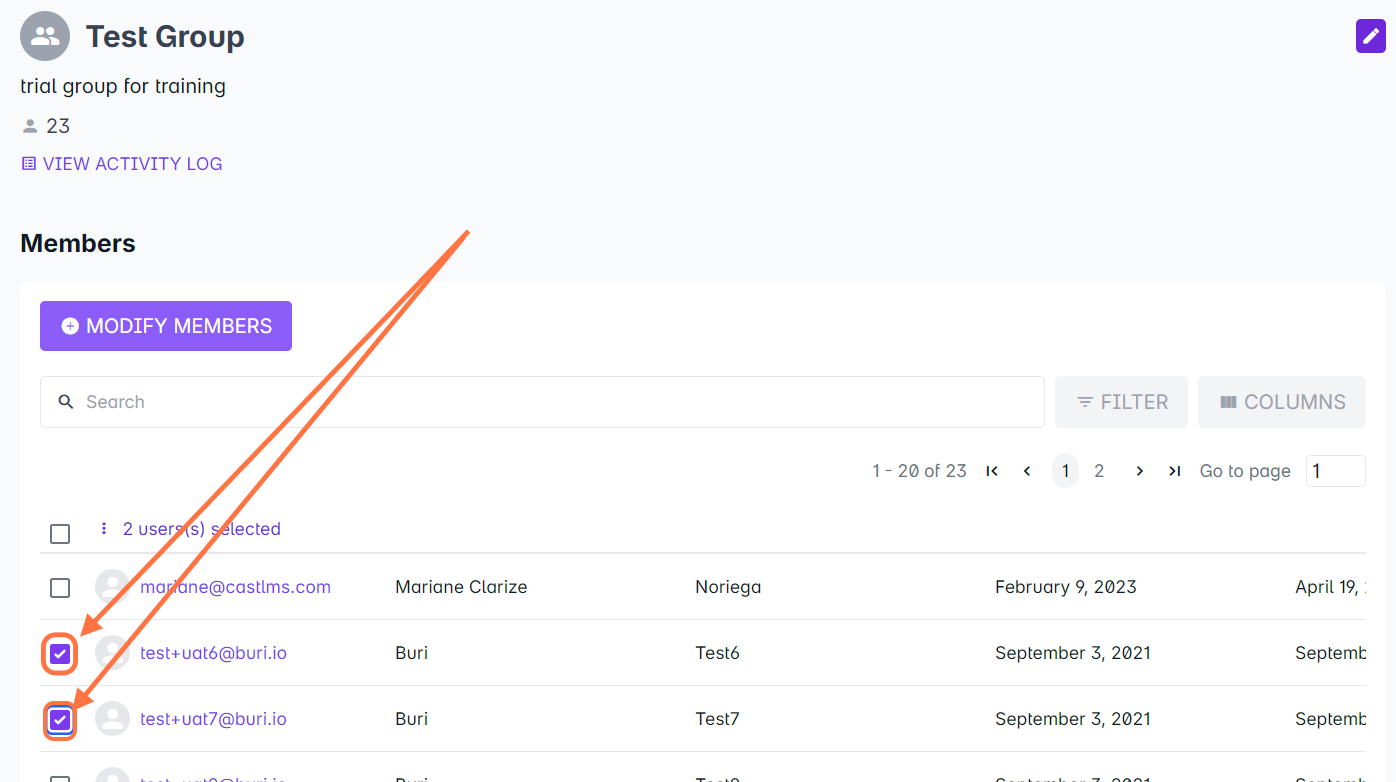
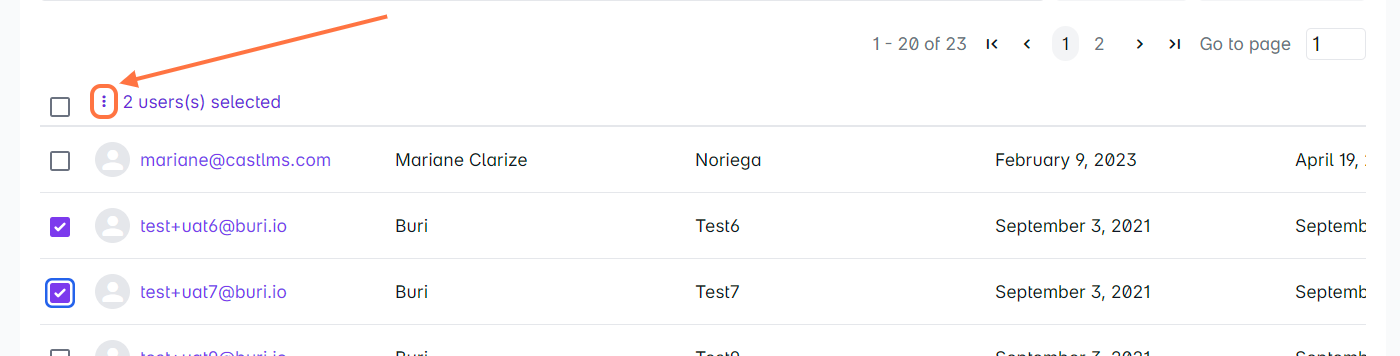
2. Click the vertical ellipsis at the top of the column.
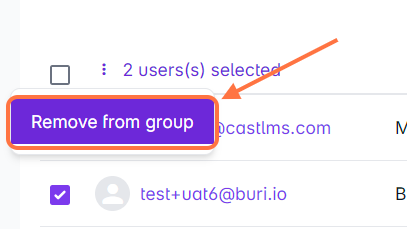
3. Select Remove from group.
4. In the pop-up box, click OK to confirm the removal.
Option 3: Removing Users from the User List
1. From the User List, select a user and tick the checkboxes next to the users you want to remove from the group.
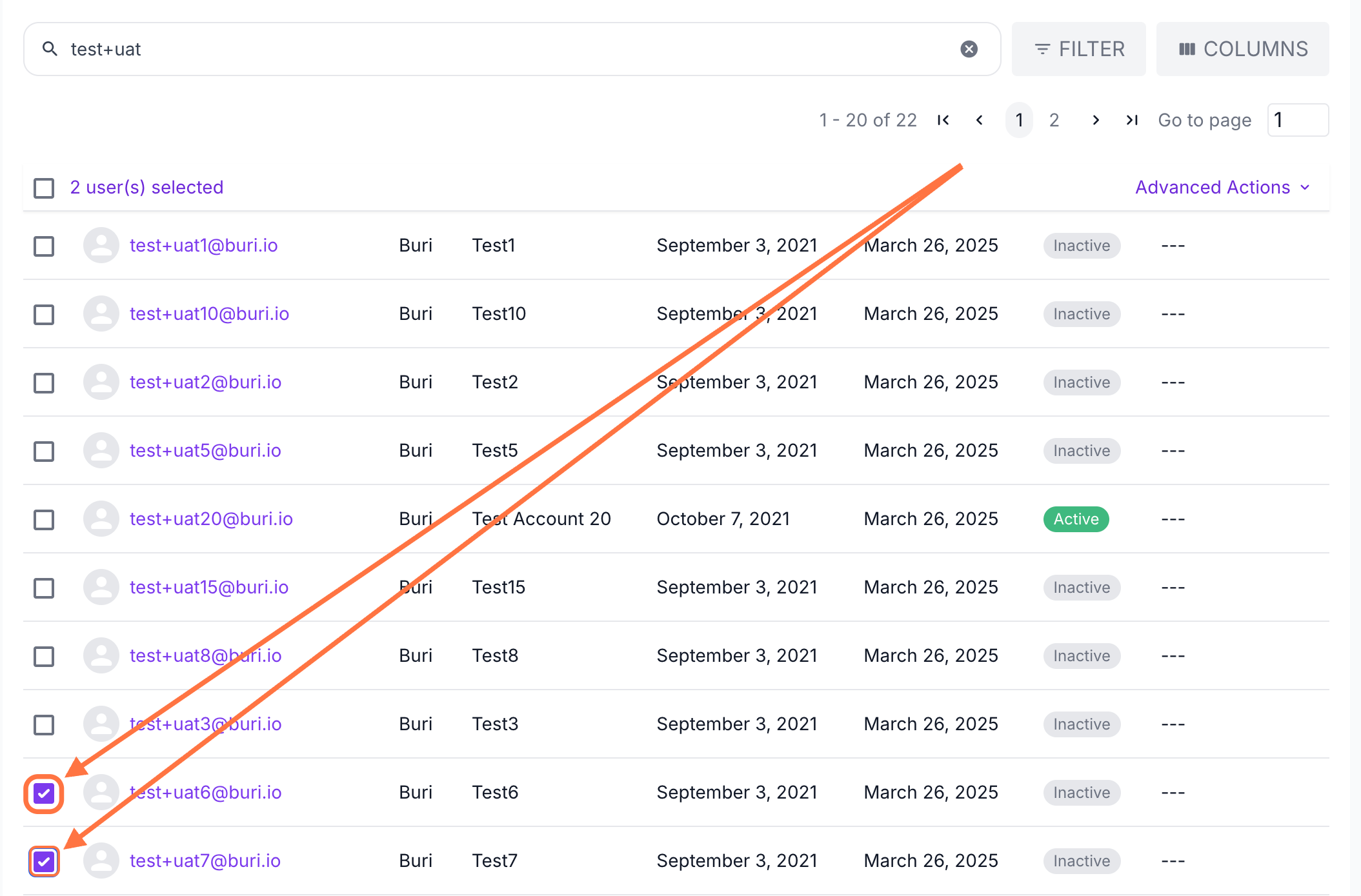
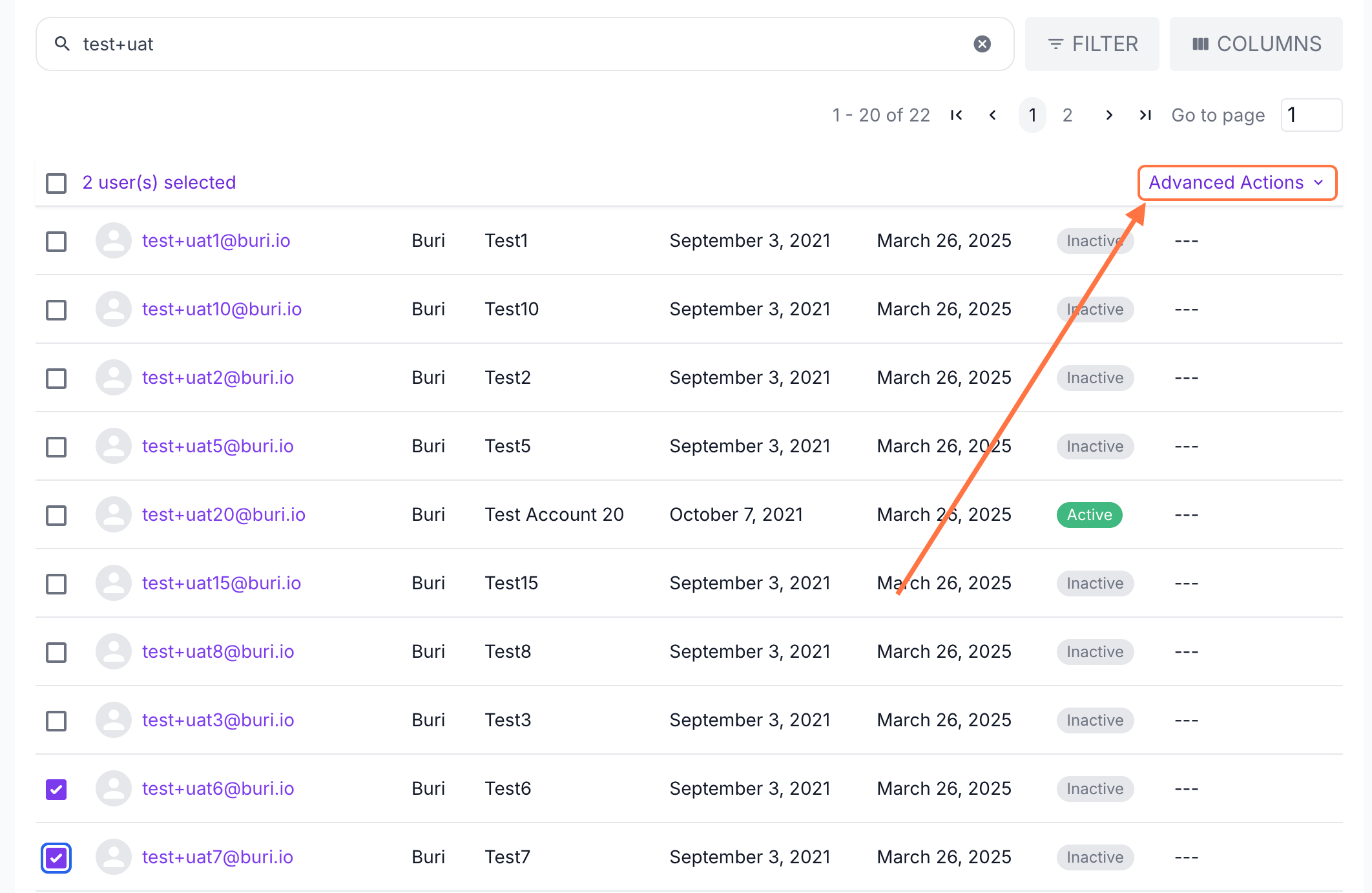
2. Click Advanced Actions along the columns.
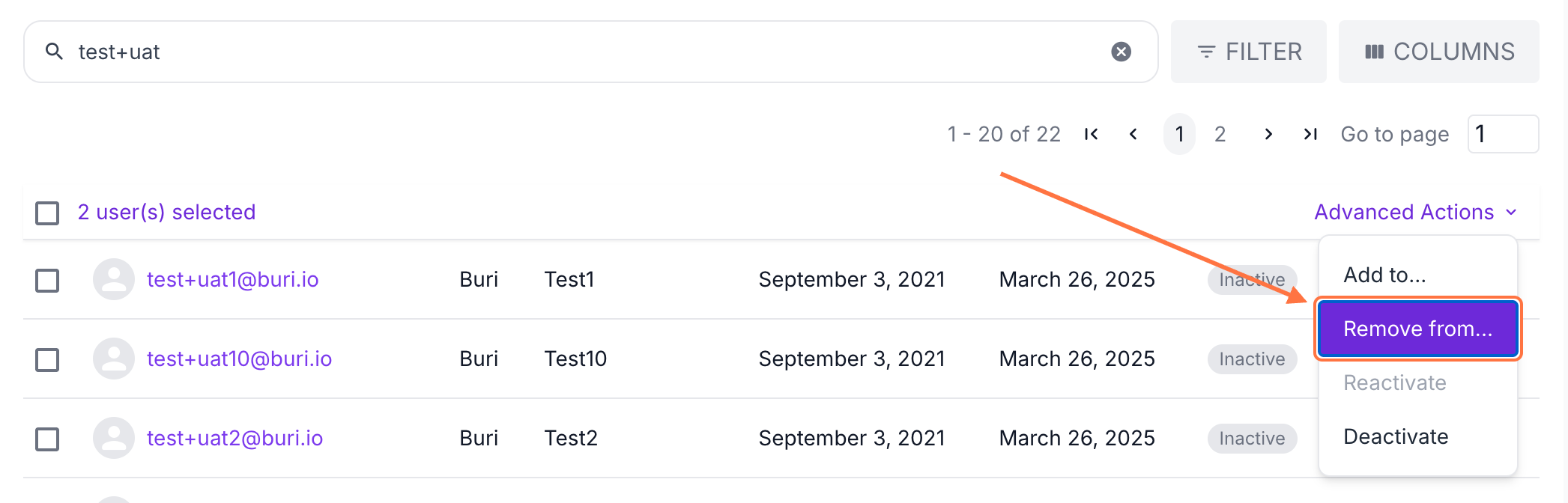
3. Click Remove from.
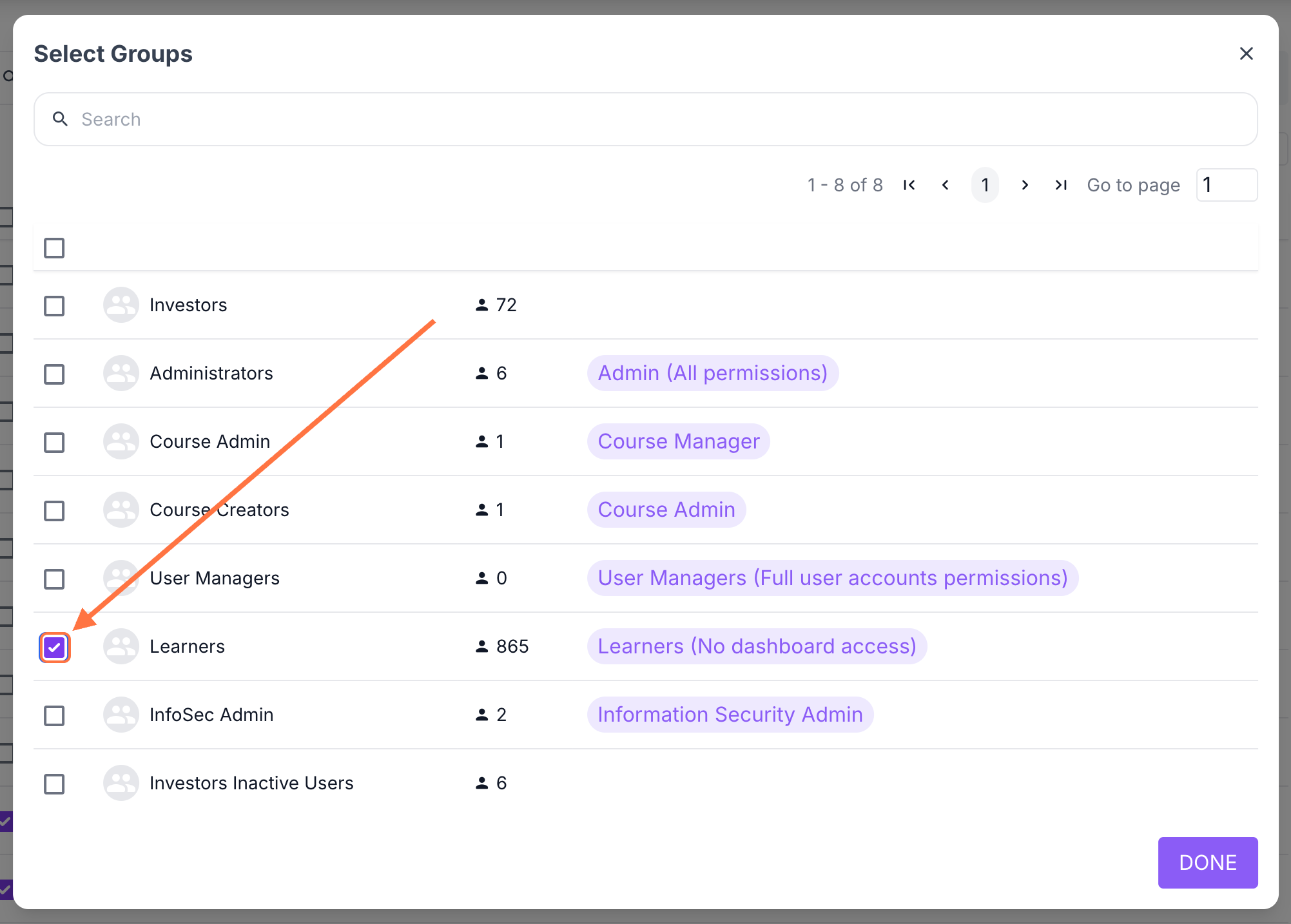
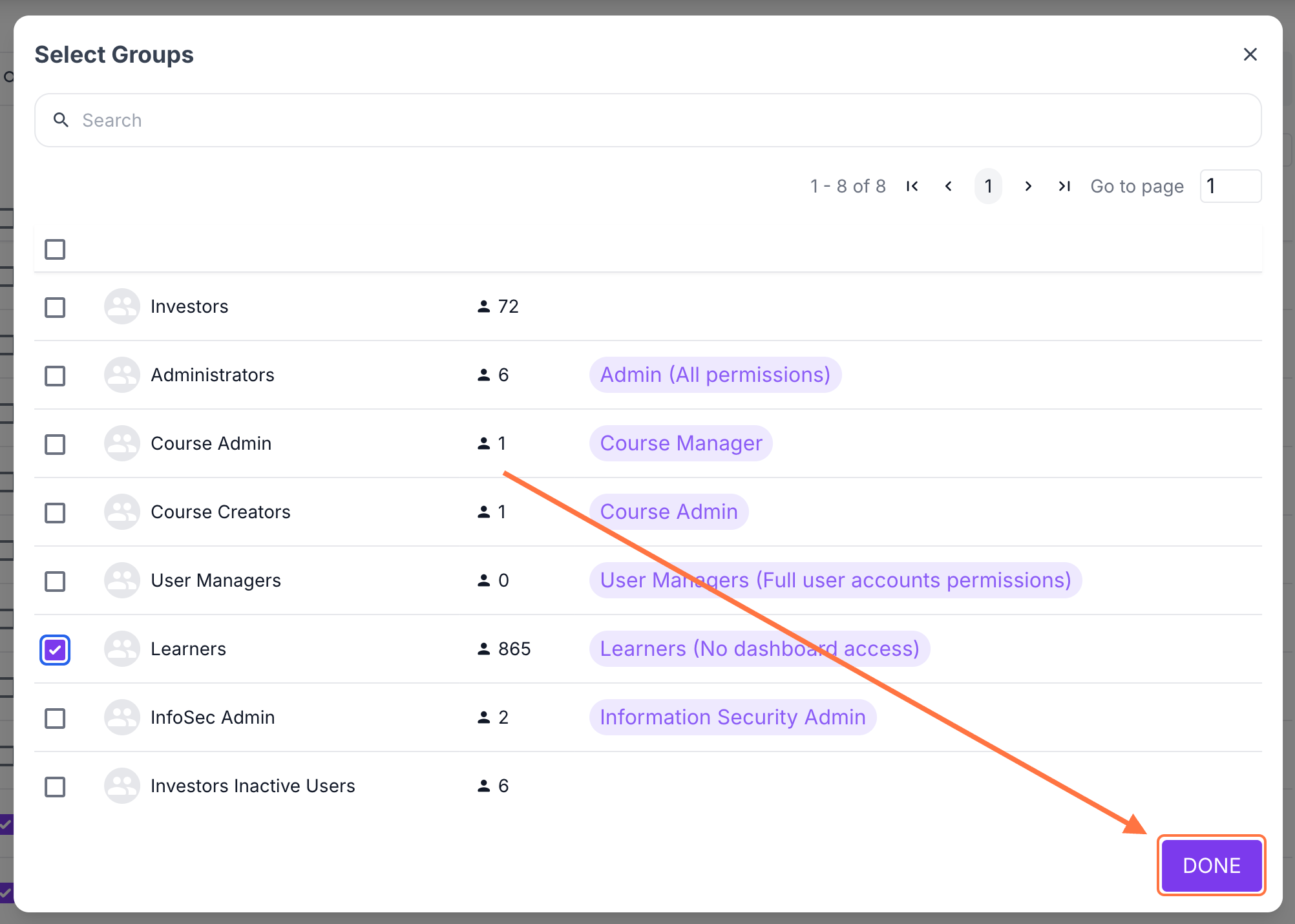
4. Select the group you want to remove the user/s from. Then, click DONE.
5. A confirmation dialog box will appear. Click OK to proceed with removing the selected users.