

Option 1: From the Group Profile
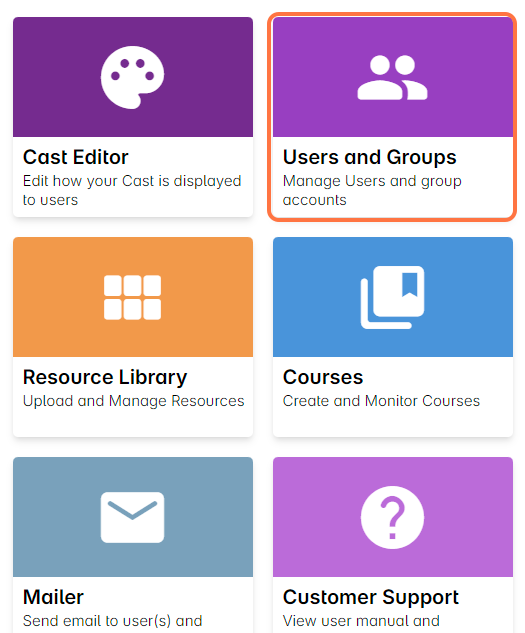
1. From your Admin Dashboard, select Users and Groups.
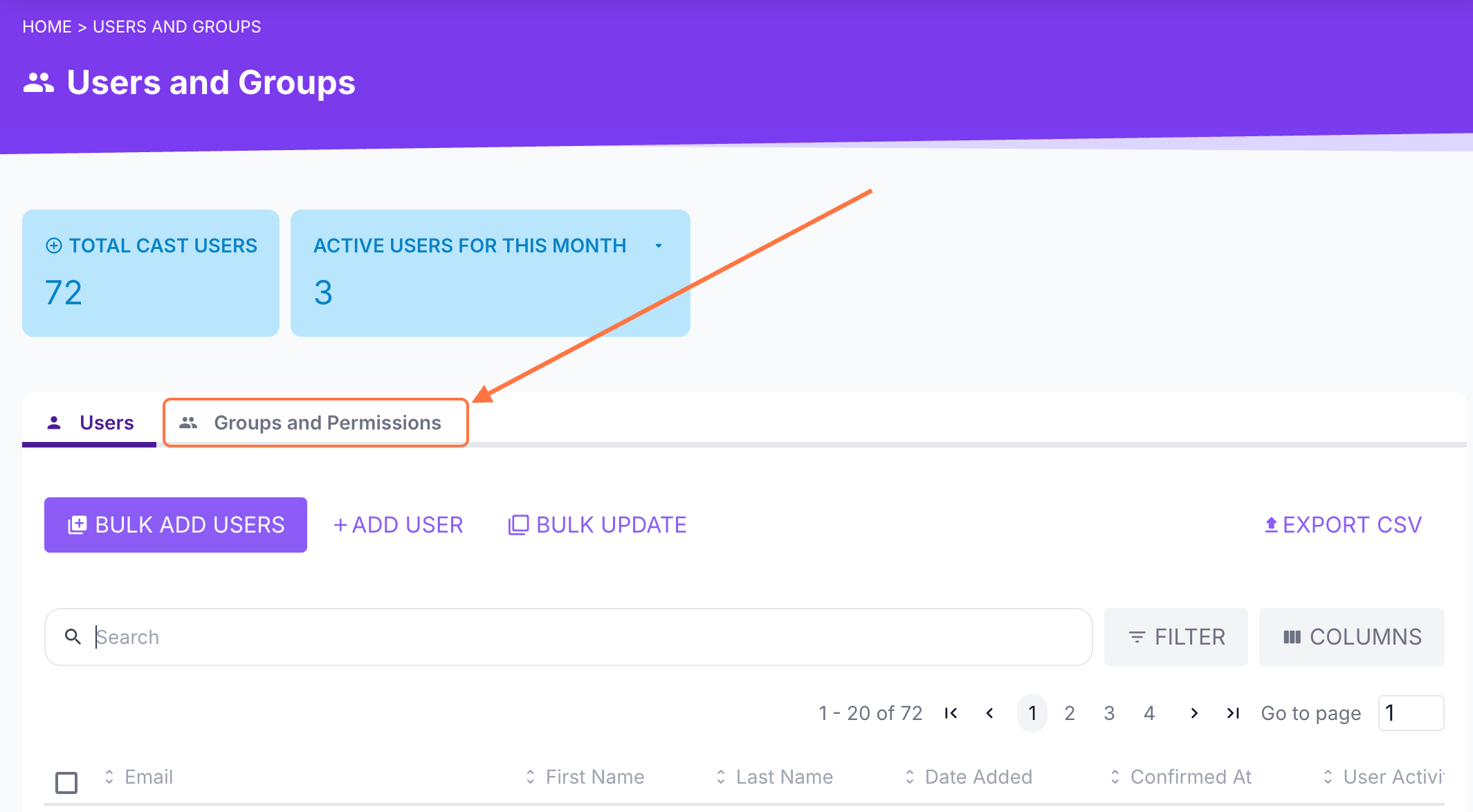
2. Go to the Groups and Permissions tab.
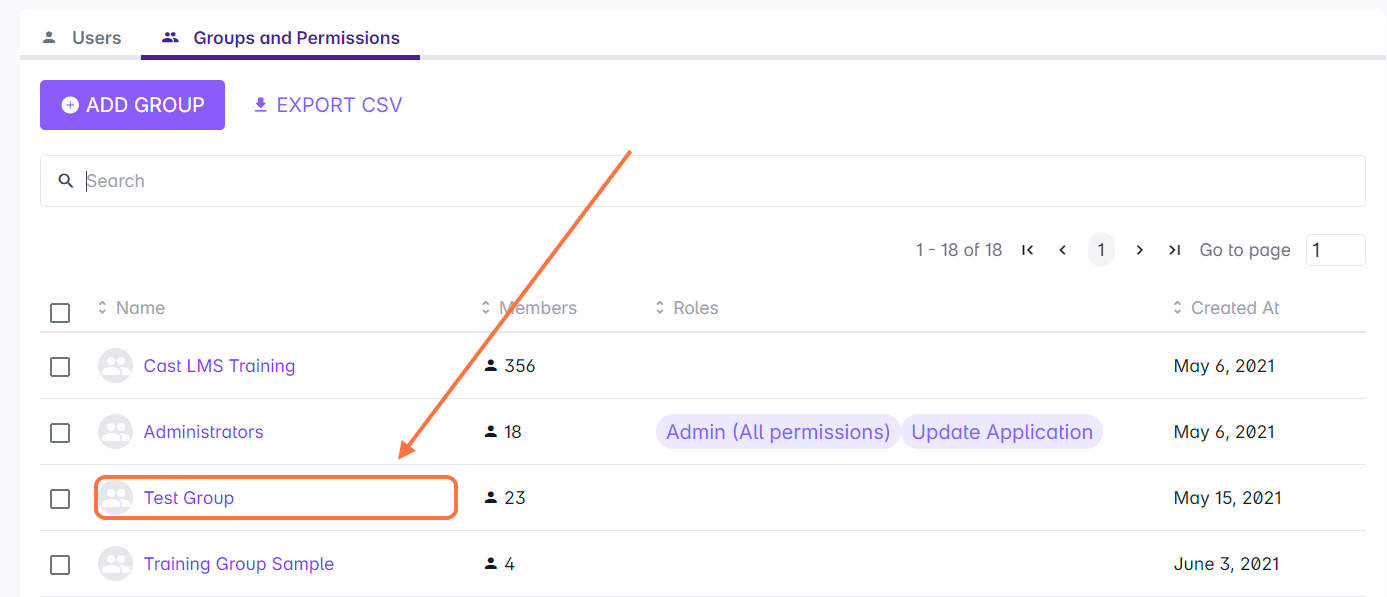
Choose the group where you want to add users.
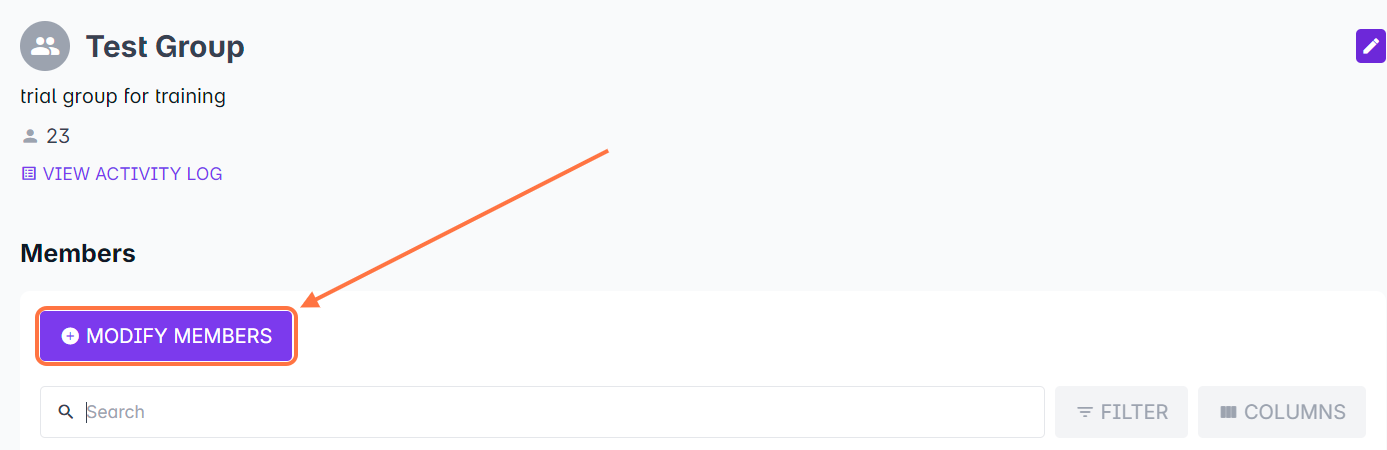
3. In the Group Profile, click Modify Members to add or remove users from the group.
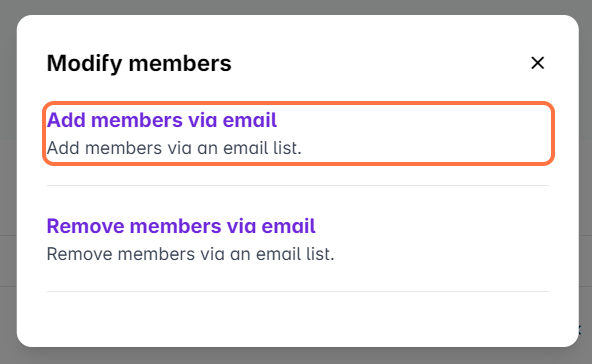
4. A pop-up window will appear. Select Add members via email.
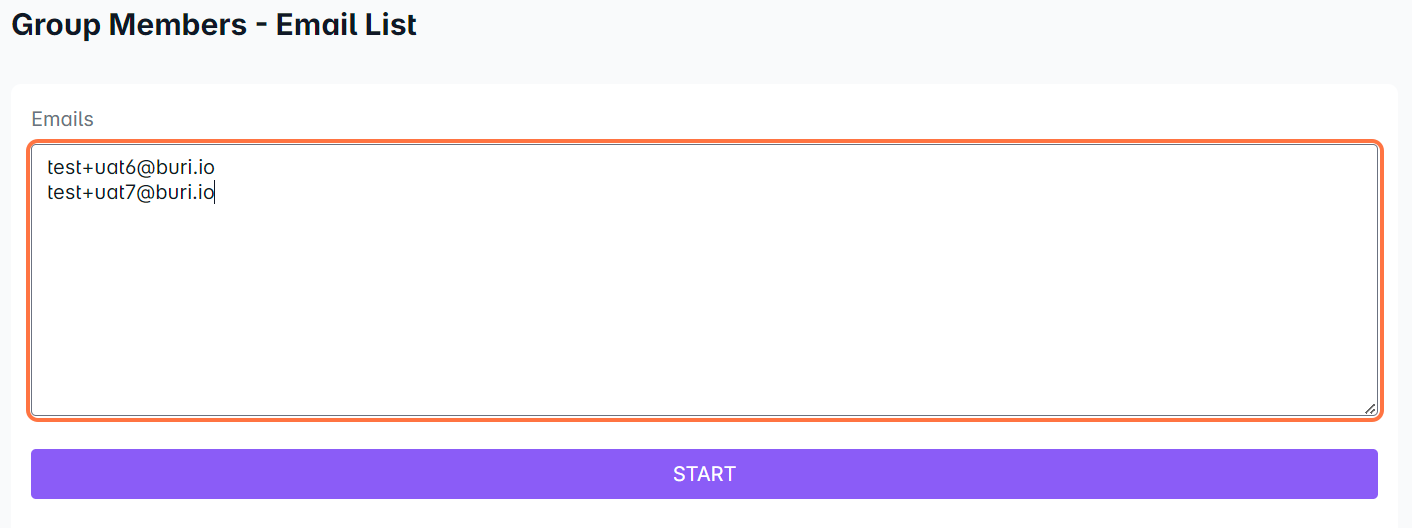
Enter the email addresses of the users you want to add — one email per line.
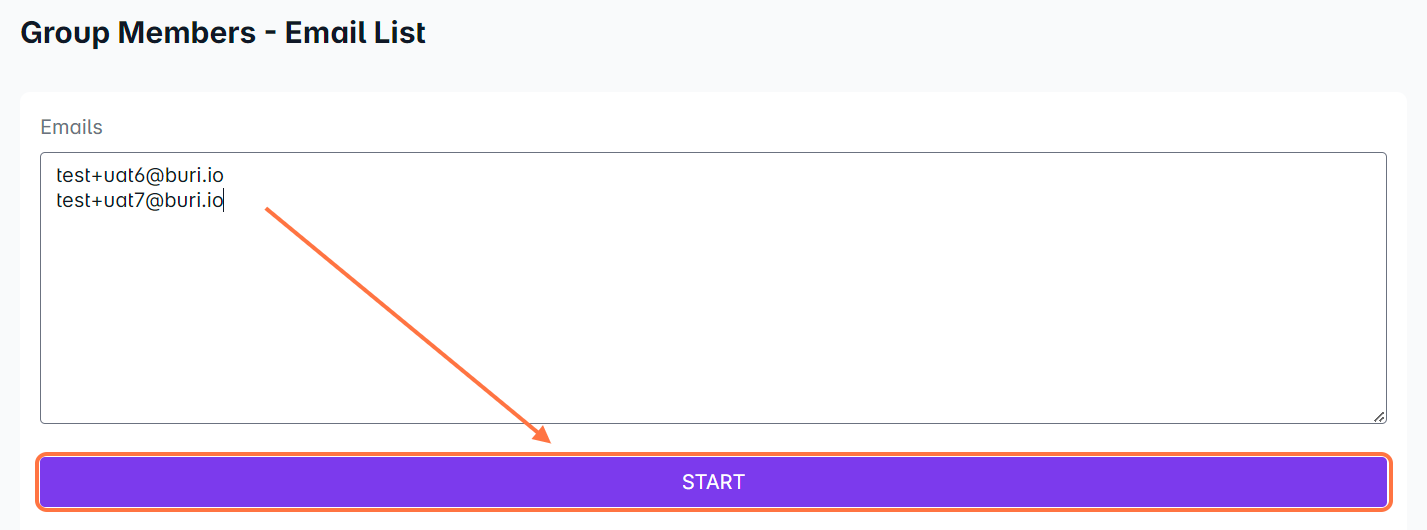
Click Start to proceed.
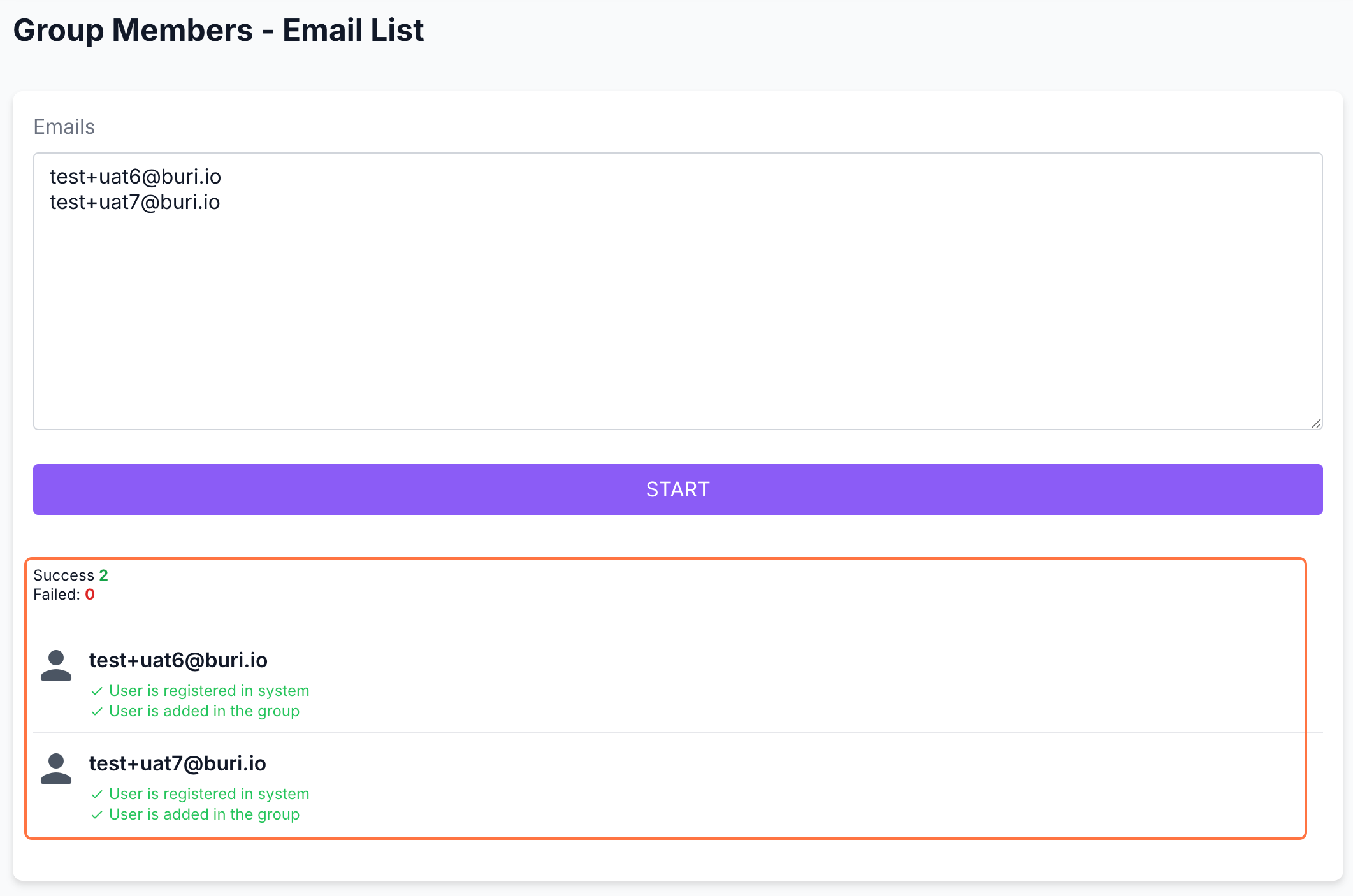
Wait until the list of users appears below with the respective status of adding to the group.
Option 2: From the Users Tab
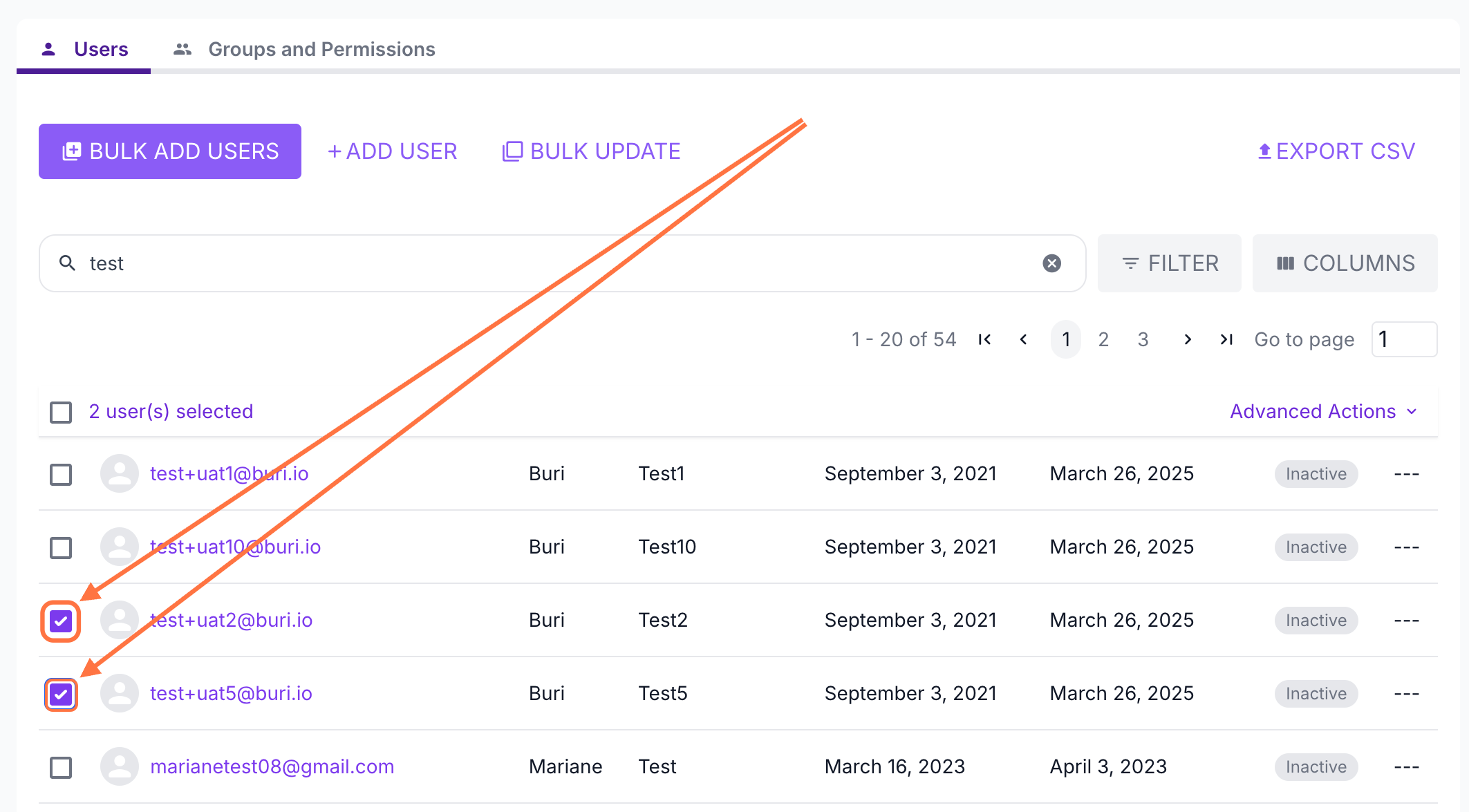
1. In the Users tab, select the users you want to add by ticking the checkbox next to their email addresses.
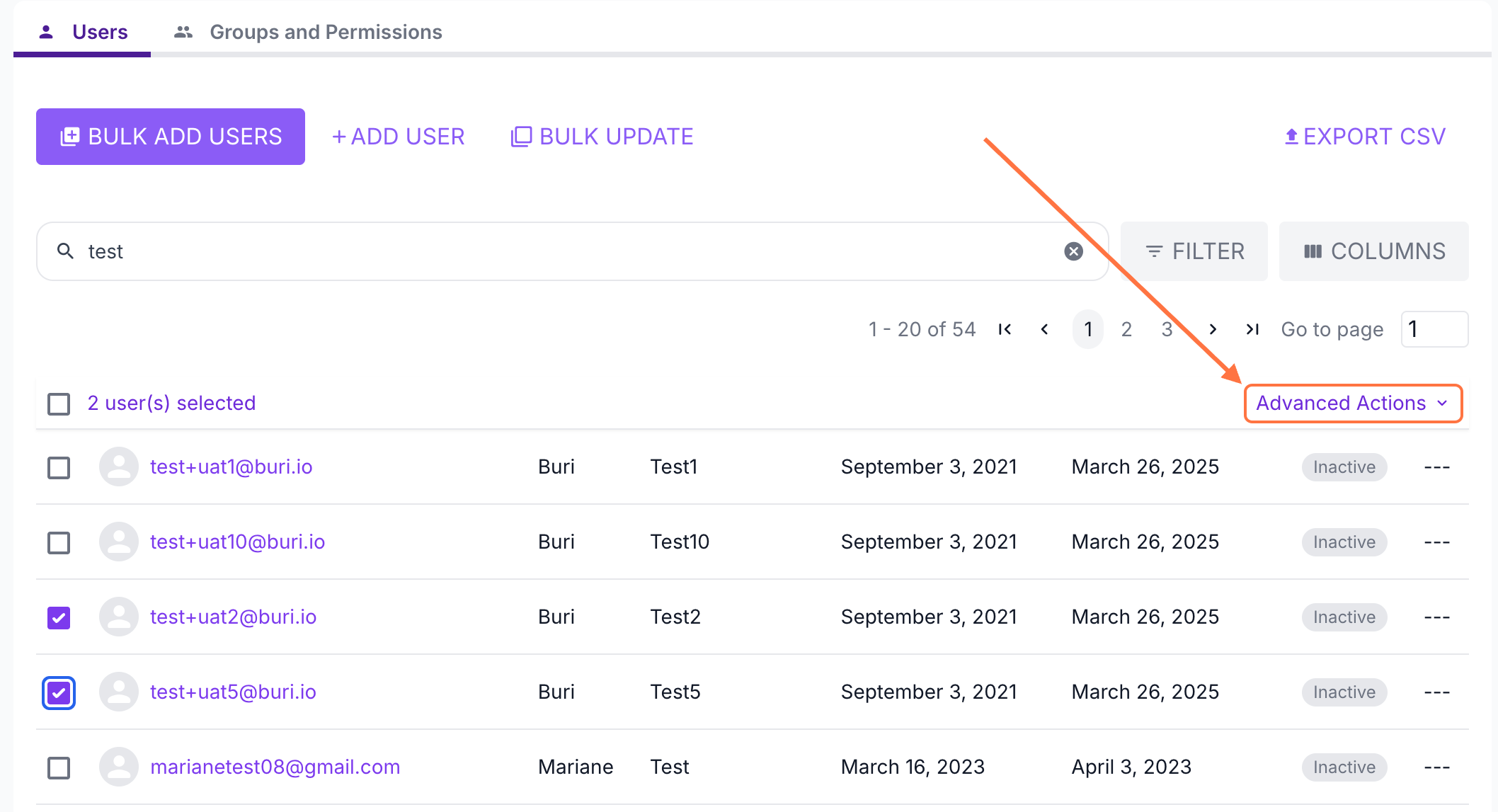
2. Click Advanced Actions.
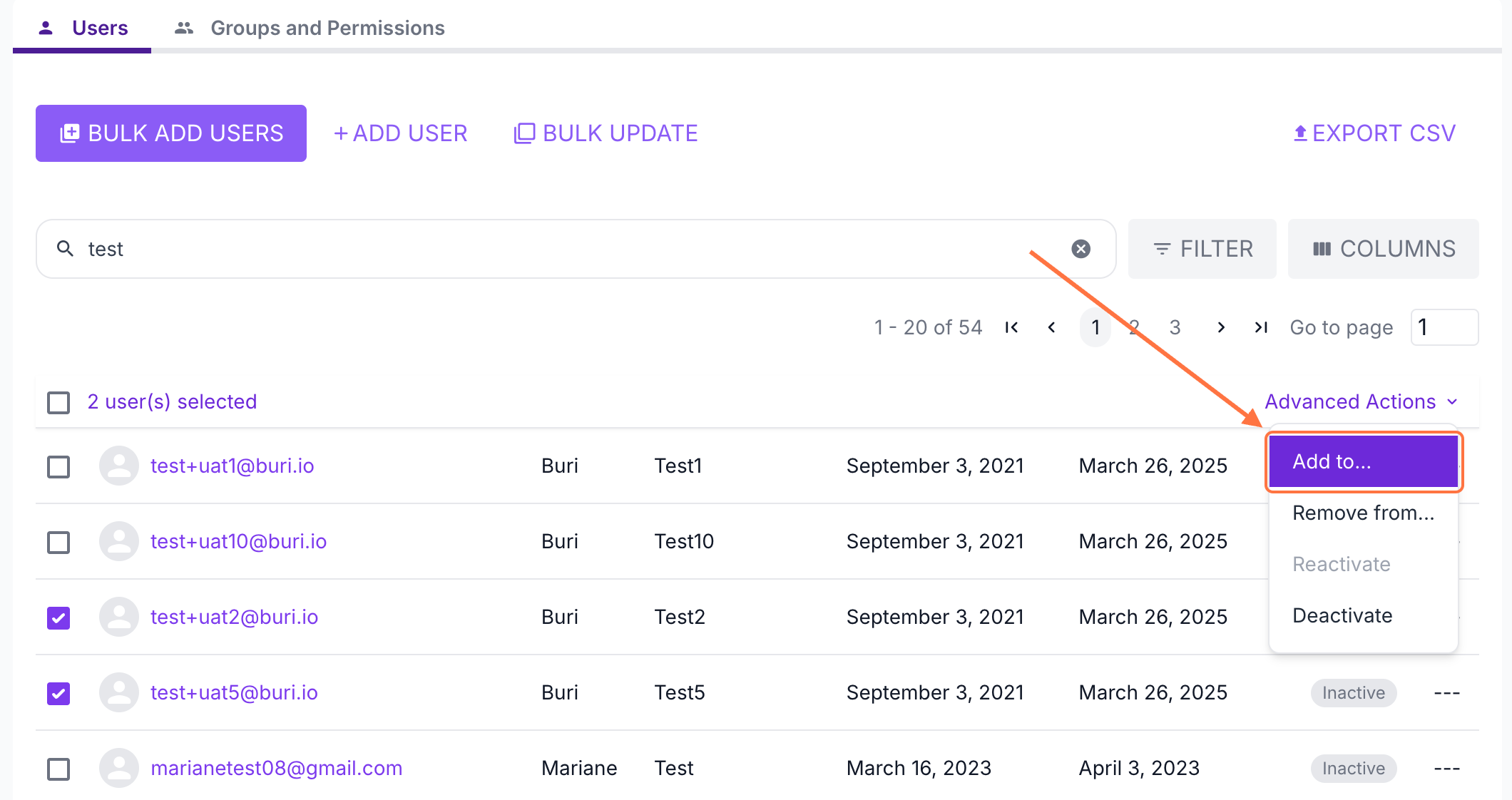
3. Select Add to...
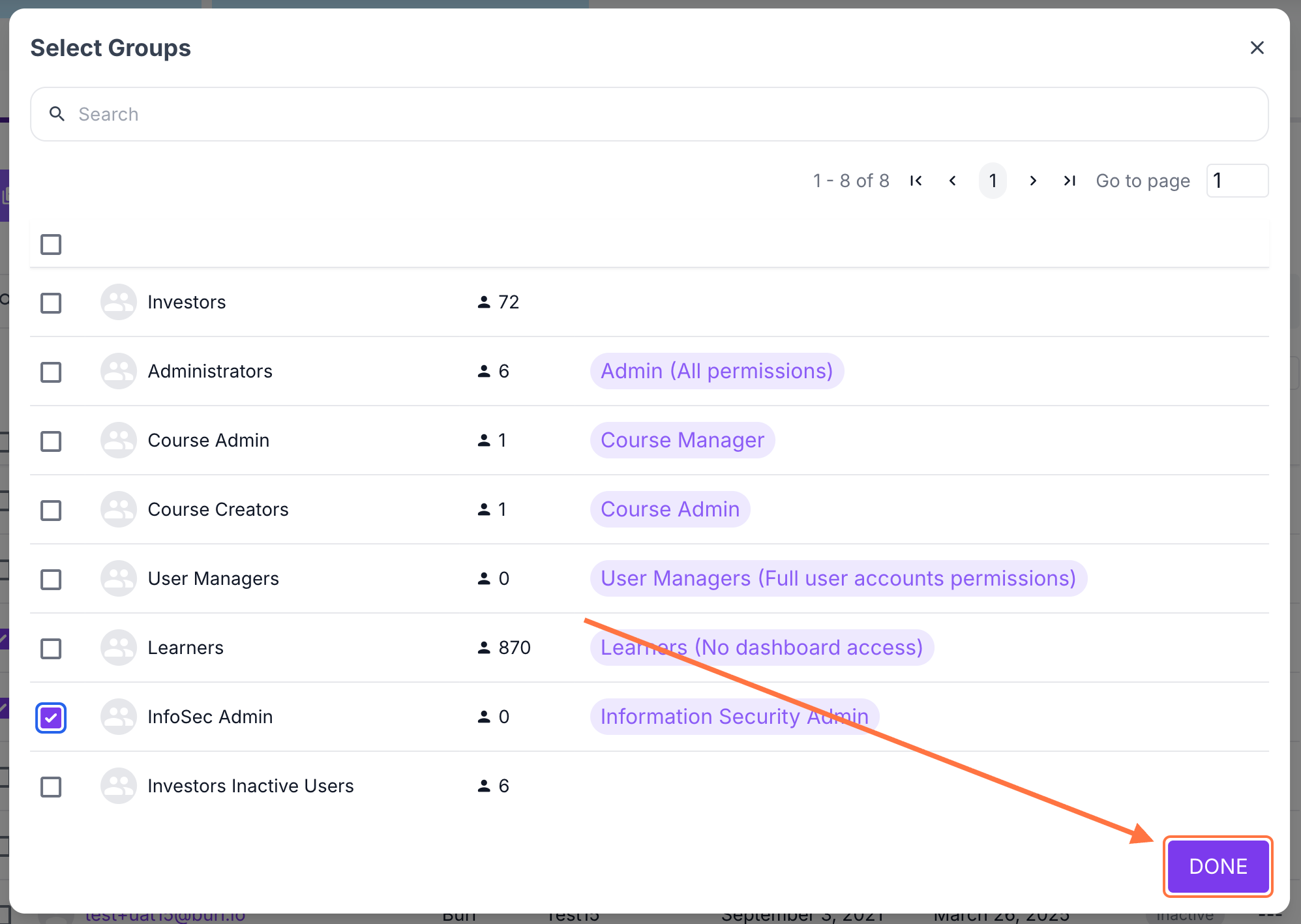
4. In the pop-up window, choose the group where you want to add the selected users by checking the corresponding box.
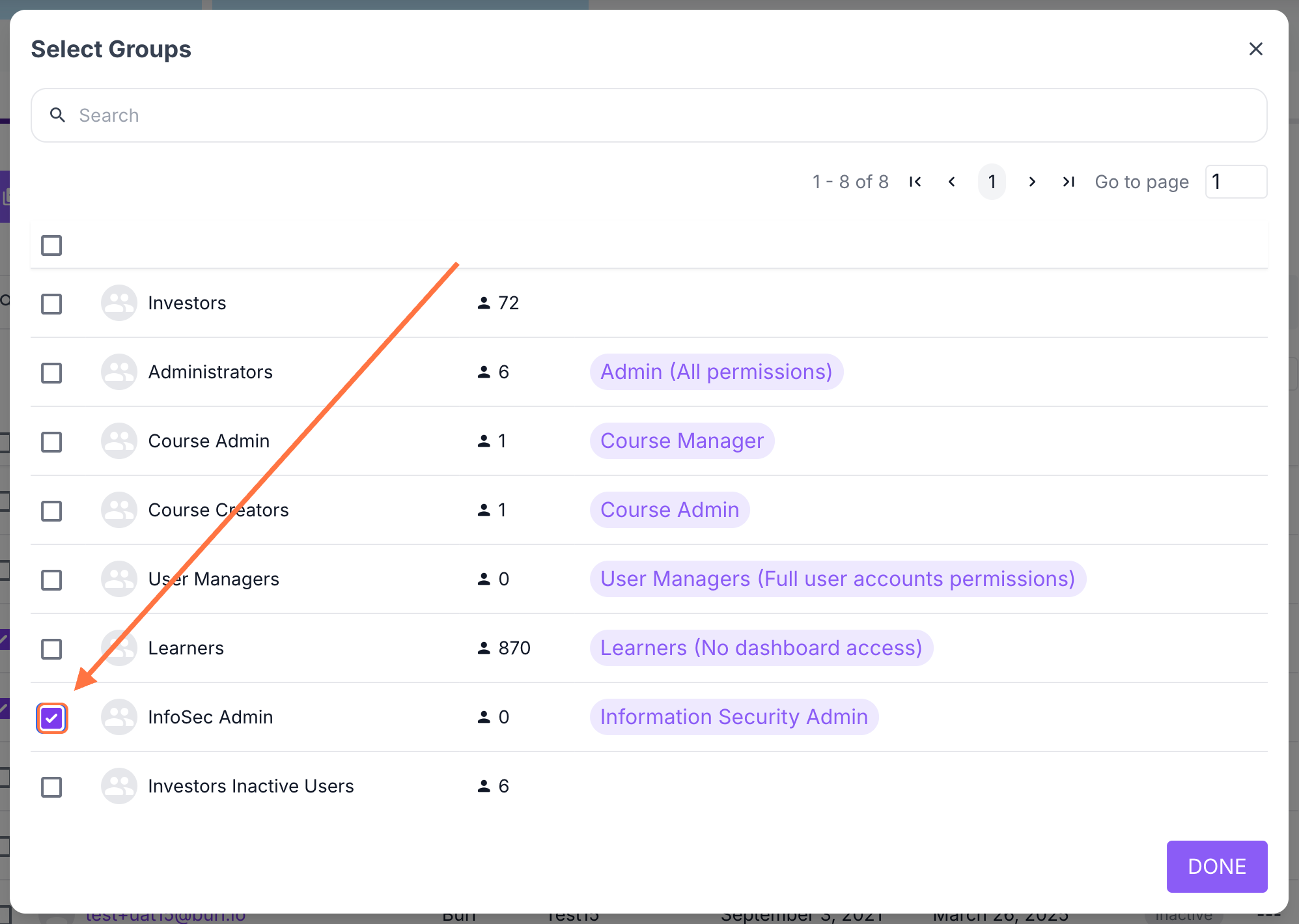
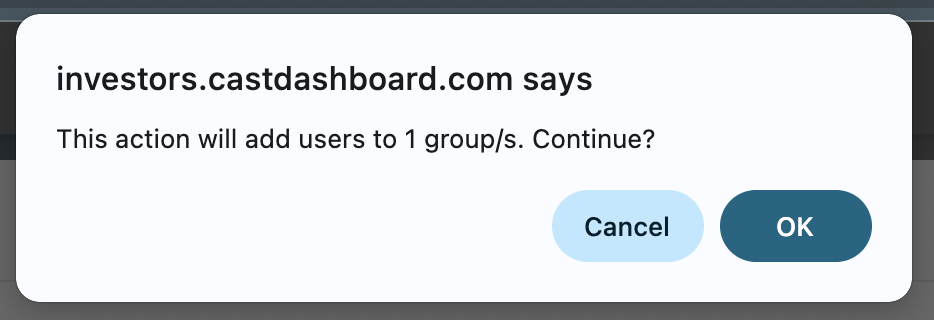
5. Click DONE, then confirm by clicking OK in the confirmation pop-up.
Wait a few moments for the page to refresh.
You can verify if the users were successfully added through their User Profile or the Group Profile.
Note: Users who are already members of the group will not be added again, but users can be members of multiple groups.