

If you want to change the email you're using in the LMS or if you want to change your current password, you can do this through your profile in the learner's portal.
1. On the upper right corner of the page, click the profile icon.
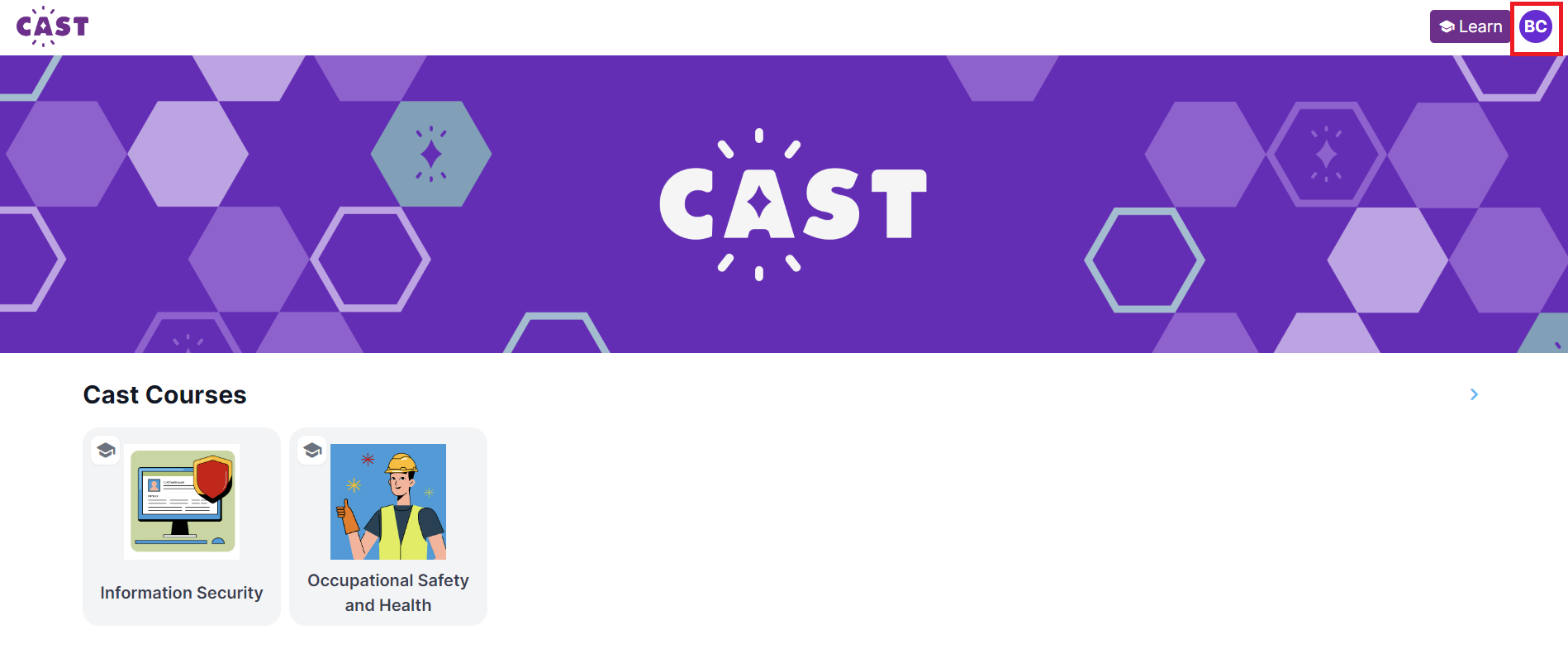
2. Click on Account and User Details.
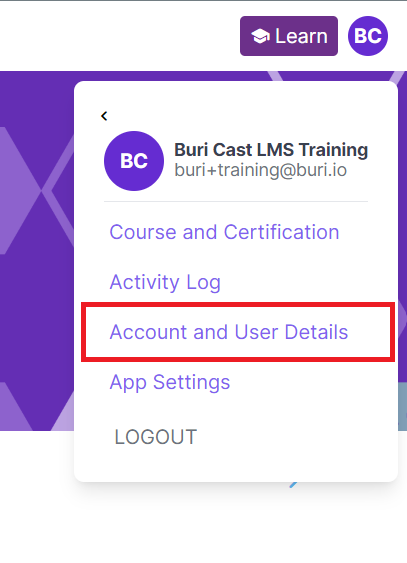
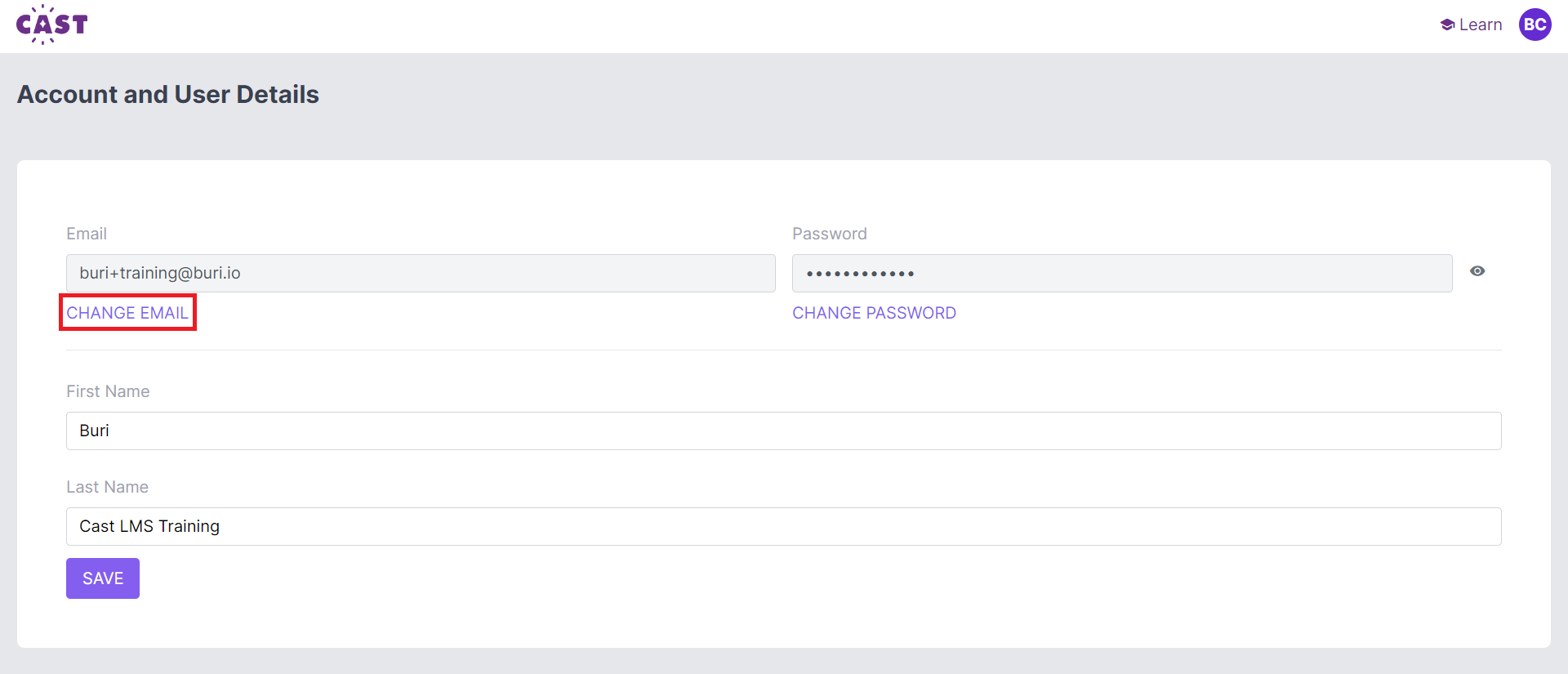
3. This is where you'll see your registered email address and current password. To change your registered email address, click on Change Email.
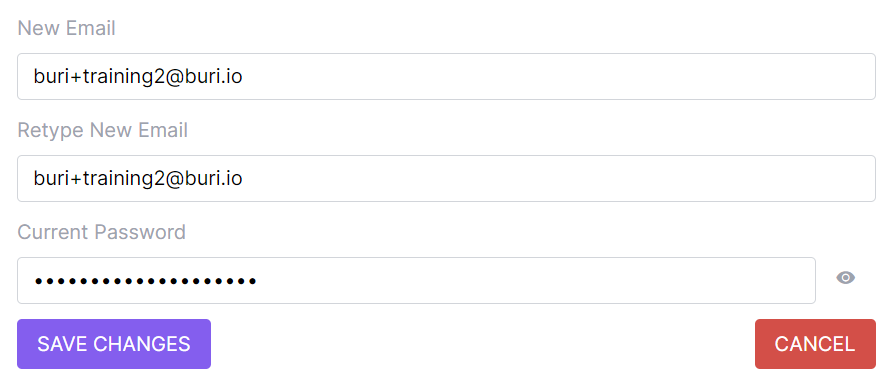
A short form will appear that requires you to input your new email twice and your current password. After filling in all the required boxes, click on the SAVE CHANGES button.
The displayed email will not change unless the new email address has been confirmed.
Go to your new email address' Inbox or Spam folder and look for the Confirmation Instructions email. Once successfully confirmed, the new email address should be reflected in your portal and you may now use this in logging in to the learner's portal.