

Administrators can manually grade assessments and file submission resources through the dashboard. Checking these can be done one by one, per enrolled user.
1. From the Cast Dashboard, go to Courses or Cast Editor.
2. Select your preferred course.
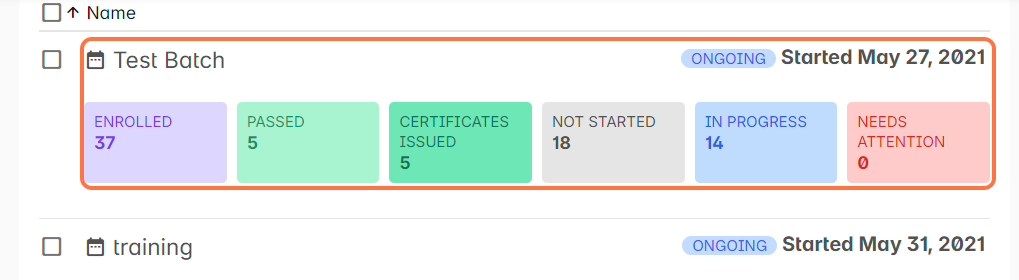
3. In the Course Profile, select a batch under Batches.
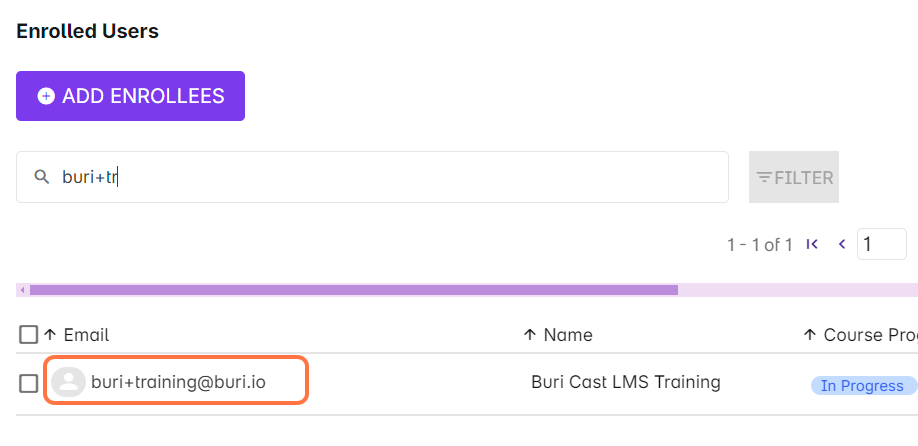
4. In the list under Enrolled Users, click on a user.
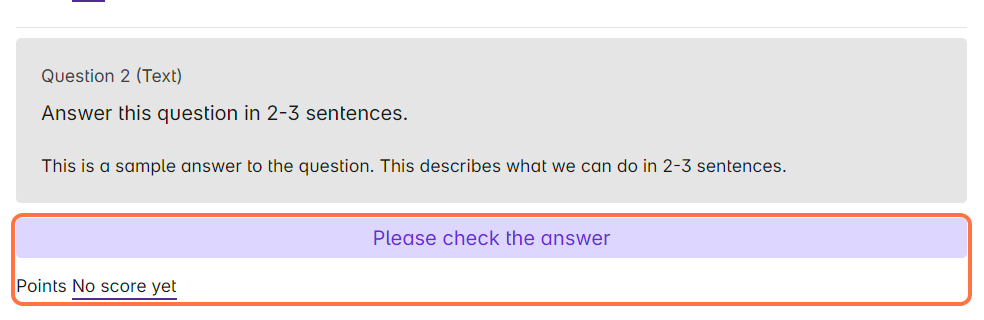
5. Click on the latest attempt record across the ungraded assessment. Ungraded file submissions should be marked In Progress and the score is greyed out.

6. For assessments, the answer of the user is readily available under the question text. The ungraded question will be labeled "Please check the answer."
For file submissions, the user's submitted file will appear as a link. Click on it to download or view the file.
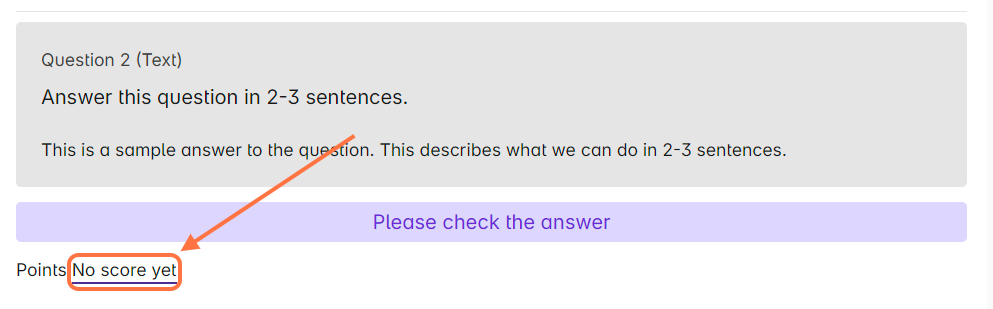
7. To put a grade on the submission, click on No score yet across Points.
8. Then put the number of points you want to give your user for this submission. Click OK to proceed.
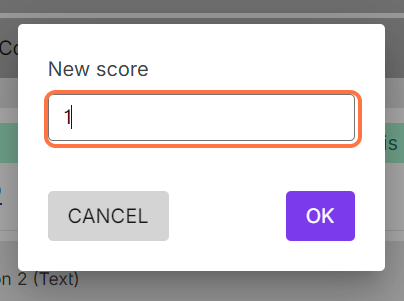
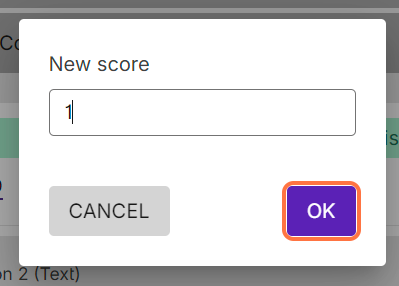
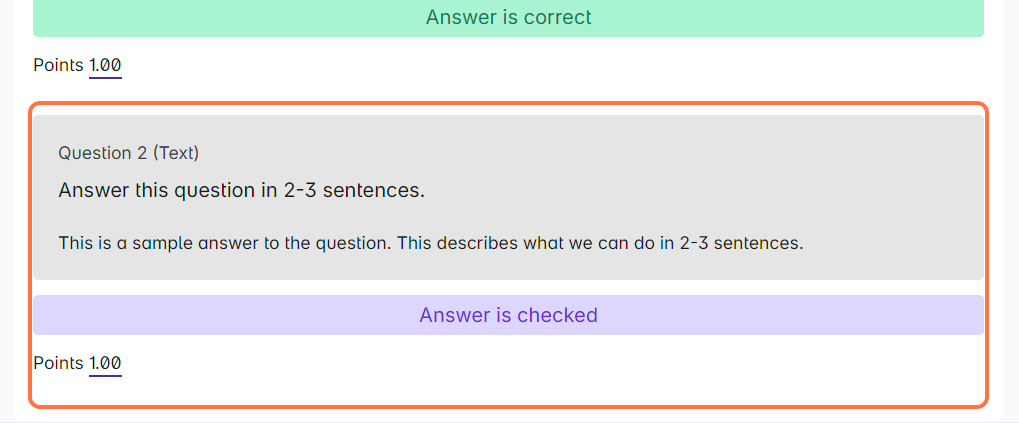
9. The page refreshes and the new score will now reflect on the View Attempt page. The question will now be labeled "Answer is checked."
10. When you go back to the course progress page for the user, the status and score of the assessment will change.
