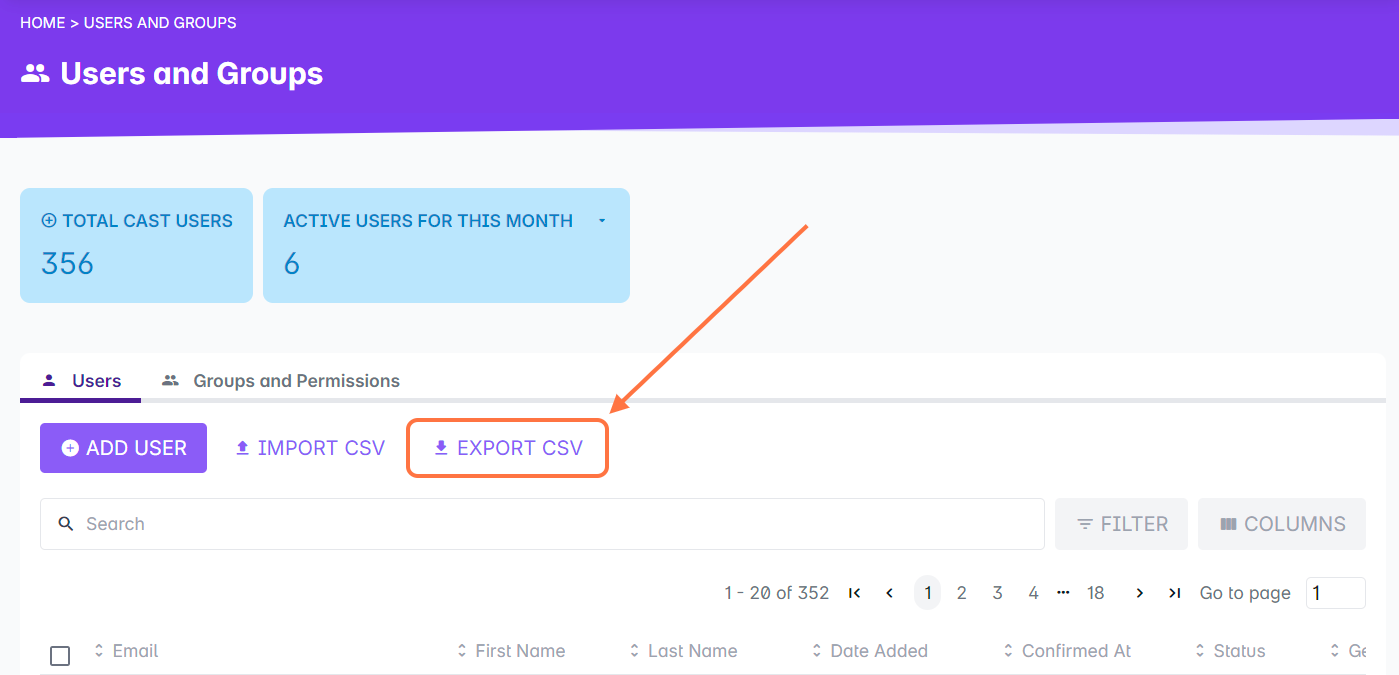
You can export a full list of your users with their respective information.
1. Go to Users and Groups.
2. Click on Export CSV to export the user list. The file will automatically be downloaded to your device.
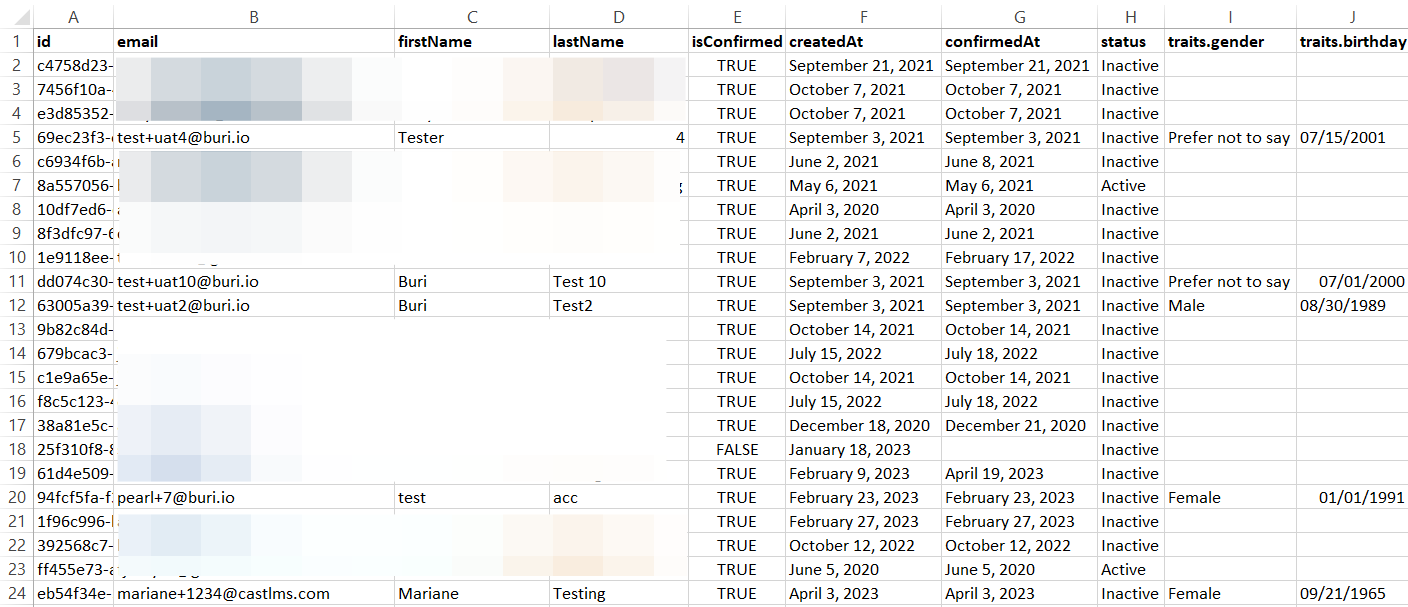
What does your exported user CSV file contain?
1. Registered email address. (email)
2. User's first name and last name. (firstName and lastName)
3. Status of confirmation of account. (isConfirmed) - TRUE, if the account has already been confirmed and FALSE, if the account has not been confirmed yet.
4. Date when the account is created (createdAt)
5. Date when account is confirmed by user (confirmedAt)
6. Current usage status of user (status) - either Active, if the user has already logged in to the portal or Inactive, if they haven't logged in yet.
If you have displayed columns from your list of additional fields, these will be included in the exported CSV file, as well. To display columns for additional fields, please read this article.