

You can now filter the enrolled users inside each batch according to their status.
1. Go to Cast Editor or Courses.
2. Click on your preferred course.
3. Select any batch in the list under Batches.

4. Click on the Filter button beside the search bar.

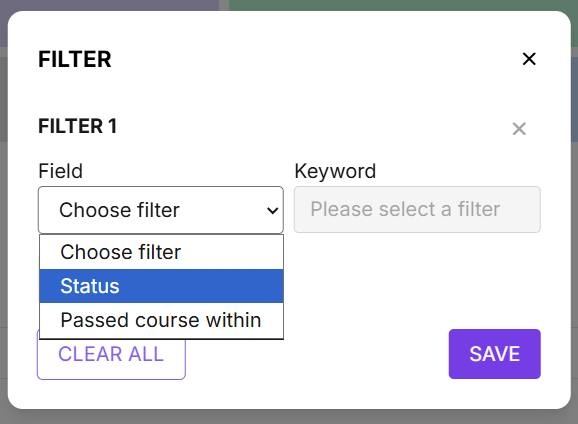
5. Click on + ADD A FILTER and for Field, select Status.

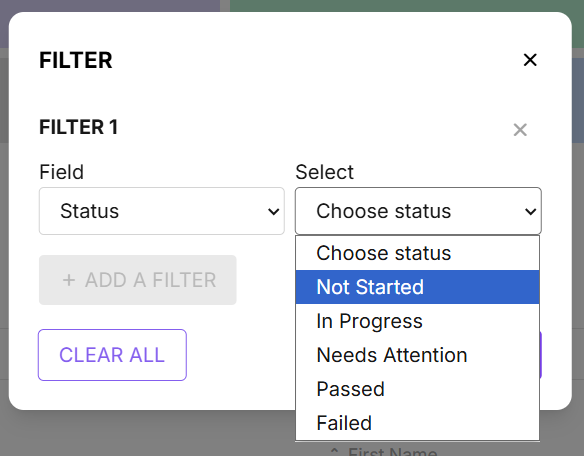
6. In the second drop down, select your preferred status (i.e., Passed, Not Started, In Progress, Needs Attention).
7. Click on Save once you're done selecting your filter.

8. After clicking Save, you will be taken back to the student list for the batch. Wait for a few moments until the list of students with the status you selected appear.
