

You can also link your LMS account to a third-party provider through the Account and User Details page in your profile.
1. Log in to your LMS account.
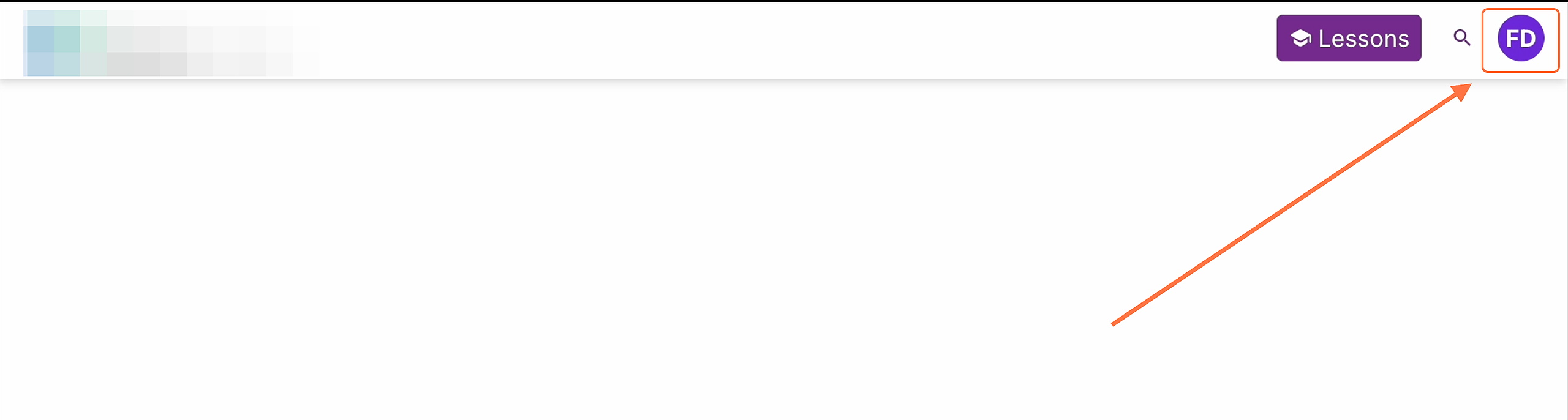
2. Click the profile icon in the top-right corner of the screen.
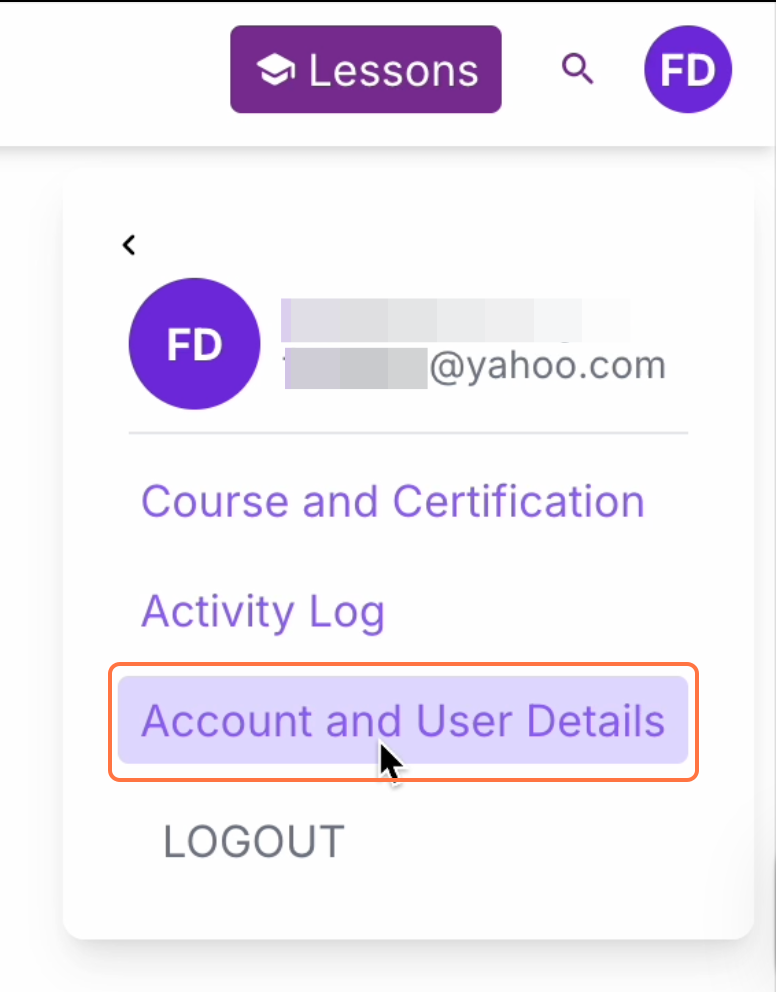
3. Select Account and User Details.
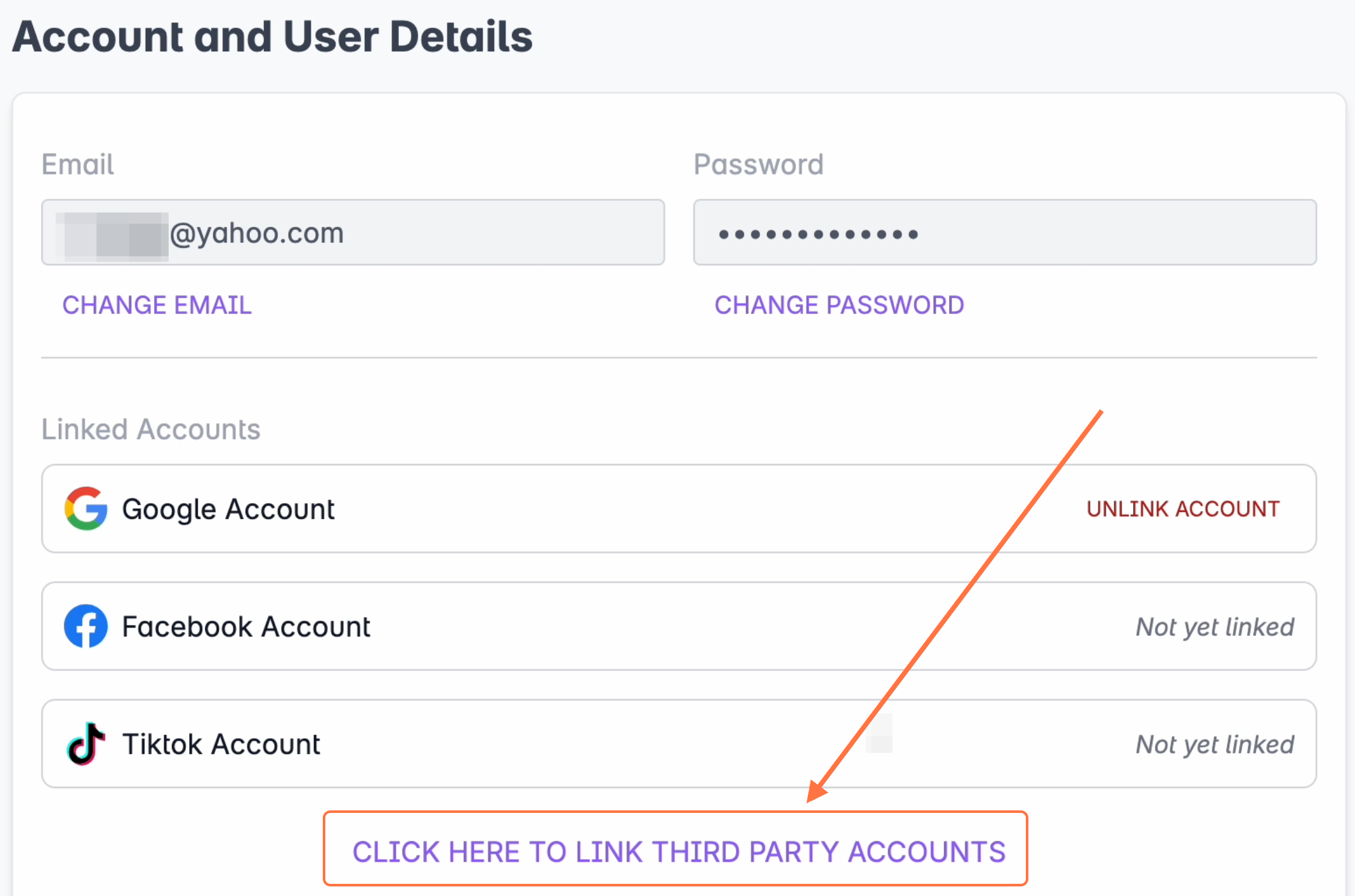
4. Under the Linked Accounts section, click CLICK HERE TO LINK THIRD-PARTY ACCOUNTS.
5. Choose a provider.
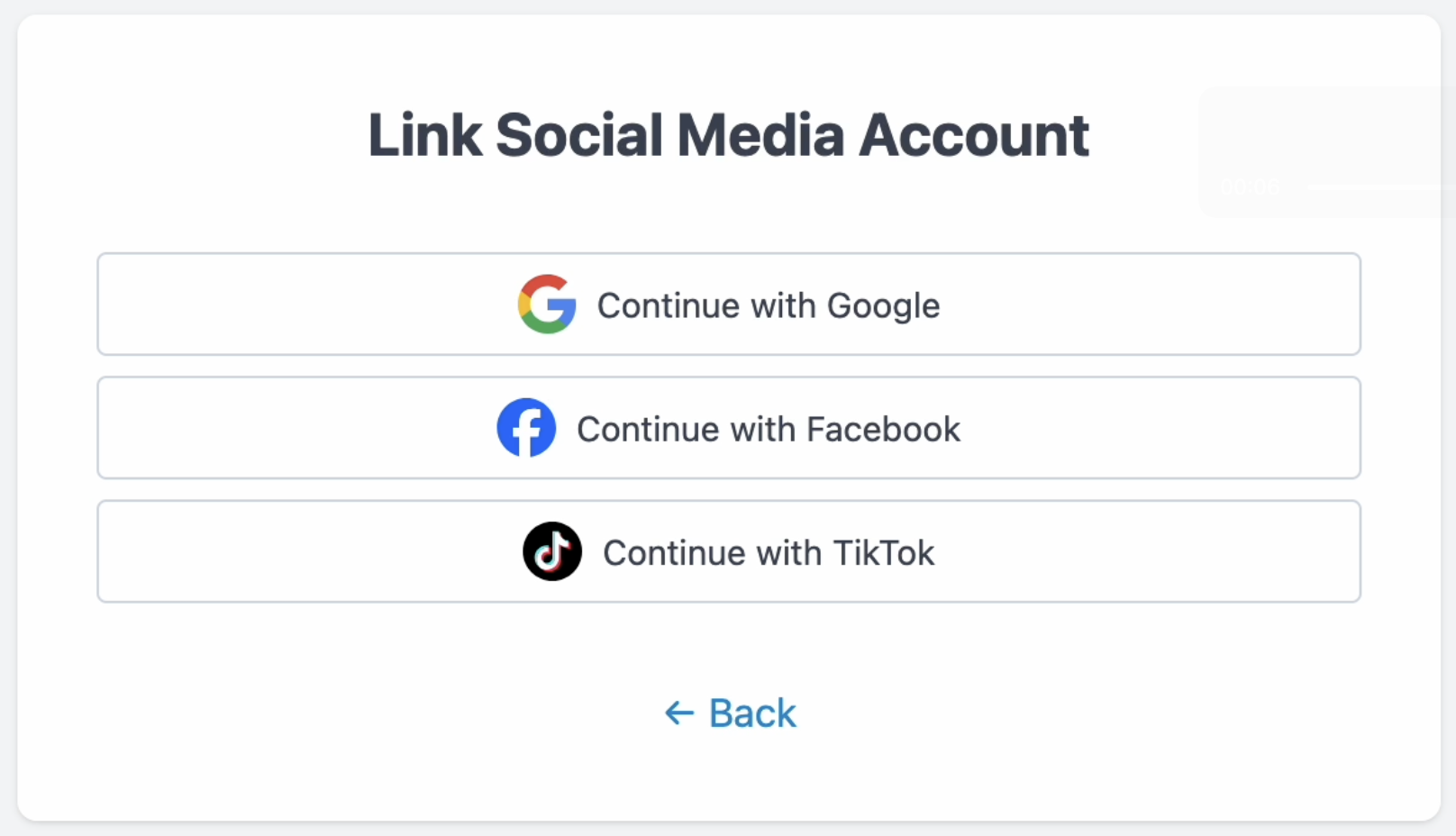
6. You’ll be redirected to the provider’s login page, where you can sign in and link your account. It will be helpful if you are already logged in to your social media account in the same browser to make the linking easier.
Once linked, you can use this account for future logins. You may also unlink it at any time.