

On your first login to the portal, you can immediately link a third-party account before proceeding to the LMS.
1. Go to your Cast LMS portal.
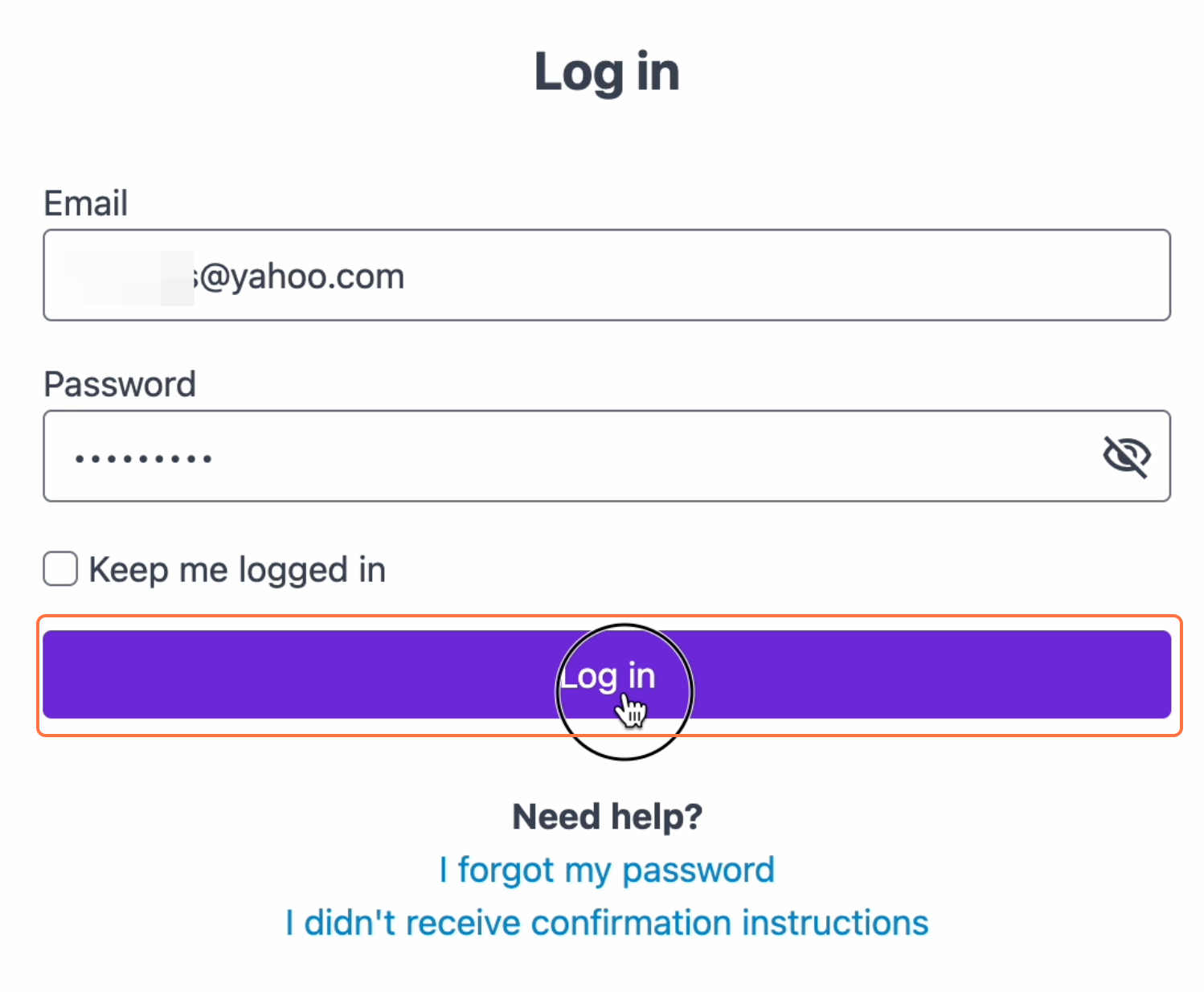
2. Click LOGIN.
3. Enter your email address and default password.
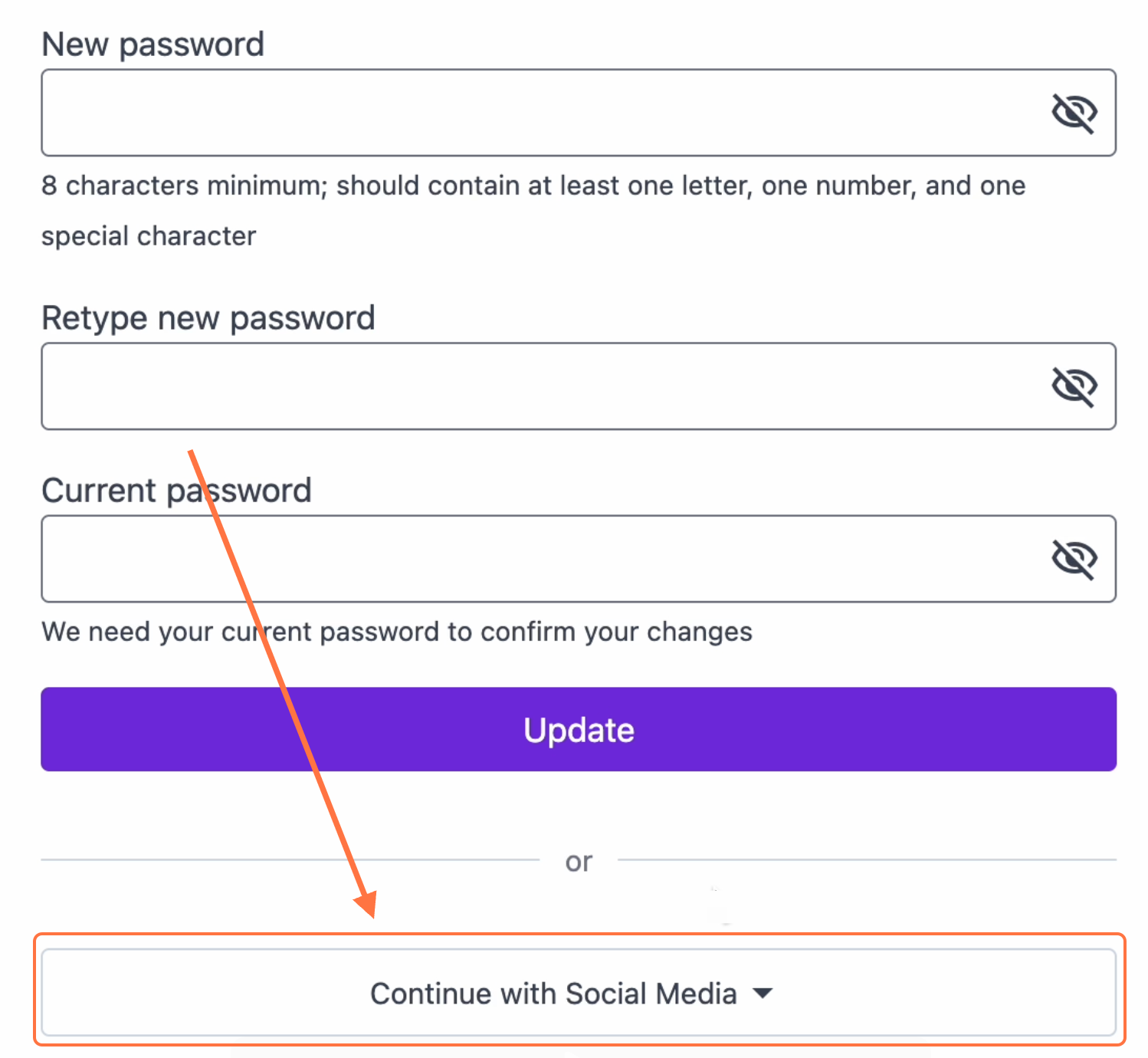
4. On the Change Password page, you’ll see an option to Continue with Social Media. Click the dropdown to view the available providers.
5. Select your preferred social media account. If you are already signed in to Google, Facebook, or TikTok, linking will be even faster.
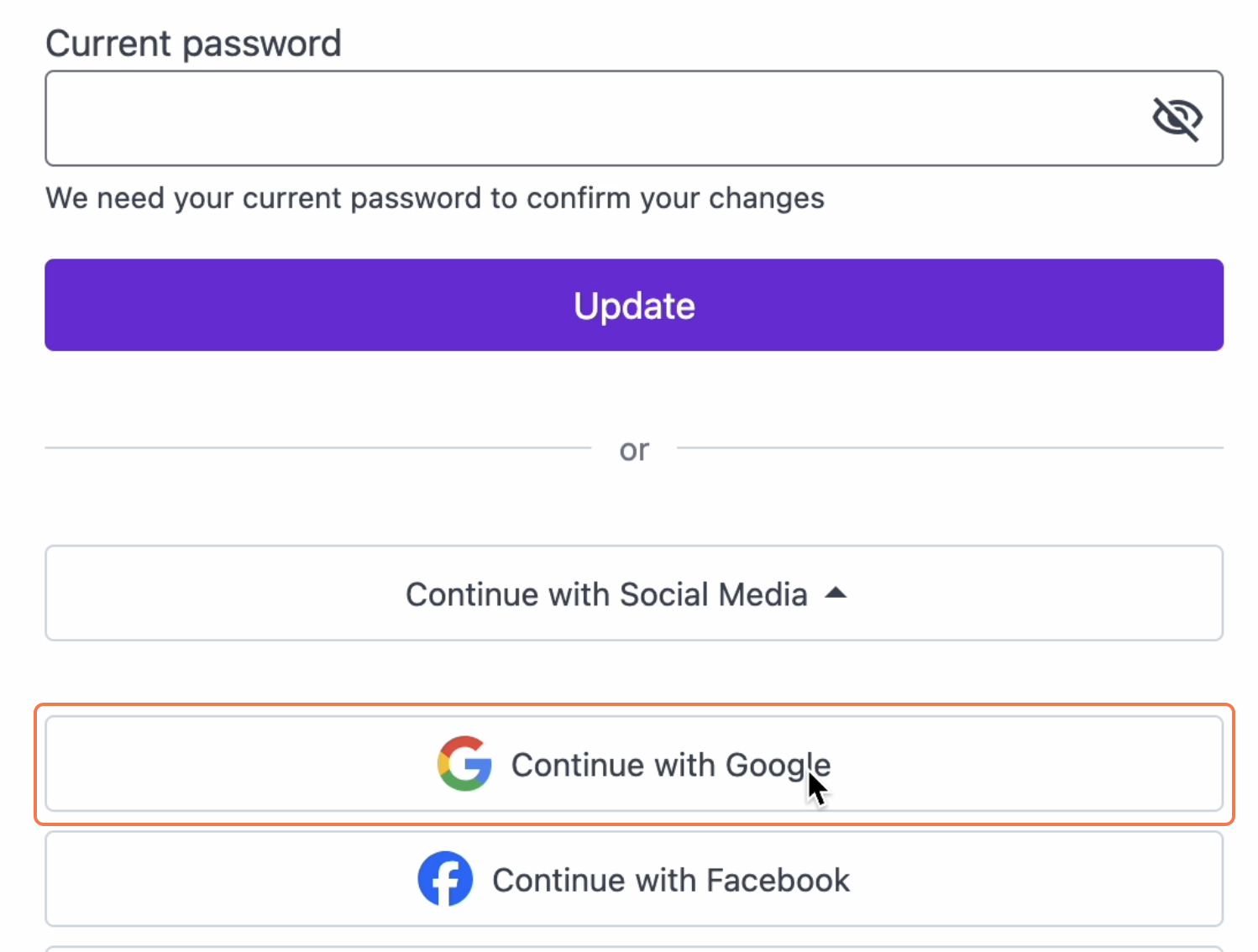
Once the linking is successful, you’ll be redirected to your LMS homepage. From then on, you can log in with your linked account instead of your email address and password.
You can also link additional accounts through your profile, and unlink them at any time.