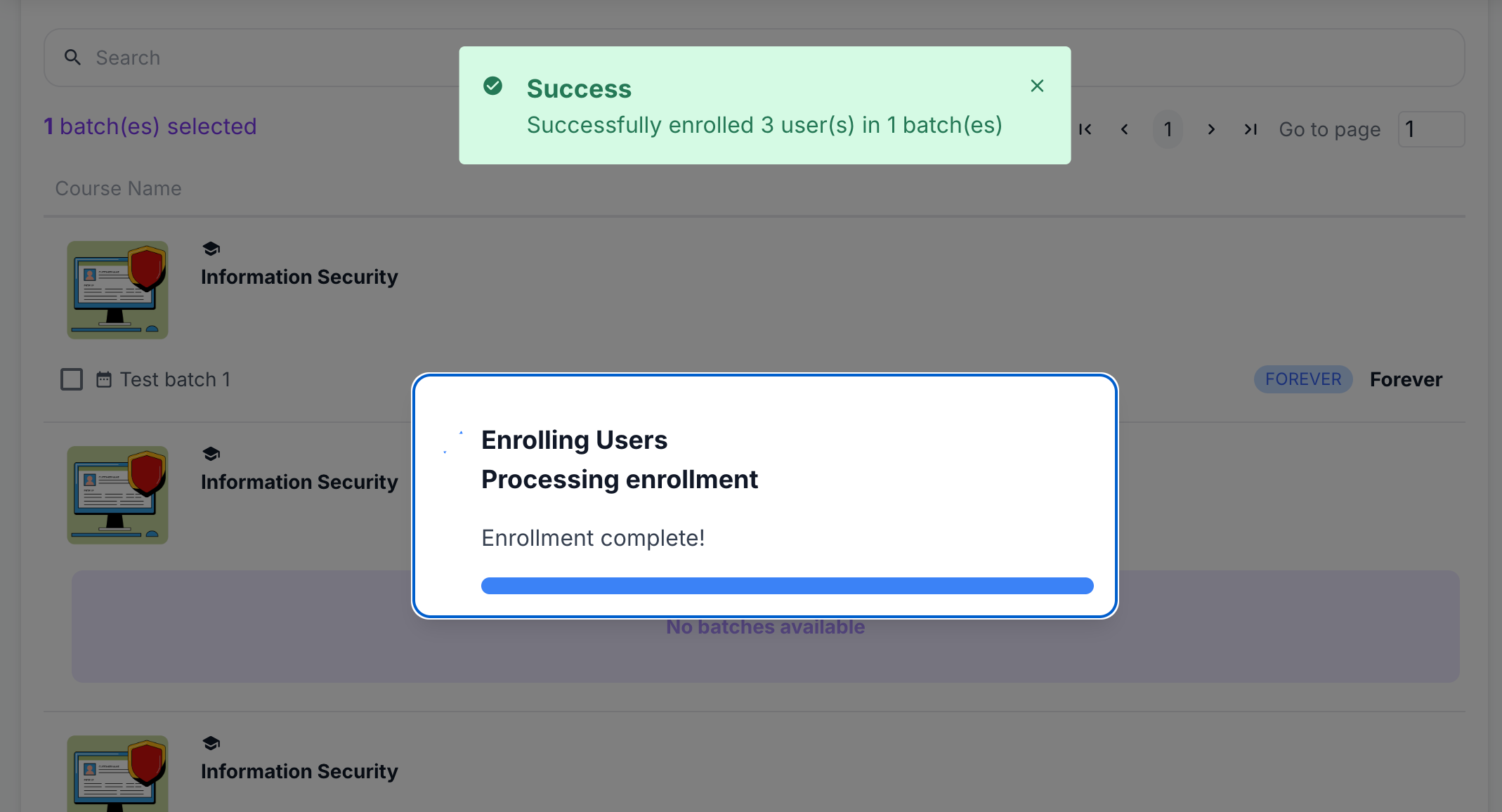
You can create a bulk of users and immediately enroll them in their respective batches through the Bulk User Upload + Enroll button in Users and Groups.
REMINDER: Before doing this, make sure that you have set up your batch.
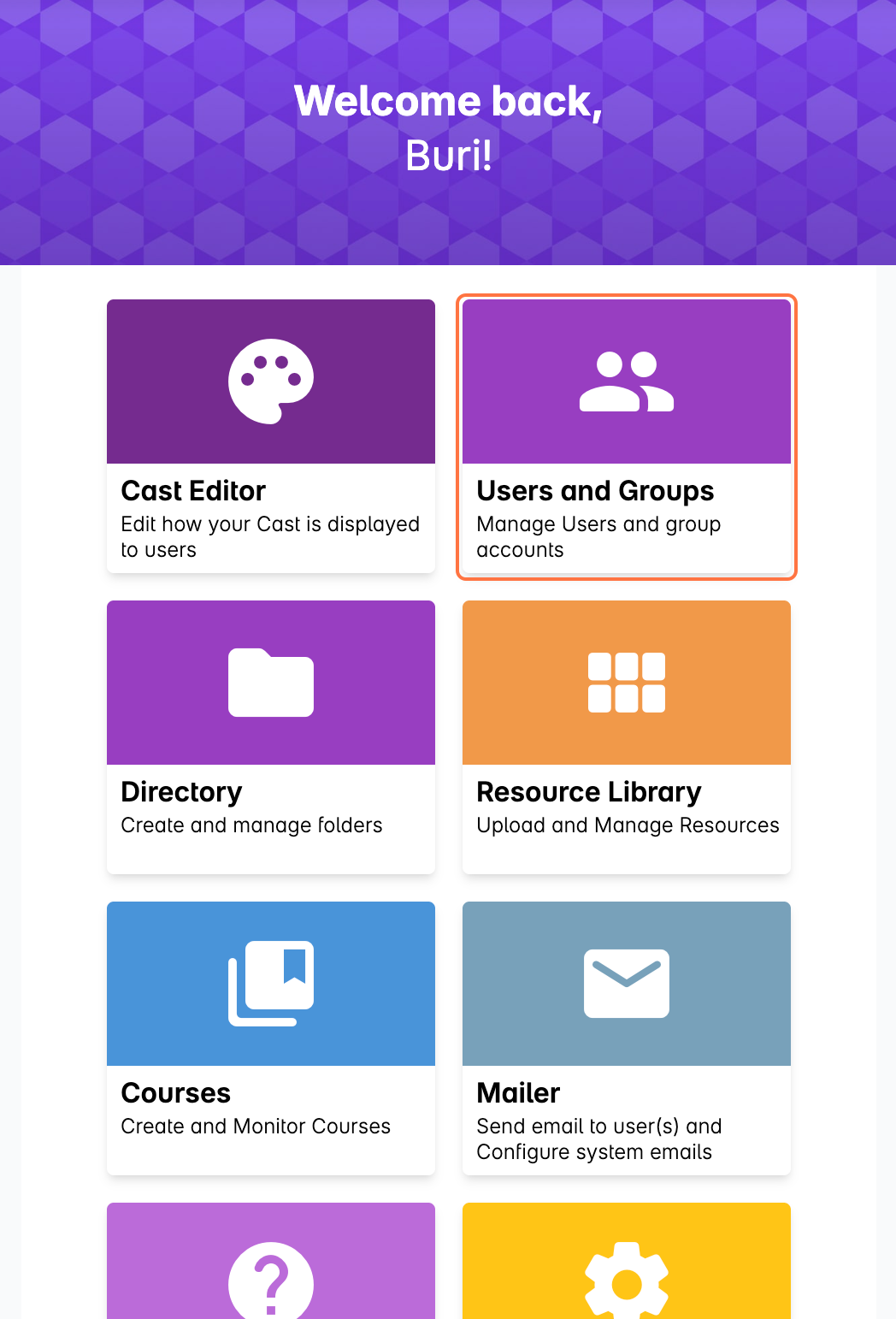
1. In the home page of your dashboard, go to Users and Groups.
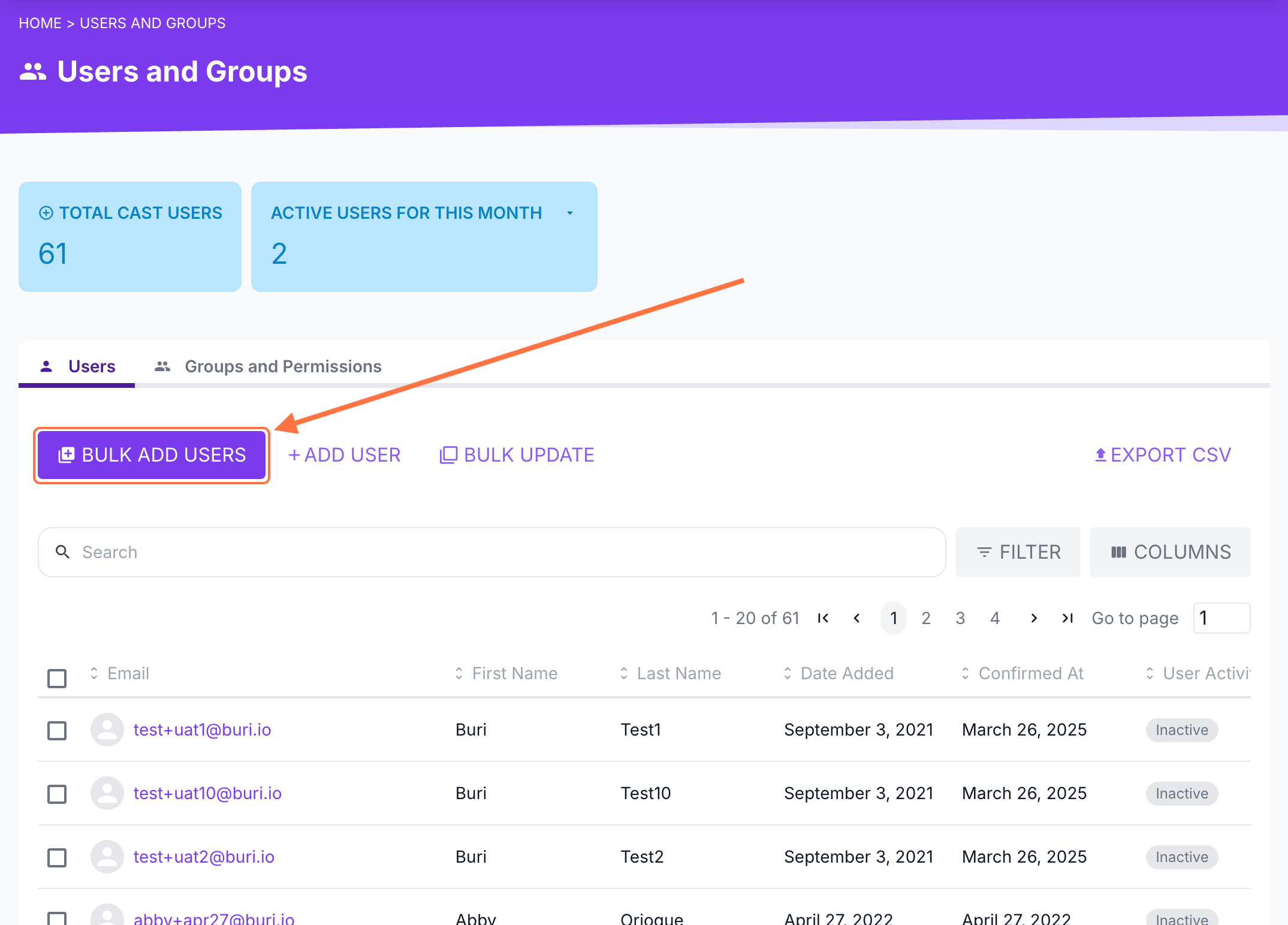
2. Select BULK ADD USERS.
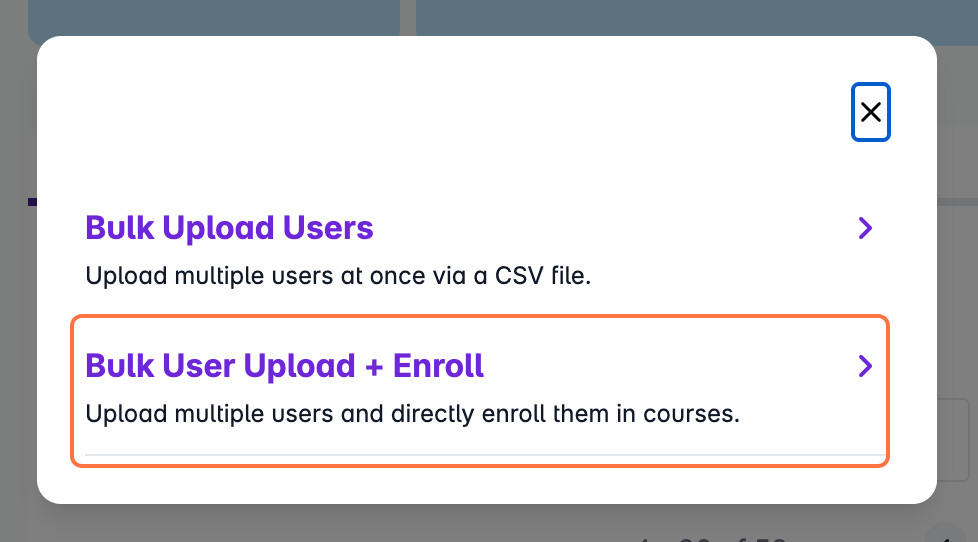
3. To create users and enroll them immediately in existing batches within courses, select Bulk User Upload + Enroll.
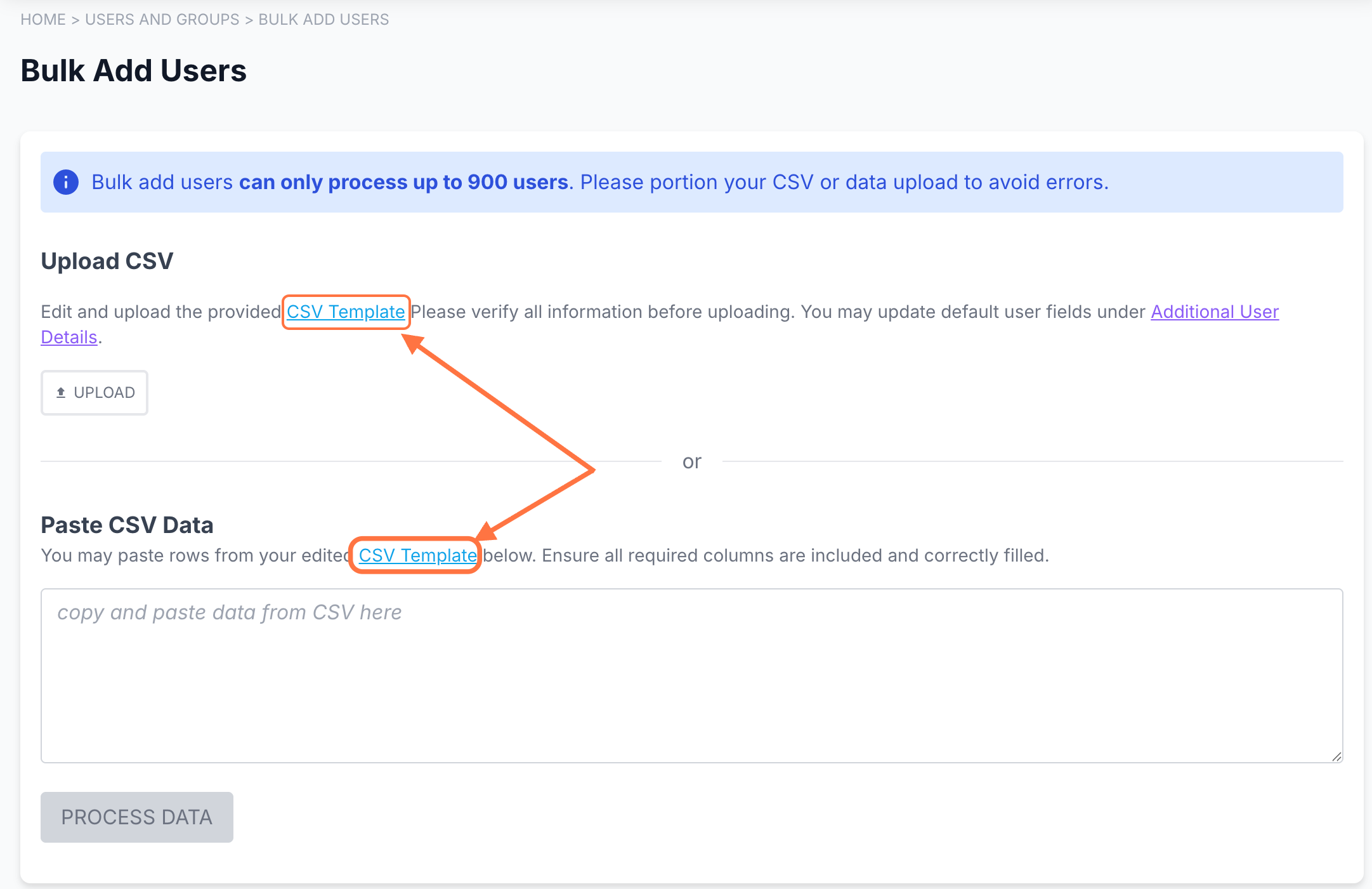
4. Download the CSV template by clicking on CSV Template in the description under Upload CSV and Paste CSV Data. You can use this in creating your list of users.
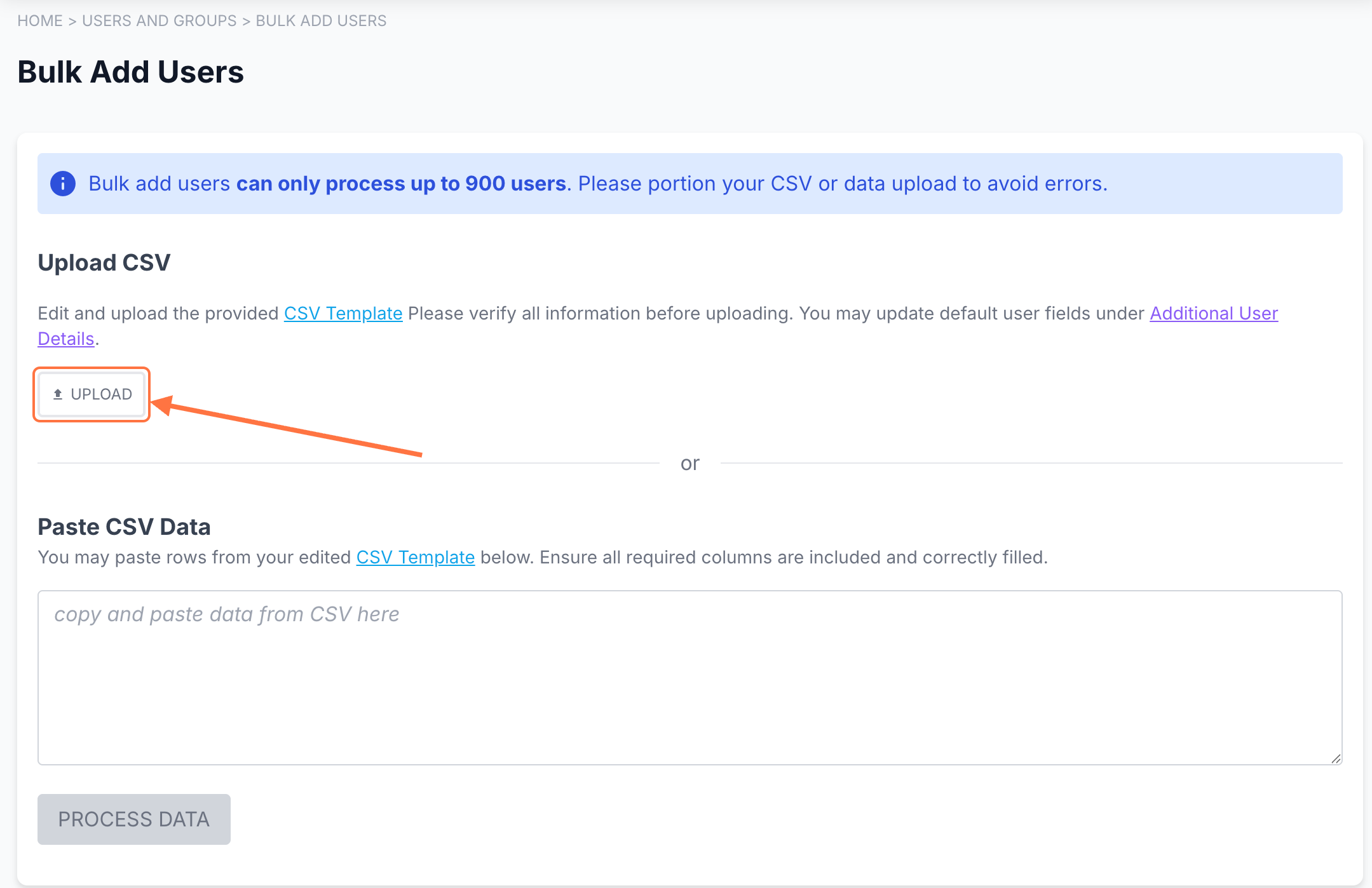
Copy the data from your CSV template and paste it in the space provided, OR upload your CSV by clicking on Upload CSV.
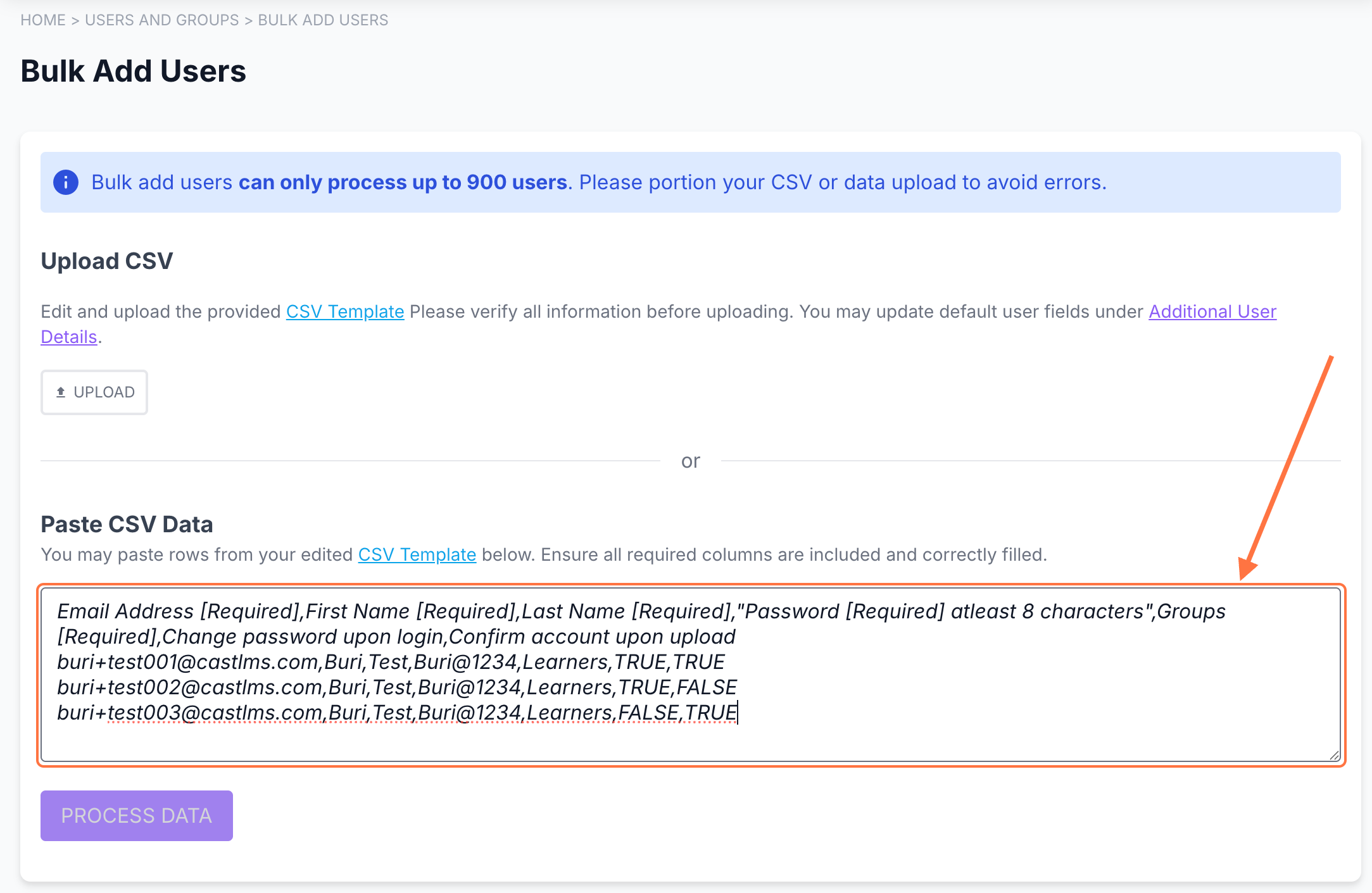
Click Process Data.
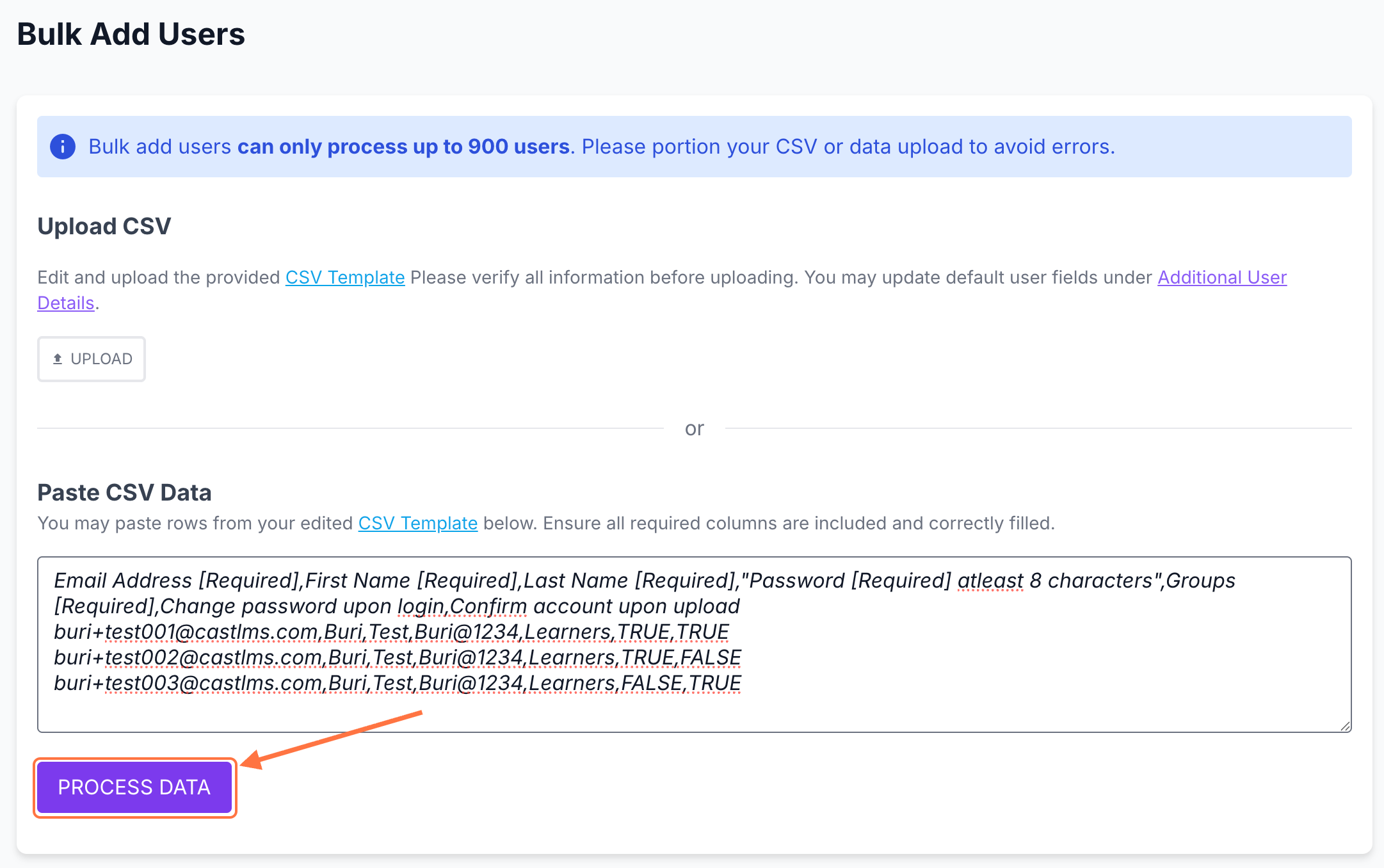
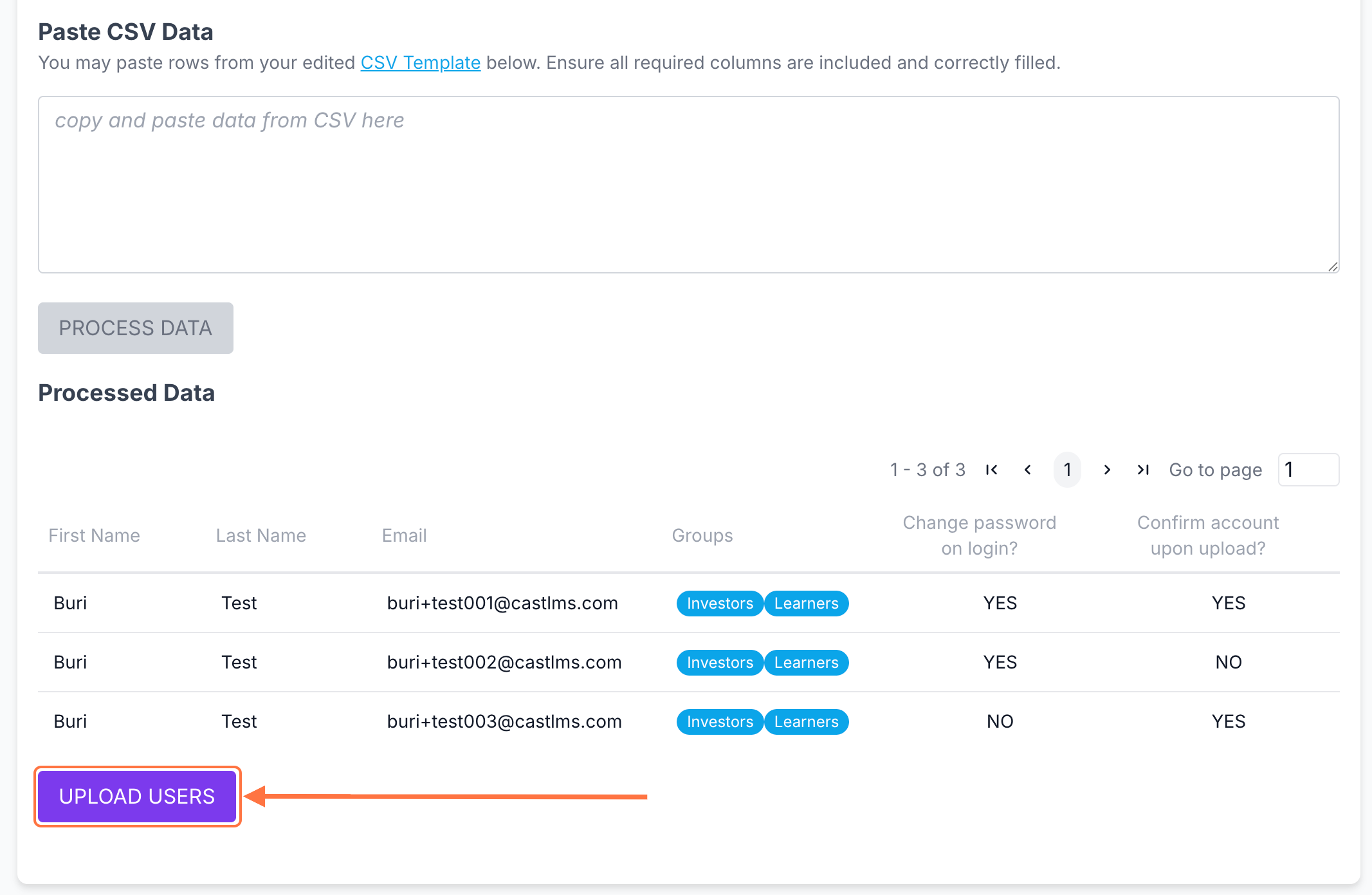
5. Double-check the processed data displayed on the page. Then, click Upload Users to begin creating the accounts.
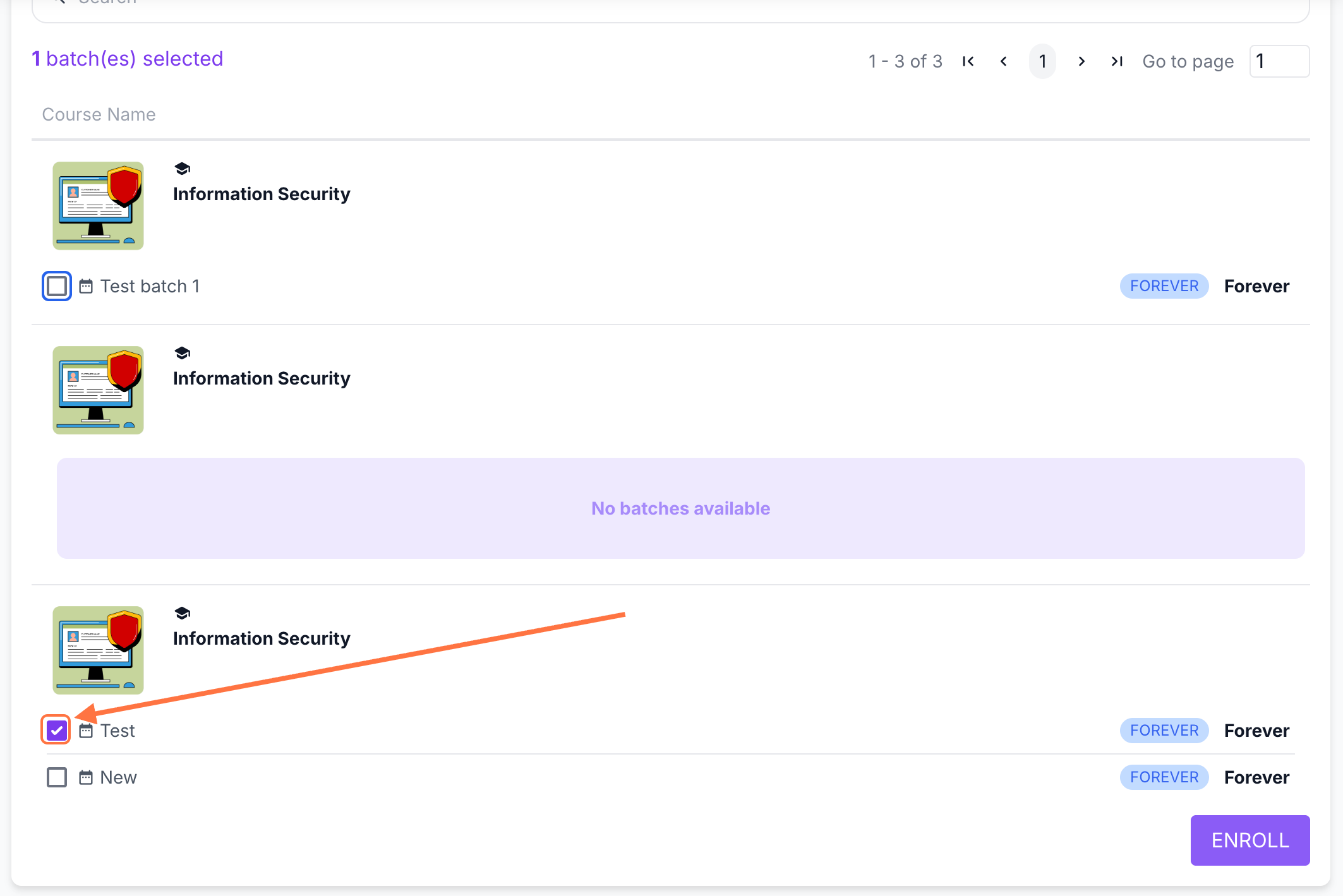
6. You will be prompted to select an existing batch in the list of existing courses by checking the box beside a batch name. You can select multiple batches in multiple courses at once.
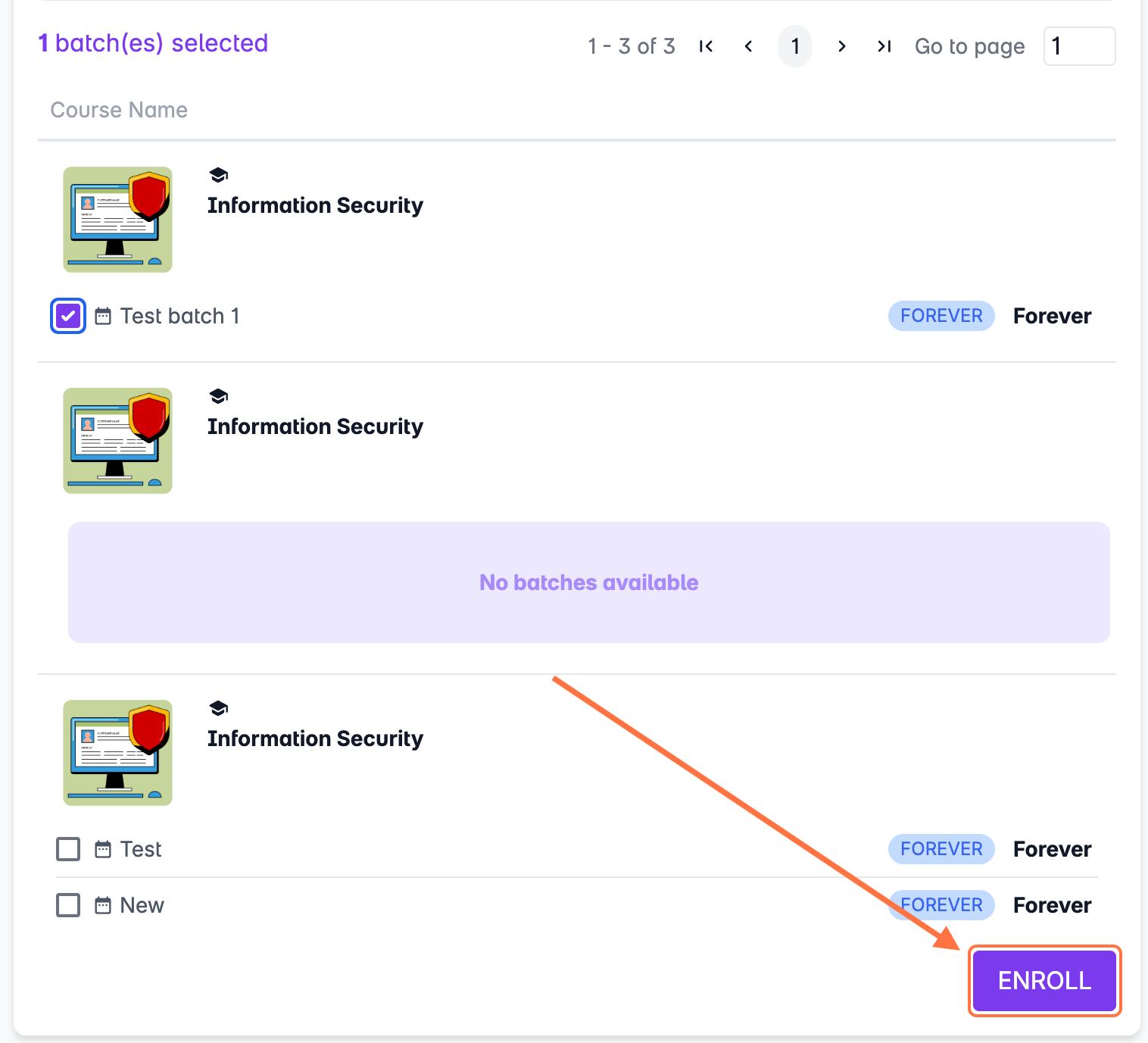
7. Then, click ENROLL.
The system will inform you once your uploaded users have been successfully enrolled in your selected batches and courses.