

You can choose this enrollment option if you want your users with existing accounts in the LMS to enroll in the course/s you are offering.
1. Select Self Enroll users from the list of enrollment options. To view your enrollment options in batches, read this article: https://support.castlms.com/help/viewing-enrollment-options)

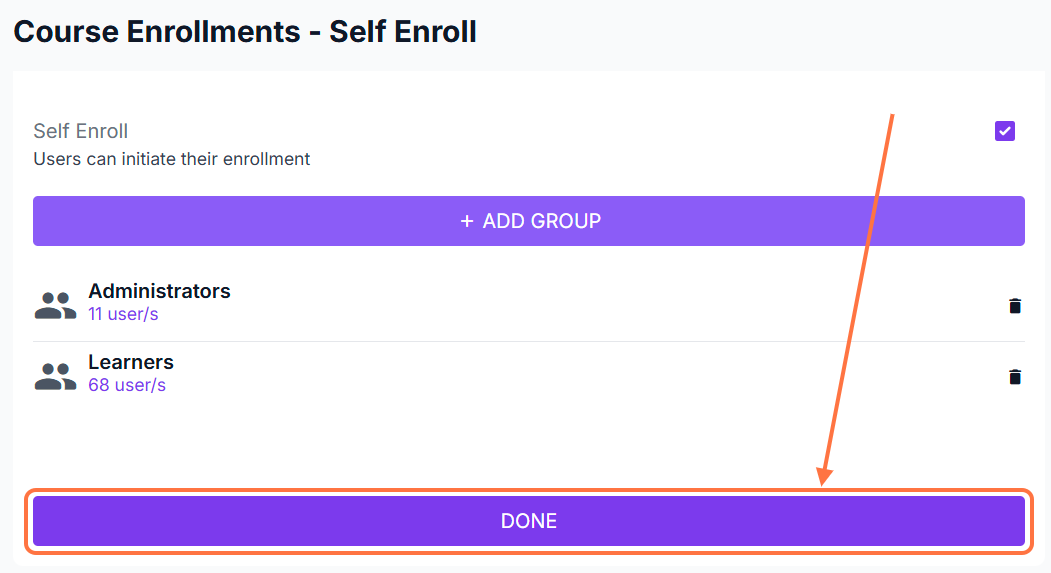
2. Check the box to enable self-enrollment for this batch.

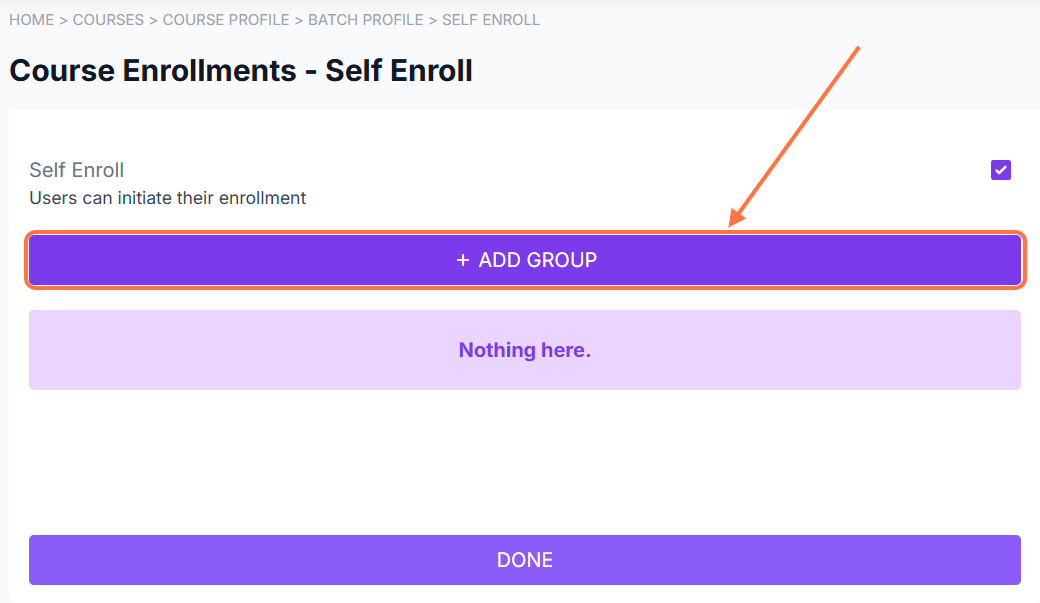
3. Click the + Add Group button to select a group of users that can self-enroll in the course.
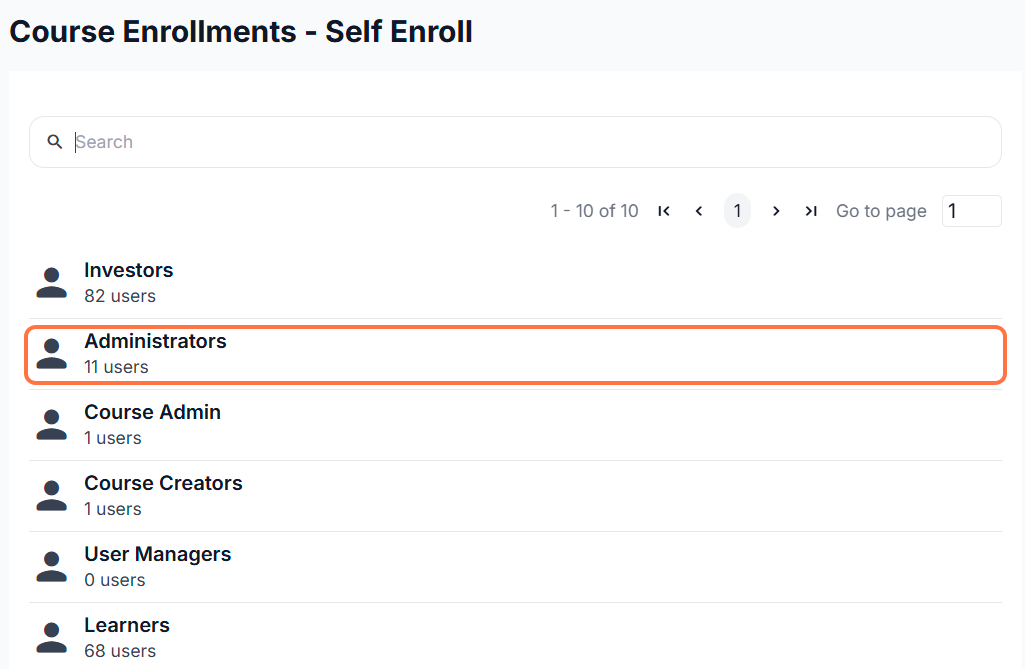
4. Select a group from the list.
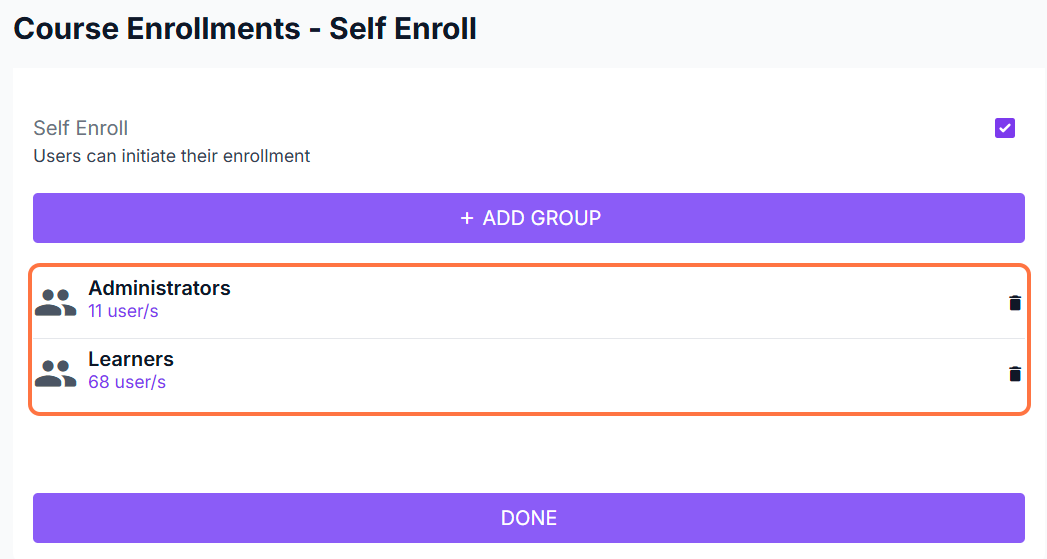
You can add as many groups as you want by clicking on the + Add Group button again. The selected groups will appear in the space below.
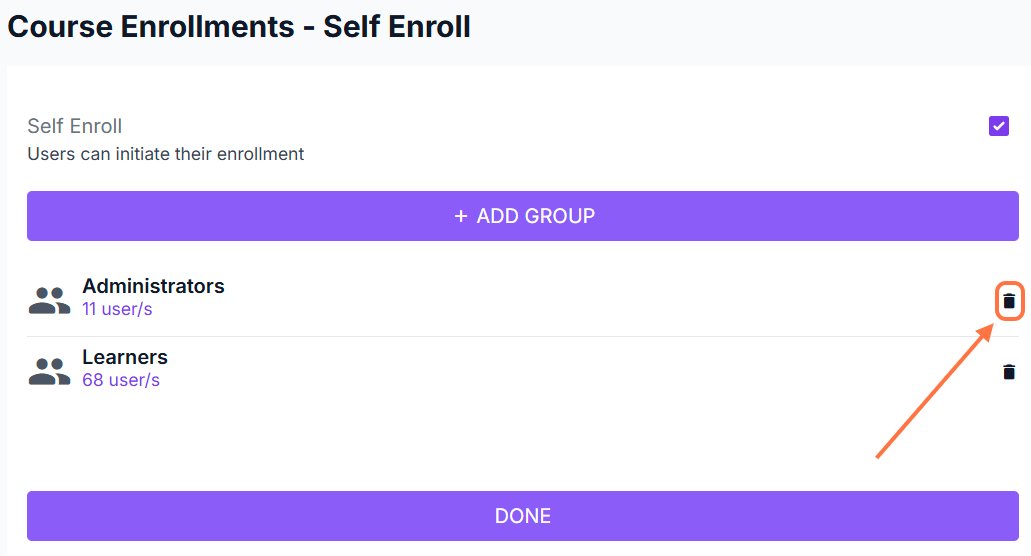
You can remove any group from the list by clicking on the delete icon.
4. Click Done to save your changes. The course will only appear for users in the selected groups.
Tip: If you want all the learners in the LMS to have the ability to self enroll in the course, select the Learners group.