

You can change your Cast LMS login logo and the navigation bar logo through the admin dashboard. These can be two separate logos that can help with your LMS branding.
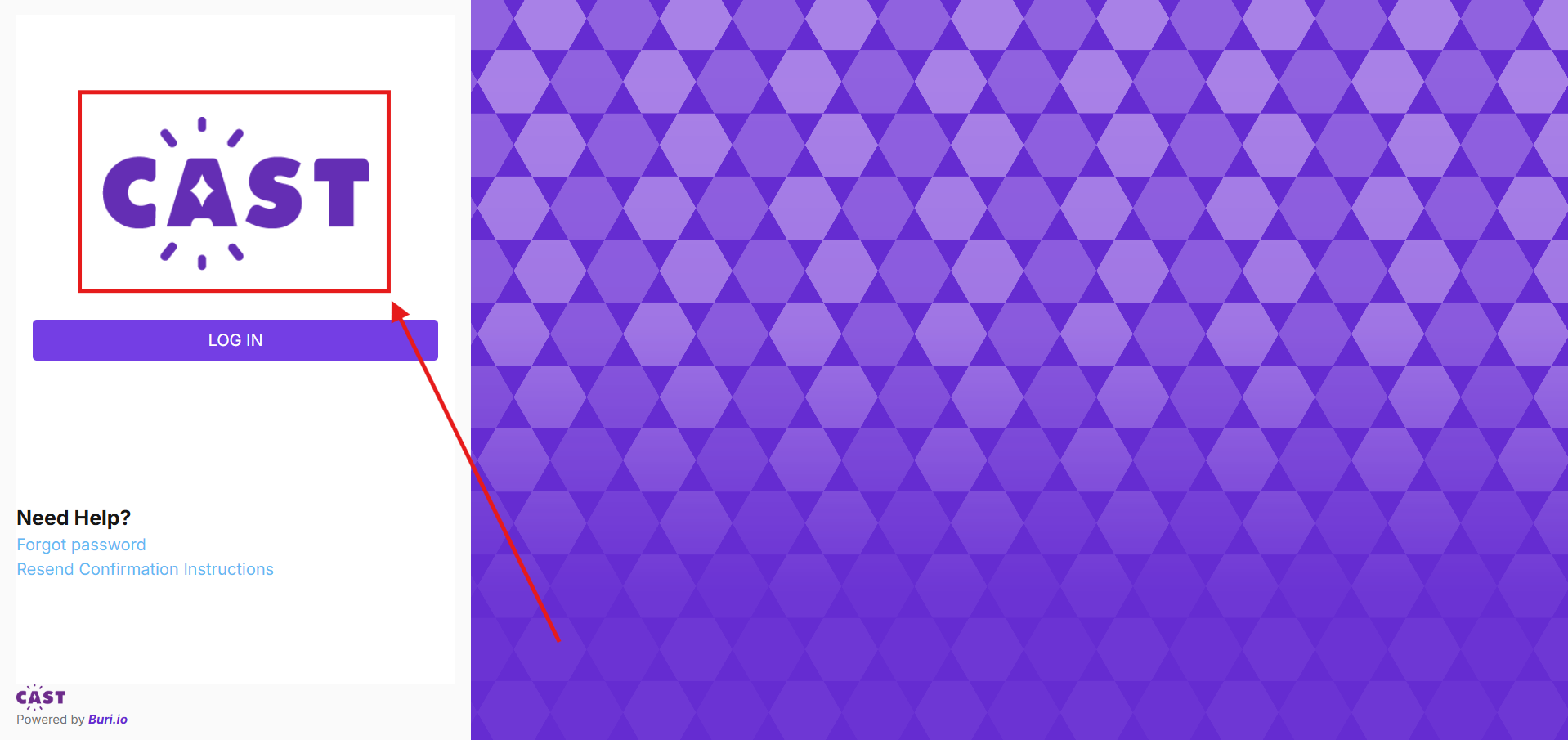
Here's what the login logo looks like in the LMS portal:
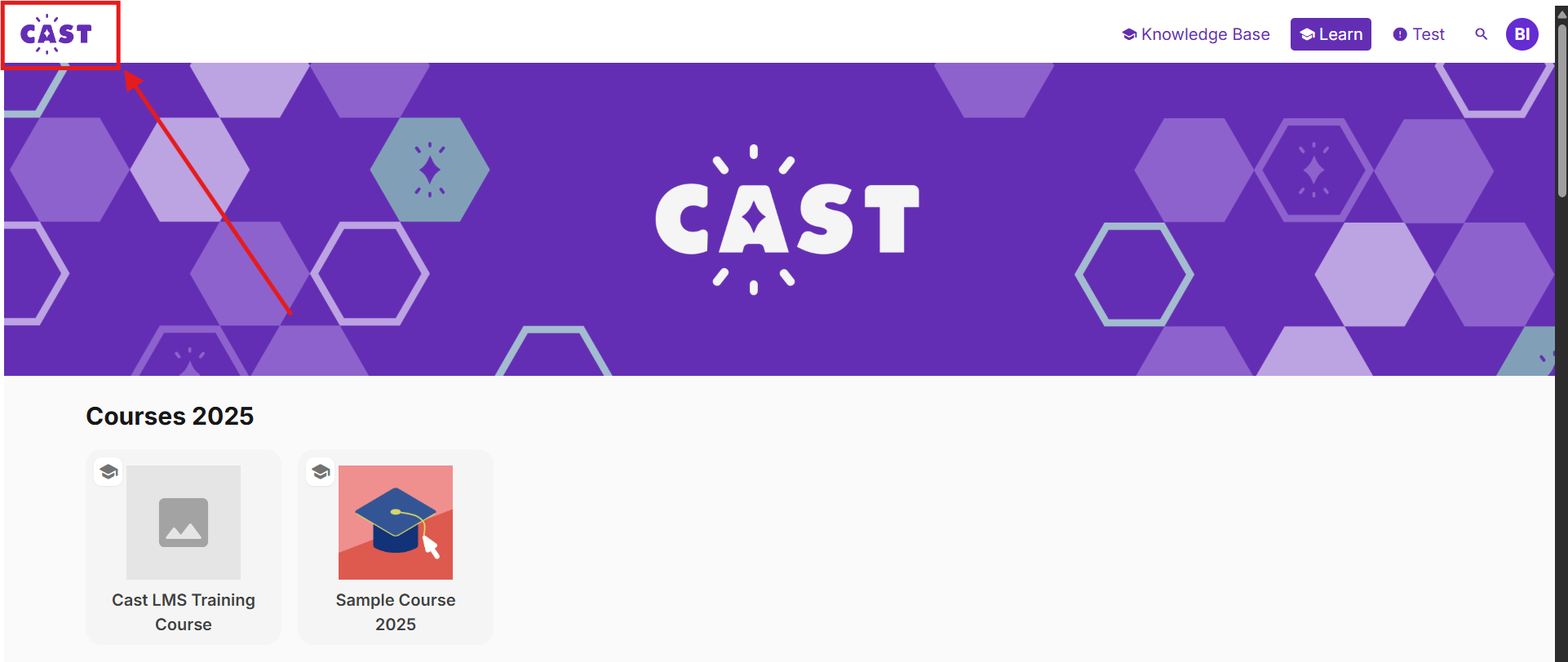
Here's what the logo in the navigation bar looks like:
To modify these icons, go to your admin dashboard.
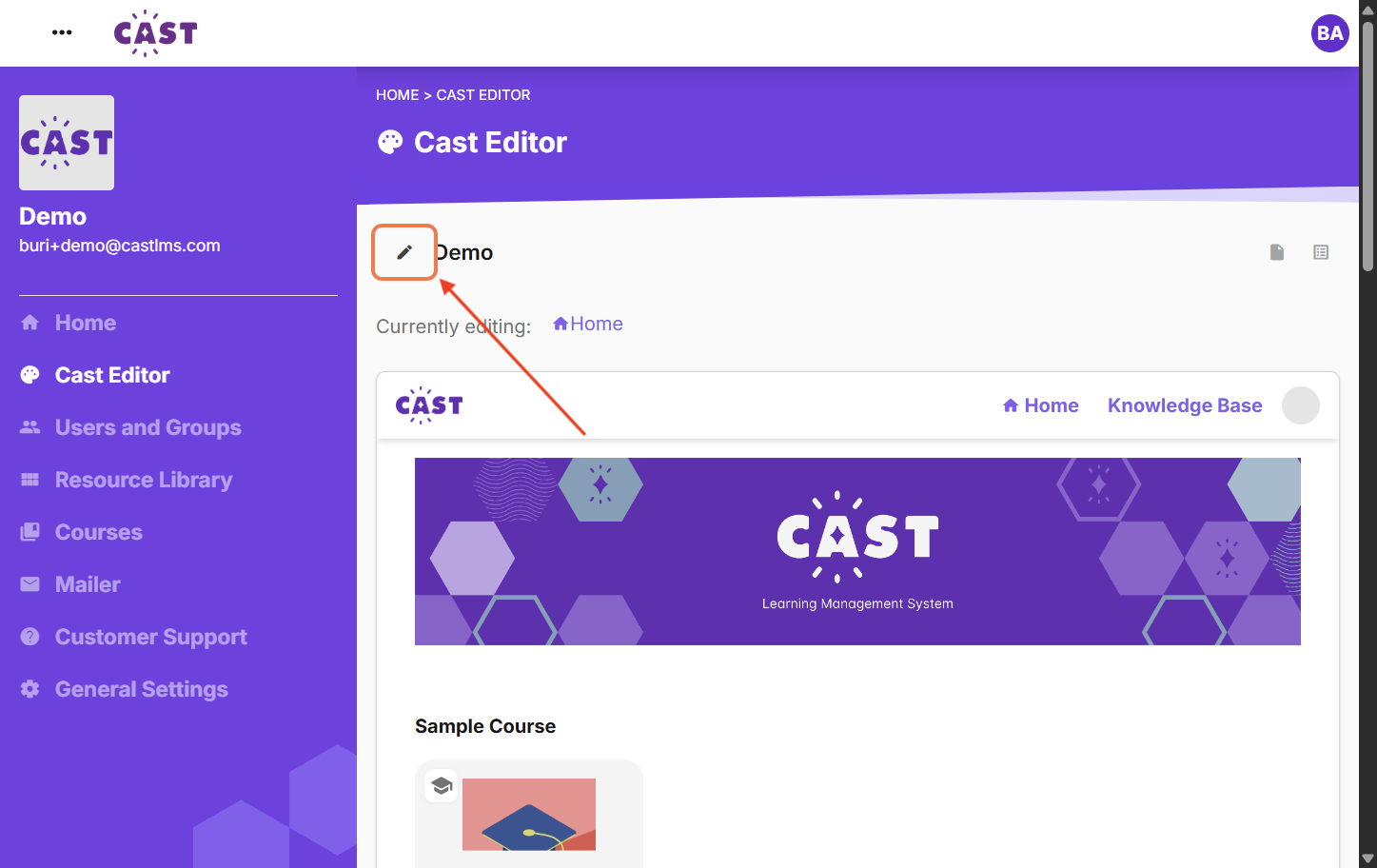
Select Cast Editor.
Then click on the edit button beside the Cast name.
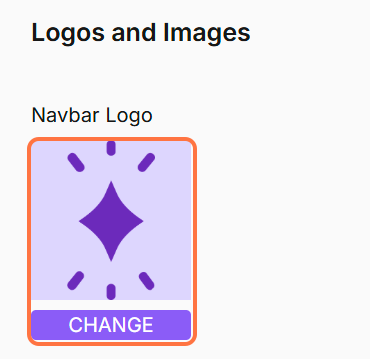
To change the navigation bar logo, click the image icon or the CHANGE button under Navbar Logo. Select your preferred image from your device.
To change the login logo, click the image icon or the CHANGE button under Login Logo. Select your preferred image from your device.
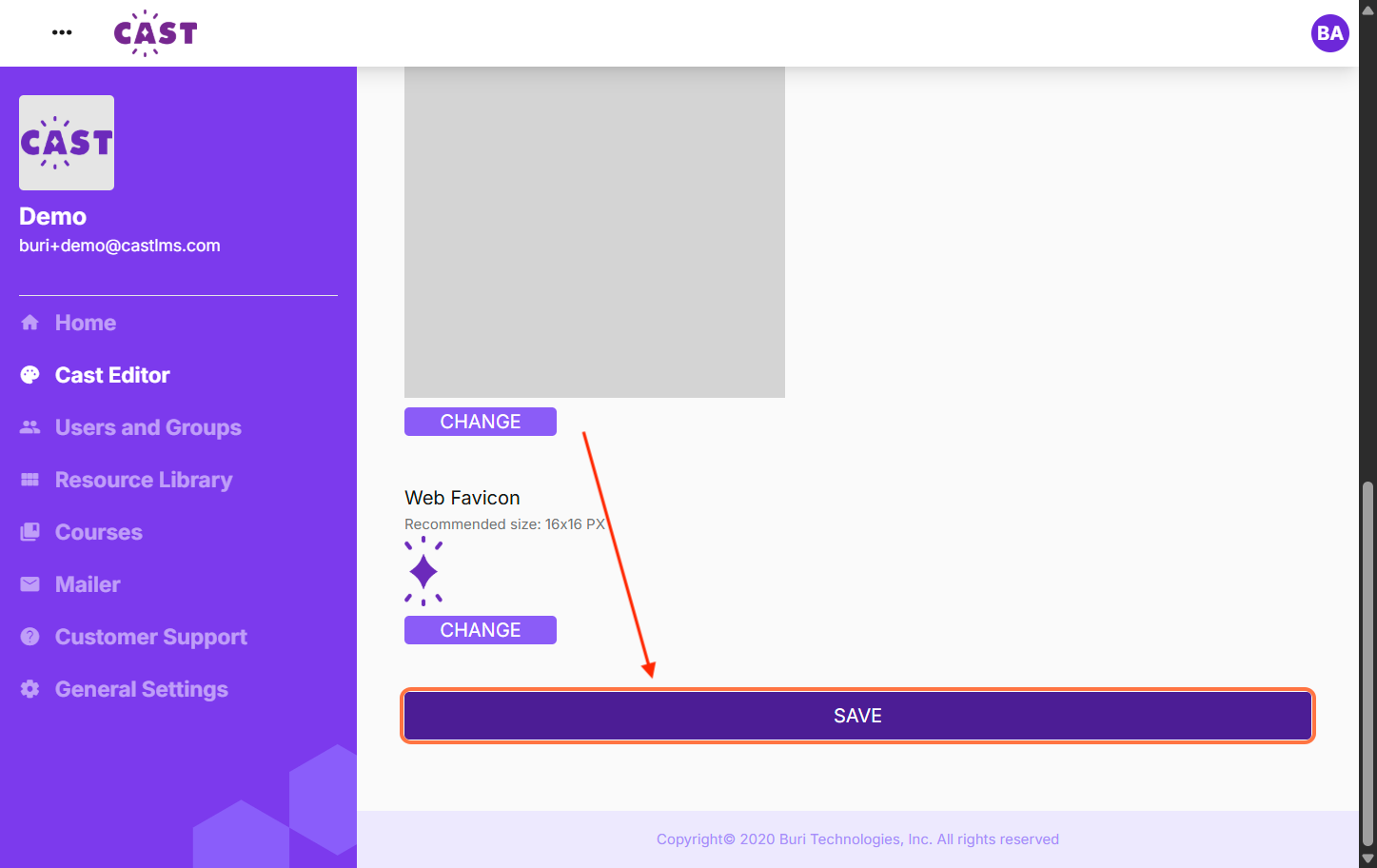
Finally, scroll down to the bottom of the page and click SAVE to save your changes.
And that's it! You have customized the logos in your Cast LMS portal. To customize other parts of your learner's portal, you can check these other articles: